

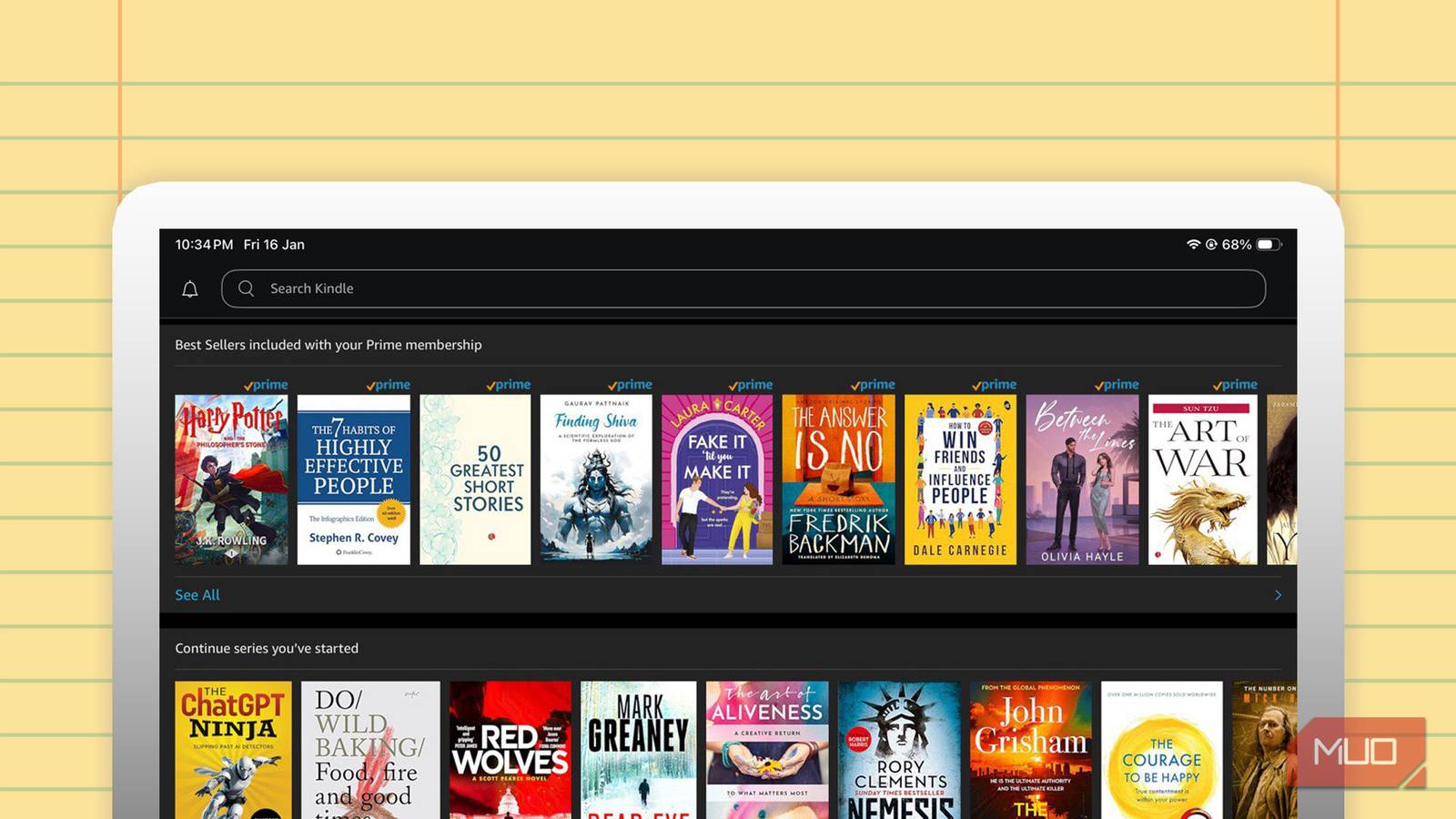

After years of using a Kindle Paperwhite and the Kindle app on iOS and Android, I’ve found that the device’s distraction-free nature is actually its greatest strength for tasks that have nothing to do with traditional reading.
The Paperwhite’s e-ink display, weeks-long battery life, and limited app ecosystem make it an excellent substitute for your phone or laptop. I think of it as a low-noise thinking device I can use alongside my eBooks. Meanwhile, the mobile Kindle apps have been an educational alternative to doomscrolling. Maybe like me, these tips will help you use the Kindle more than ever.
1
Store and read personal documents
Turn your Kindle into a clutter-free read-it-later hub

Amazon’s own Send-to-Kindle lets you email or upload PDFs, EPUBs, Word files, and even web articles directly to your Kindle, where they appear alongside your books. Your Kindle becomes a single place for long-form reading, and a more comfortable one compared to the PC screen or a phone. It’s easy to see beyond books and turn the Kindle into a quiet “read later” inbox that doesn’t compete with notifications, messages, or AI.
I use the Send to Kindle service to forward newsletters, research papers, and saved essays that I know will put a crick in my neck with a browser tab. With a Paperwhite and a cozy reading nook, I’m far more likely to finish them.
2
Look up words and build vocabulary flashcards automatically
Kindle doubles as a vocabulary trainer while you read

Every time you look up a word on Kindle, it’s saved to the Vocabulary Builder, complete with definitions and usage context. This works offline and supports dictionaries, Wikipedia, and translation tools.
I’ve found this especially useful when reading nonfiction or older books with unfamiliar terminology. Instead of breaking focus to search online, I get instant context and keep moving.
Later, reviewing saved words feels like passive learning rather than studying. Strangely, it also helps me remember more of the books the words (and their context) came from.
3
Share quotes directly from the Kindle app on iOS
Kindle makes it surprisingly easy to turn highlights into shareable ideas

On the mobile apps, you can select a highlight and share it as a clean visual quote or plain text. This works well for social posts, notes, or saving to your writing system.
I often use this when a passage sparks an idea worth revisiting. Instead of copying text into another app, Kindle automatically handles the formatting.
It’s a small feature, and the visual choices are limited. But it helps to switch between reading and thinking. And broadcast our social app statuses with something intelligent.
4
Journal using highlights and notes inside books
Kindle notes can double as a lightweight reading journal

You don’t need a separate journaling app to reflect on what you read. Adding short notes to highlights creates a running commentary on your thoughts at the time. These notes are part of the Kindle highlights when you export them.
When I revisit those notes later, they’re far more meaningful than generic summaries because they capture how I was thinking, not just what I read. Usually, I jot down how the highlight connects to my own life.
5
Use Kindle as a discovery engine
Kindle learns your tastes the more intentionally you read

The Kindle Store and app surface recommendations based on what you actually finish, not just what you browse. Following authors helps refine this further.
I’ve discovered several niche nonfiction authors simply by finishing similar books and checking Kindle’s “Readers also enjoyed” suggestions. Used intentionally, this little habit can expand your reading habit.
6
Build a language-learning workflow across devices
Kindle works best for learning languages when paired with the mobile app

On the Paperwhite, looking up foreign words is frictionless. On the mobile app, reviewing passages and vocabulary is faster and more flexible.
I often read slowly on the Paperwhite, then revisit tricky sections on my phone later in the day. Because everything syncs, it feels like one continuous session. This split-device workflow keeps learning lightweight and prevents burnout. I even paired the Kindle with ChatGPT for learning a foreign language.
7
Listen to audiobooks and use text-to-speech for hands-free reading
Kindle supports eyes-off reading when you need a break from screens


Many Kindle devices integrate with Audible, letting you switch between reading and listening. VoiceView text-to-speech is an accessibility feature on Paperwhites and works well for hands-free consumption.
I use this during walks or while resting my eyes, especially with nonfiction that doesn’t require constant visual focus. This feature has become a part of my habit stack when I pair it with another routine I don’t enjoy so much (like laundry).
8
Experiment with “Ask This Book” AI on iOS
Kindle’s built-in AI can clarify confusing passages without leaving the page

On iOS (US-only), the Ask This Book feature lets you ask questions about the text and get AI-generated explanations or summaries.
I haven’t used this feature as it’s US-only for now. I think it’s useful as a clarification tool, and not a cognitive shortcut. The trick is to use it to boost understanding, then return to reading.
9
Track habits with Reading Insights
Kindle quietly works as a reading habit tracker


Reading Insights show streaks, time spent reading, and books completed. Challenges add a gentle sense of momentum without pressure. I don’t check these daily, but they’re helpful when motivation dips.
Pairing it with a Goodreads Annual Reading Challenge is a nice way to gamify our reading habits. It’s progress tracking without adding another productivity app.
Kindle is one of the best tools for digital minimalism
I have experimented with keeping my Kindle within reach to replace social media scrolling with short reading sessions. I’ve found this works best when the Kindle is easier to access than your phone. Even ten minutes of focused reading adds up. And micro-reading is far healthier habit than fragmented scrolling.
Try it. Hopefully, this simple swap trains your attention spans, which social media often eats up.
See your Kindle in a new way
For the next week, pick one moment you usually doom scroll. Open your Kindle instead and try any of the tips above. It might help you start a new habit, even as you use the Kindle for all its capabilities.
