

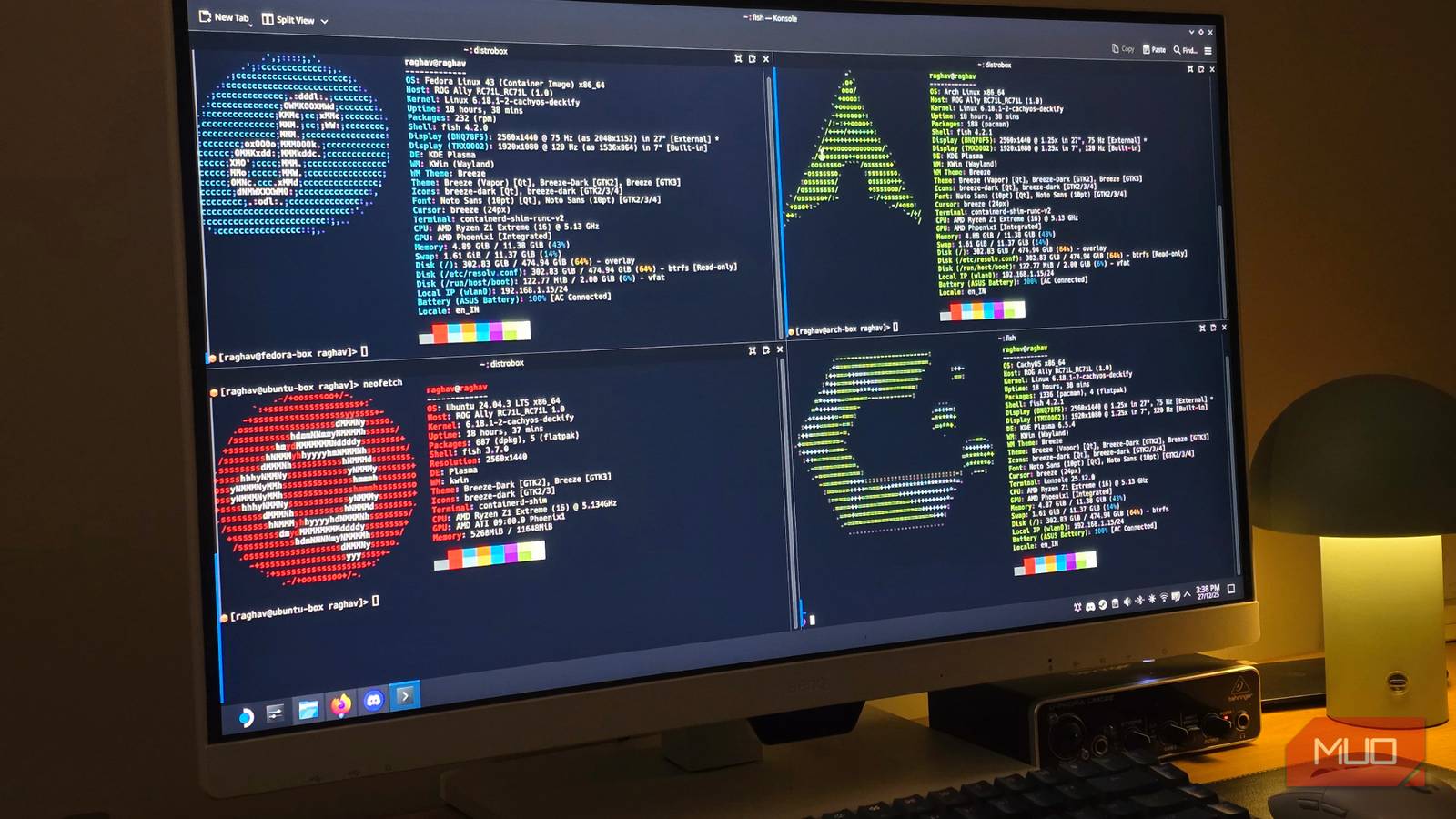

I’m someone who prefers living in the terminal as much as possible. I’ve even moved a surprising number of my everyday apps there. Like most Linux users, I’ve also gone through a serious distro-hopping phase, and that experience taught me that a lot of the same small problems show up no matter which distro you use.
At this point, I have an entire checklist of things I do on every fresh Linux install before I even open a browser. These commands are part of that routine, and they’ve made setting up a new system much easier for me.

Sorry, Linux fans: This OS is actually the better Windows replacement
Not Linux, not Windows. Something better.
Set up aliases
Shortcuts for all your commands

I’m not going to walk you through obvious commands like updating your package manager. Instead, I’ll show you a smarter way to execute those commands effortlessly. You can use something known as aliases to define shortcuts of sorts for long commands.
This is really useful for repetitive or long commands, like updating everything. For example, instead of typing something like sudo apt update && sudo apt upgrade every time, you can set up an alias to run it with a single word by entering this in the terminal:
alias update = "sudo apt update && sudo apt upgrade"
Just replace update with the shorthand you want to use, and everything after the = with the full command you want it to run.
Now, you simply need to type “update” in the terminal, and the command will run normally. Keep in mind, though, aliases aren’t persistent, and you’ll need to add them to your shell’s configuration file to make them permanent.
Sync the clock between Windows and Linux
For all the dual booters

If you’re dual booting between Windows and Linux, you would definitely have noticed that the system time keeps changing every time you boot into another OS.
This happens because Windows and Linux treat your computer’s hardware clock differently. Windows assumes the hardware clock is set to local time, while Linux assumes it’s set to UTC, and then applies time zones on top of it.
When you dual-boot between the two, each OS “corrects” the clock based on its own assumptions, which causes the time to completely mess up after each boot. This has a really easy fix, though. Just type in this command in the terminal:
timedatectl set-local-rtc 1 --adjust-system-clock
After this, you just need to reboot your machine, and your system clock won’t break anymore.
Set up Flatpak support
The best way to package apps

Linux apps are packaged in several different ways, and none of them behaves quite the same. Depending on how an app is packaged, performance can var,y and sometimes even features can be missing. This makes the whole Linux experience extremely inconsistent, especially when you’re trying to troubleshoot issues.
Flatpak is an attempt to clean this up. It’s a distro-agnostic packaging system that ships apps in self-contained bundles, along with the dependencies they need to run.
This means that all Flatpak apps behave the same way across distributions. A lot of mainstream distros ship with Flatpak support these days, but you can manually install it by entering this command:
sudo pacman -S flatpak
This command is specific to Arch-based systems, but you can install the same tool on other distributions using their package manager. Once it’s installed, run the following command:
flatpak remote-add --if-not-exists flathub https://dl.flathub.org/repo/flathub.flatpakrepo
Afer this, you just need to head over to the Flathub website, and you can download and install any app from there.
Removing unnecessary boot processes
If you’re using an HDD in 2026
This isn’t a single command you can blindly copy and paste, but it’s something I do after every fresh Linux install. Different distros ship with different startup services, and some of them can noticeably slow down boot times. Because of that, it’s better to understand what’s actually running instead of disabling random services that might not even exist on your system, or might be useful to you.
To see all the services that run during boot and how much time they take, run:
systemd-analyze blame
This lists boot processes in descending order based on how long they take to start. Instead of disabling services at random, look for the ones taking an unusually long time.
Once you spot something suspicious, do a quick search to make sure it’s safe to disable and won’t affect your workflow. When you’re ready, disable a service with:
sudo systemctl disable
If something breaks, you can easily undo it by replacing disable with enable and running the same command again.
Fix the Caps Lock delay
Stop typing like “THis”

If you’re someone like me who uses Caps Lock instead of Shift (yes, we exist), you’ve probably noticed a small but annoying issue on most Linux distros: there’s a slight delay when turning Caps Lock off. Because of that, you often end up with the second letter of a word capitalized as well.
This happens because Caps Lock only toggles when you release the key, not when you press it. That means it’s very easy to start typing again before the toggle actually registers.
You can fix this issue by using this script on GitHub. Once you’ve downloaded it, direct your terminal to its path and enter this command:
bash -ic "sh bootstrap.sh"
Keep in mind, this won’t be persistent. You’ll need to add it as a startup script to make the fix permanent.

You don’t need a gaming distro — these Linux tweaks matter more
The best parts of CachyOS, on any distro
Don’t be afraid of the terminal
I know this can feel overwhelming if you’ve never used Linux before. The terminal can be intimidating at first, but a few useful commands can really help you get past that fear and feel more comfortable using it.
Once you get the hang of it, you’ll start reaching for the terminal more often than GUI apps. There’s definitely a learning curve, but in the long run, it’s usually the fastest way to get things done.
