

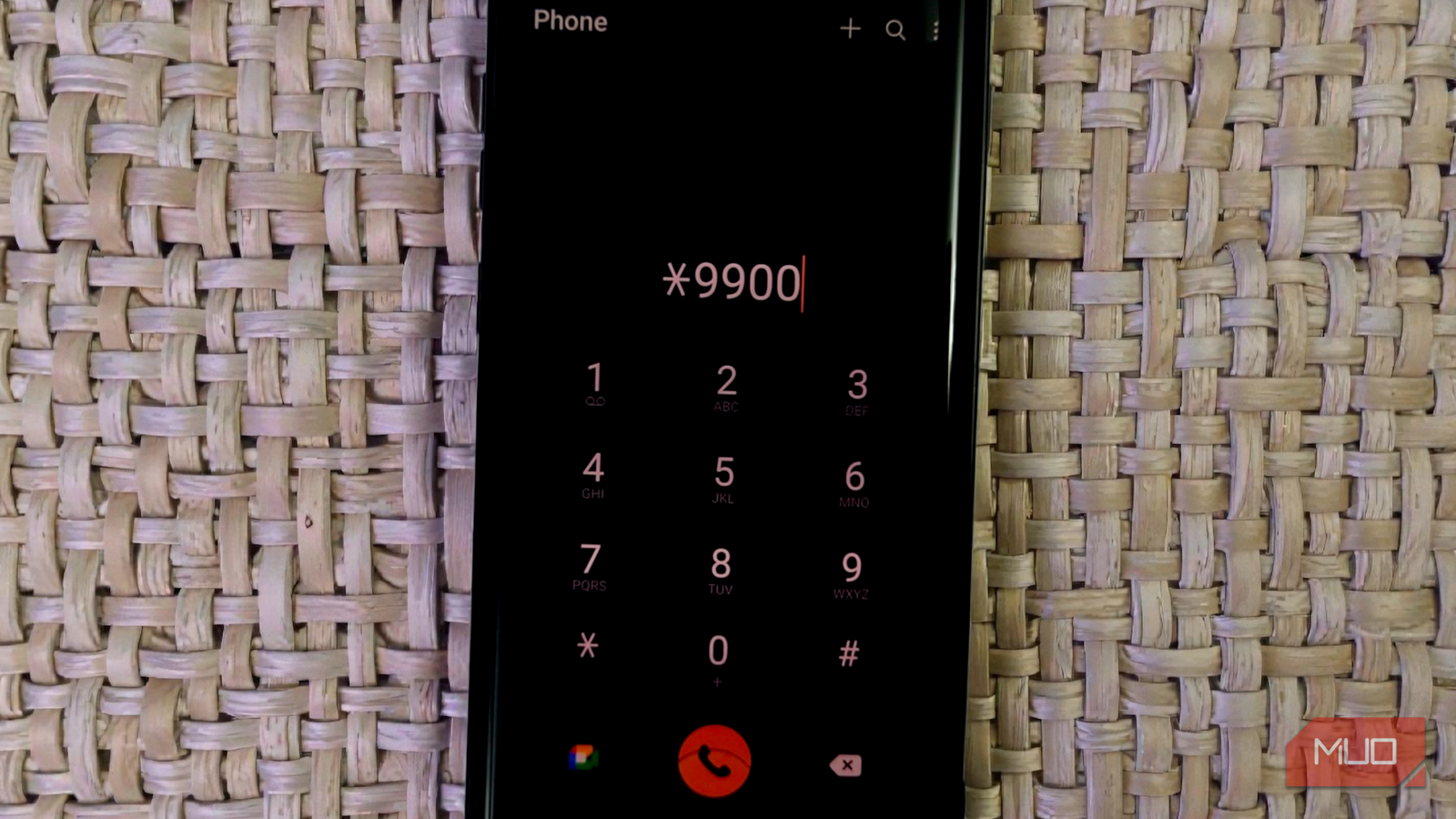

I have always been drawn to the hidden layers of the technology we use every day. We spend plenty of time arranging home screens and adjusting surface-level settings, yet there is often an entire lower tier of the operating system that manufacturers keep out of sight. On Samsung Galaxy devices, that curtain is easy to pull back if you know the right sequence. There is no need to root your phone, connect it to a computer, or risk your warranty. All it takes is dialing a short code on the keypad.
The code is *#9900#, which opens a utility called SysDump (short for System Dump). The name alone sounds intimidating, as if one wrong tap could send your phone into a spiral. In reality, it is a practical tool, packed with options designed for troubleshooting, diagnostics, and maintenance. Its menus are part of a broader collection of hidden features on your Samsung phone that you may never realize exist.
This secret menu lets you wipe hidden junk files that standard cleaners miss
It’s like taking out the trash, but for your operating system
The first time I dialed *#9900# into my Samsung’s stock Phone app, I was greeted by a stark, white-text-on-black list of options that looked like it belonged in a server room rather than on a flagship smartphone. It’s not pretty, but it is functional. The most valuable tool here, and the one I use fairly regularly, is an option labeled Delete dumpstate/logcat.
If you’ve ever noticed your phone’s “System” or “Other” storage category creeping up in size with no obvious explanation, this is often the culprit. Android continuously logs its background activity. Every time an app crashes, a connection fails, or a background process hiccups, the system writes a log file. Over months of use, these “logcats” and dump files can accumulate. You can reclaim anywhere from a few hundred megabytes to over a gigabyte of space just by tapping this one button.

How I Got Back 22GB on My Samsung Phone Without Deleting Anything Important
The storage fix that Samsung doesn’t advertise.
The beauty of this function is its safety. Unlike deleting random folders in a file explorer, tapping the “Delete dumpstate/logcat” only targets temporary log files that are no longer needed for the phone’s operation. It doesn’t touch your photos, apps, or downloads. It simply flushes the waste bin that you didn’t know existed.
To try this yourself, open your Samsung Phone app (it must be the default Samsung dialer, not a third-party one) and type *#9900#. The menu should launch immediately without you needing to press the call button. Once you’re in, simply scroll to the Delete dumpstate/logcat option, tap it, and wait for the “Delete Success!” confirmation at the bottom of the screen.
It is a manual process — you won’t get a fancy animation or a progress bar — but the results are instant. I run this command every couple of months, usually right after a major One UI update, to ensure my storage isn’t being held hostage by outdated debugging data.
And while we’re on the subject, this isn’t the only hidden trick worth knowing. Android has a set of hidden security codes that become useful once you start digging.
You can troubleshoot battery glitches and network logs without rooting your phone
Yes, the same diagnostic tools Samsung technicians use
Beyond simple storage cleaning, the SysDump menu offers a suite of diagnostic tools that can help you understand what’s going on under the hood of your device. The most widely discussed — and even often misunderstood — feature here is the Batterystats Reset. If you have ever had your phone die while it still says 15% charge, or if it stays stuck at 100% for an hour before dropping rapidly, it’s likely because your battery stats are out of sync. I’ve used this on older Galaxy phones to successfully fix jumpy battery percentages by tapping it to create a new calibration point.
The best practice is to charge the phone to 100%, unplug it, dial the code, tap the reset button, and then use the phone normally.
There is a persistent myth that this is what will magically fix a dying battery or extend your screen on time. I want to be clear: it won’t. Your physical battery has a chemical lifespan, and no software switch can reverse degradation.
Another setting worth looking at, though with caution, is the Debug Level. By default, this is usually set to “Low.” You will see options for Mid and High. Changing this setting forces the phone to reboot and changes how much information the system logs. While High is reserved for heavy-duty development work, switching to Mid can sometimes be helpful if you are trying to capture detailed logs for a specific network or connectivity issue to send to support. However, for 99% of users, leaving this on Low is the correct move, as higher logging levels can slightly impact performance and battery life.
One final toggle I always check is “Low Battery Dump“. I prefer to turn this Off, which is the default anyway. When enabled, the system creates a large dump file whenever your battery reaches a critical level (typically around 5% or when the phone shuts down). Unless you are a developer trying to figure out why your app crashes at low voltage, you don’t need these files taking up space. Keeping this off prevents dumpstate files from accumulating in the first place, saving you the trouble of deleting them later.
Consider this your invitation to explore — but bring a map and don’t wander off
The *#9900# code represents something I find endlessly appealing about our smartphones. The fact that beneath their carefully designed interfaces, there’s an entire layer of technical functionality waiting to be discovered by anyone curious enough to look. Just remember that with that access comes the responsibility to use it wisely.
