

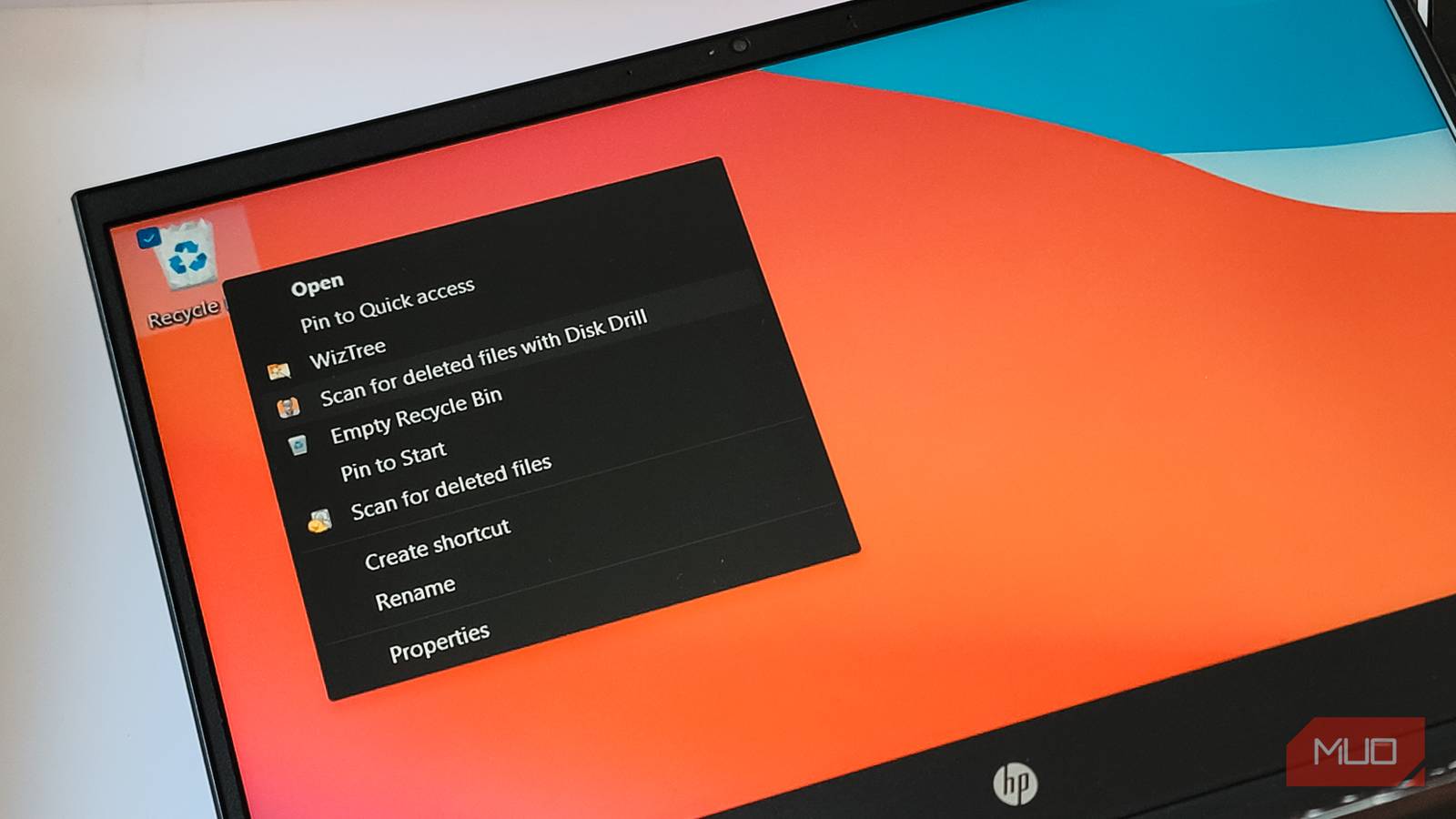

If you are planning to sell or give away your old laptop or PC with the hard drive, you probably want to delete all the data first. When you delete any data on your PC, it goes to the Recycle Bin, and from there you can permanently delete all the files, or so it says. Unfortunately, your data is still recoverable, and anyone who knows their way around data recovery tools can get it back.
While I knew how data deletion works, I was surprised by how much data I could recover after I recently had to use a recovery tool to restore accidentally deleted files from an Obsidian vault and a folder with 100s of photos. In the process, the tool pulled up files I had deleted months ago, and I assumed were long gone. That experience pushed me to look into how to actually, permanently delete data from my PC.
Why ‘Delete’ doesn’t delete your data
Windows only removes the reference, not the actual file

When you delete a file on Windows, even with Shift+Delete, the operating system doesn’t actually erase the data. It just removes the file’s entry from the file system table, so it no longer shows up in File Explorer. The disk sectors that held your file are simply flagged as available for future use, but their contents stay untouched until something else eventually overwrites them.
That’s why the “Are you sure you want to permanently delete this?” prompt is misleading. It only means the file will bypass the Recycle Bin and doesn’t mean the actual bits on your drive are wiped clean. Your documents, photos, videos, and all of it can still be recovered with common recovery software after you hit that button.
The data stays recoverable until your drive writes new data over those same sectors. On a nearly full drive, that can happen fairly quickly. On a drive with plenty of free space, your deleted files can sit there for months, fully intact and waiting for anyone with the right tool to find them.
I recovered my own deleted files — and it was shockingly easy
A free tool pulled up files I deleted months ago

I had accidentally deleted more than 200 photos from my brother’s wedding album that I got from the photographer. I was cleaning up my external drive, and in the process, I accidentally deleted the folder and all the photos with it. I am sure I had a backup somewhere, but that’s beside the point. The Recycle Bin was no help because the files were on an external drive, so they bypassed it entirely.
My first attempt was Recuva, a free recovery tool from the makers of CCleaner. It scanned thRecuvae drive and found a good chunk of the deleted photos. Some came back perfectly fine, while others were partially corrupted or missing thumbnails entirely. For a free tool, Recuva did a reasonable job, but it couldn’t recover everything, especially the larger RAW files from the photographer’s camera.
Then I tried Disk Drill, which is a more full-featured recovery app available for both Windows and Mac. The scan took a bit longer, but it pulled up significantly more files, including most of the RAW photos that Recuva missed. The interface makes it easy to filter by file type and preview images before recovering them. I managed to get back most of the photos that mattered, though a few were too far gone.
However, during the process, both tools surfaced files I had deleted weeks and even months ago. Old documents, screenshots, and random downloads are all still sitting on the drive because nothing has overwritten those sectors yet.

- OS
-
Windows, macOS
- Price model
-
Premium
Disk Drill is a data recovery software for Windows and Mac that scans hard drives, USBs, and memory cards to recover deleted files, photos, videos, and documents with ease.
How to permanently delete your files
Overwrite the data so recovery tools can’t find it
If you want to make sure deleted files are actually gone, you need to overwrite them. Simply deleting and emptying the Recycle Bin won’t cut it.
Microsoft’s own SDelete utility is one way to handle this. It’s a free command-line tool from the Sysinternals suite that completely deletes any Windows file by overwriting it, following the DOD 5220.22-M sanitization standard. You can use it to securely wipe individual files, entire folders, or all the unallocated free space on a drive where your previously deleted data still exists.
To delete a file or folder, use the command SDelete -s -r C:\FolderName. It will wipe the folder and its subfolders. But since it’s a command-line tool, you need to be careful with file paths and folder names.
If the command line isn’t your thing, BleachBit offers the same shredding capability with a graphical interface. It can shred individual files, entire folders, or wipe free space on a drive. It even integrates with Windows Explorer’s right-click menu so you can shred files without opening the app. For most modern drives, a single overwrite pass is enough to make data unrecoverable. It also offers multi-pass options for older magnetic drives or situations where you want to be sure that everything is overwritten.
Either tool works well if you’re wiping a drive before selling or donating a PC. SDelete is faster and more direct if you’re comfortable with the command line. Whereas BleachBit is better if you want a visual preview of what you’re about to shred and prefer clicking over typing commands.

- OS
-
Windows, Linux, macOS, Portable
- Developer
-
Andrew Ziem
BleachBit is a software tool that you may use to clean disk space, delete cookies and cache, clear internet history, shred files, and wipe free disk space without installation.
Knowing how deletion works changes how you handle your data
I went into this expecting to recover a few deleted photos and came out rethinking how I handle data on all my drives. The fact that months-old files were still sitting there, fully recoverable, is both a relief when you need them back and a concern when you thought they were gone.
For everyday use, this doesn’t change much, as Windows’ normal delete option is fine for files you don’t care about. But if you’re getting rid of a PC, clearing sensitive documents, or just want peace of mind, a tool like SDelete or BleachBit is worth the extra step.
