

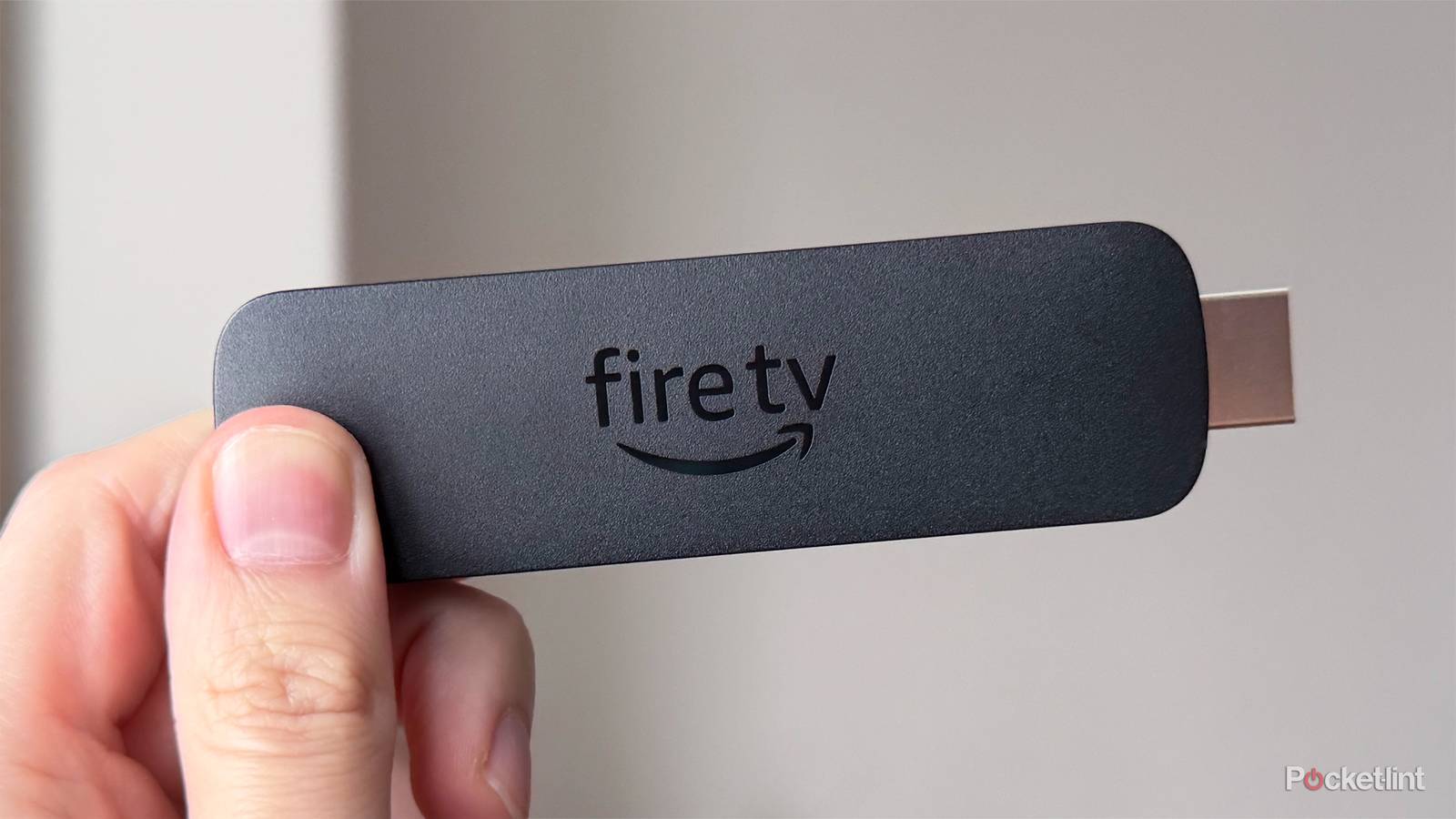

It’s right there in the name: Fire TV Stick. Typically, most people use a Fire TV Stick with their TV, whether it’s to upgrade an older TV or ditch their smart TV’s clunky proprietary user interface, such as LG’s webOS or Samsung’s Tizen OS. However, just because Fire TV Sticks are primarily used by plugging them directly into the back of a TV doesn’t mean that’s the only place they work.
Since a Fire TV Stick connects via HDMI, the standard port for video and audio on most devices, it can be used in more places than you might think. Essentially, if a device has an HDMI port, there’s a good chance your Fire TV Stick will work with it.
So if you’re looking for more ways to use your Fire TV Stick, here are four devices you can plug it into that still make it incredibly useful, even when it’s not connected directly to the back of your TV.

- Brand
-
Amazon
- Resolution
-
4K
- Audio codecs
-
Dolby Atmos
- RAM/storage
-
16 GB
Monitors
Take your Fire TV Stick from the living room to your desk

I initially bought my Fire TV Stick 4K Max to use on my living room TV, but one of the best use cases I quickly discovered for it was using it on my 4K monitor instead. Don’t get me wrong, I love watching shows and movies on my TV, but sometimes late at night, I just want to relax at my desk and watch stuff there, next to my PC. Since you can’t watch any streaming service in 4K on a PC through a web browser, a Fire TV Stick is an easy way to bring 4K streaming to your desk.
While the video quality is great on my 4K monitor with the Fire TV Stick 4K Max, the biggest issue I actually ran into was audio, since my monitor doesn’t have speakers. Luckily, Fire TV Sticks support Bluetooth audio, so I just paired my Bluetooth headset with it, and boom, I was hearing all the audio perfectly.
Projectors
Bring your Fire TV Stick to backyard movie night

Another really fun way to use your Fire TV Stick is by plugging it into a projector. Just about every modern projector has at least one HDMI port, so plugging your Fire TV Stick into it is no different from hooking up a 4K Blu-ray player or gaming console to it.
So if you’re planning a backyard movie night in the summer, or you want to turn your living room or basement into a home theater, you can take the same Fire TV Stick you use on your TV and plug it straight into your projector. All your apps and streaming services will show up just like they normally would, only now they’re lighting up a wall instead of a TV screen.
Though there are a couple of quick things to keep in mind if you’re using a Fire TV Stick with a projector. One, if you’re setting up outside, make sure your Wi-Fi signal is still strong enough to handle streaming. And don’t forget that your Fire TV Stick still needs power, so you’ll need to make sure there’s a spot on your power bar for both your Fire TV Stick and your projector.
Receivers or Soundbars
Streamline your setup

The Fire TV Stick 4K Plus and 4K Max both support Dolby Atmos audio, so if you’re using a receiver with your TV to get the best possible surround sound experience, you can plug your Fire TV Stick directly into the receiver instead of your TV. The receiver will send the video to your TV while simultaneously delivering audio to your speakers.
This doesn’t just apply to receivers, either. You can also plug a Fire TV Stick into a soundbar.
Like projectors, most receivers and soundbars include multiple HDMI ports, so you can route both your video and audio through a single device before they reach your TV, instead of connecting everything separately. While you can plug your Fire TV Stick into your TV and send audio to a receiver or soundbar, connecting it directly to the HDMI input on your audio gear usually results in a cleaner setup and a more reliable surround sound experience.
HDMI Switches
Make your Fire TV Stick more accessible

Finally, one last way you can use your Fire TV Stick without plugging it directly into your TV is with an HDMI switch.
If you’re limited by the number of HDMI ports on your TV, an HDMI switch is an incredibly easy way to connect multiple devices while only using a single HDMI port on the TV itself. So if you want to use your Fire TV Stick but normally have to unplug something else first, like a console or cable box, you can just plug everything into the HDMI switch instead and swap between them with the press of a button.
What I personally like about HDMI switches is that, beyond making it easy to switch between devices, they also make everything more accessible. Instead of reaching behind your TV to access your Fire TV Stick, you can access it right from the switch. That makes it much easier if you ever want to unplug your Fire TV Stick and move it to another device, like a monitor or projector, as long as you put the HDMI switch in an easy-to-reach spot in your setup.
Other ways you can use your Fire TV Stick
Connect it to Ethernet or travel with it

I wanted to give a quick honorable mention to two other ways you can use your Fire TV Stick, though these still involve plugging it directly into a TV. The first is to connect an Ethernet adapter to your Fire TV Stick. This works by plugging the Ethernet adapter into your Fire TV Stick’s Micro USB port, which itself has two ports: an Ethernet port and a Micro USB port, so you can still connect it to power (as shown in the image above). If your Wi-Fi isn’t the most reliable, an Ethernet adapter for your Fire TV Stick may be the answer.
One last place you can hook up your Fire TV Stick is to a hotel room TV. If you’re traveling and want a quick way to access all your streaming services without having to sign in on a hotel TV, your Fire TV Stick is a great option. It’s so tiny that it easily fits in a backpack or luggage.
