

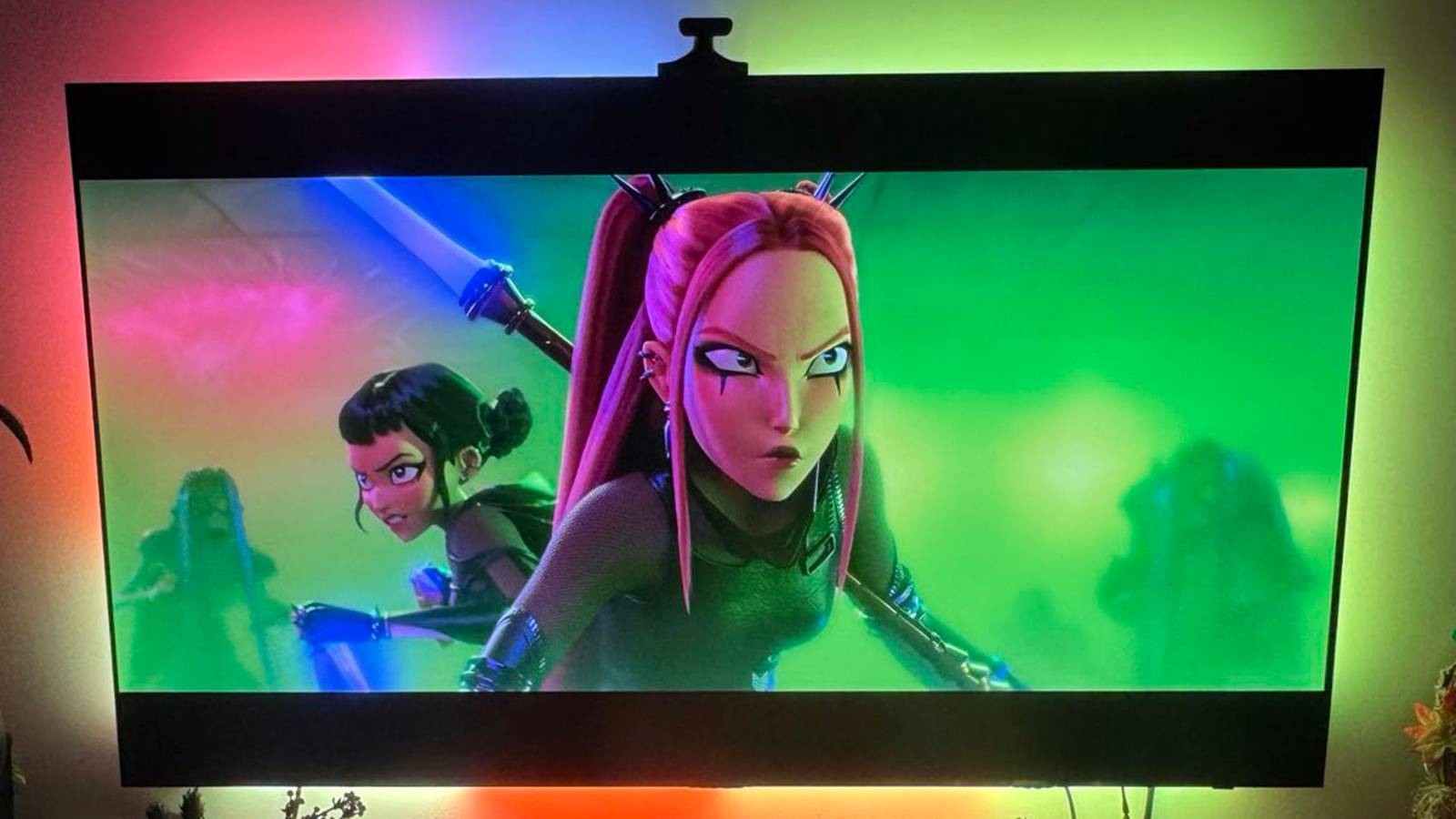

Most people, I imagine, use their smart TVs in the most straightforward manner possible, which makes sense. Part of the incentive to buy a TV when you’re already surrounded by screens is the ability to flop on the couch, and launch into a movie or TV show with just a few clicks on a remote. You actually should spend some time dipping into settings, particularly if you’re gaming, but there’s usually not much incentive to go beyond a few picture and audio tweaks.
In recent years, though, TV makers have been chasing new ways to make TVs interesting, both to compete with phones and tablets and to give you more incentive to stick with their brand over a rival’s. This has resulted in a number of novel features, at least some of which are genuinely worth trying.
There is a catch here, in that some features are specific to certain software platforms, or even specific models. But I’m going to try to keep things as broad as possible.
Smart lighting sync and control
Do it yourself if you have to

Synced accent lighting might seem like one of the most superficial things you could add to a TV, but it can have a surprising impact on watching a movie or playing a game. By extending colors to your walls, it can alter the mood of a space, making the experience far more immersive. If nothing else, it makes things feel more spectacular, closer to what you’d experience in a theater.
Unfortunately, the best experience at the moment is reserved for just two TV brands, LG and Samsung. Those companies have a native Philips Hue app on their more recent TVs, letting you sync with surrounding Hue lights as long as you’ve got a Hue Bridge. Philips Hue is typically considered the gold standard in smart home lighting, and having a native TV app means you can avoid spending extra if you’ve already got compatible lights in your living room.
The good news is that if you don’t have any Hue products, or you don’t have the right TV, there are some relatively affordable all-in-one sync kits from other brands, usually combining a camera with a rear-mounted lightstrip. The two most popular options for this tend to be Govee and Nanoleaf, but it’s always worth checking reviews first — it’s essential that sync stay accurate and show as little latency as possible.
At the very least, many TVs now integrate directly with Amazon Alexa or Google Gemini, letting you control room lights with voice commands, or set up complex automations. In my own home, a “movie night” automation will turn on the TV, and dim some lights while turning off others.
Checking doorbells and other security cameras
Why pull out your phone?

Speaking of smart home tech, smart doorbells and security cameras have quickly gone from being an expensive novelty to de facto in a lot of homes. What you may not know, though, is that you don’t need a smart display or your phone to check an alert. Fire- and Google-based TVs will often let you ask for video feeds on demand, say by saying “Show me the [room name].” You will, of course, need an accessory that’s already set up in the correct ecosystem (Alexa or Google Home).
Fire-, Google-, Roku-, and Samsung SmartThings-enabled TVs can sometimes trigger alerts and video windows automatically, for example when someone presses your doorbell. But this may depend on owning a specific brand of camera, so be sure to do your homework if this is an appealing idea. You’re more likely to get it by pairing first-party products, when they’re available — Ring cameras in the case of Fire devices, or Roku’s rebranded Wyze products.
If your TV doesn’t have native compatibility, an alternative is buying an add-on media streamer that does. This is pretty much unavoidable if you want to check cameras linked to Apple’s HomeKit — while a lot of TVs do have HomeKit integration, only Apple devices can actually show you camera feeds. Perhaps it’s no wonder the company is rumored to be working on its own smart display.
Something more useful than photos of beaches or street art

Something I don’t quite get is the appeal of “art” TVs. If you’re not familiar, these are thin wall-mounted sets with custom bezels, matte screens, and custom software, meant to resemble framed photos or paintings. You’re often sacrificing features to achieve this look, which seems a little ridiculous when you’re probably going to flip away from an image seconds after sitting down to watch a movie or TV show.
Far more useful are ambient widgets. Perhaps the best example of this is on Fire TV devices, some of which can display Alexa-linked widgets not just for the weather, but reminders, calendar appointments, news headlines, and smart home accessories. Effectively, you can turn your TV into an oversized Echo Show, which might give you reason to wait a few moments longer before switching on Smiling Friends or Hereditary.
Similar widgets have started appearing on other platforms, including Samsung and Google-based TVs. You can frequently customize these by checking “Ambient” or “Screensaver” menus in your TV’s Settings app. You’ll want to be mindful of privacy, of course — it might not be wise to let everyone know that you have a cancer screening, or plan to pick up an engagement ring on Tuesday. Aside from disabling widgets, another option you might have is the ability to auto-trigger widgets only when you’re within a certain distance — this should prevent people from seeing anything through your window.
Casting and mirroring
A way around platform limits

The first add-on streamer I ever owned was an OG Chromecast, and it was a revelation. Sure, you had to cast from a phone app or a PC, but that was worlds better than dealing with the sluggish native TV interfaces available at the time.
TV interfaces have improved substantially, yet there’s still plenty of reason to use Apple AirPlay or Google Cast. If you like to watch YouTube as much as I do, for instance, the phone app will let you start and modify a live play queue that you can share with others, instead of forcing you to rely on playlists you’ve made ahead of time. If you’re trying to give a presentation, it’s a lot easier to do that by casting instead of searching for the right USB-to-HDMI adapter.
What people really miss is that casting or mirroring can be a way around platform restrictions.
What people really miss, though, is that casting or mirroring can be a way around platform restrictions. Some TVs still lack apps for popular services, in which case casting a web browser or mirroring your entire device may be the only way to put it on the big screen.
There are limitations to this, naturally. You may not get the same audio and video fidelity as you would with a native app, and if you’re mirroring, you’ll need to spend some time fiddling around to block notifications and make a video fullscreen. Yet this is better than not being able to watch at all, especially if it’s a once-in-a-lifetime live event.
