

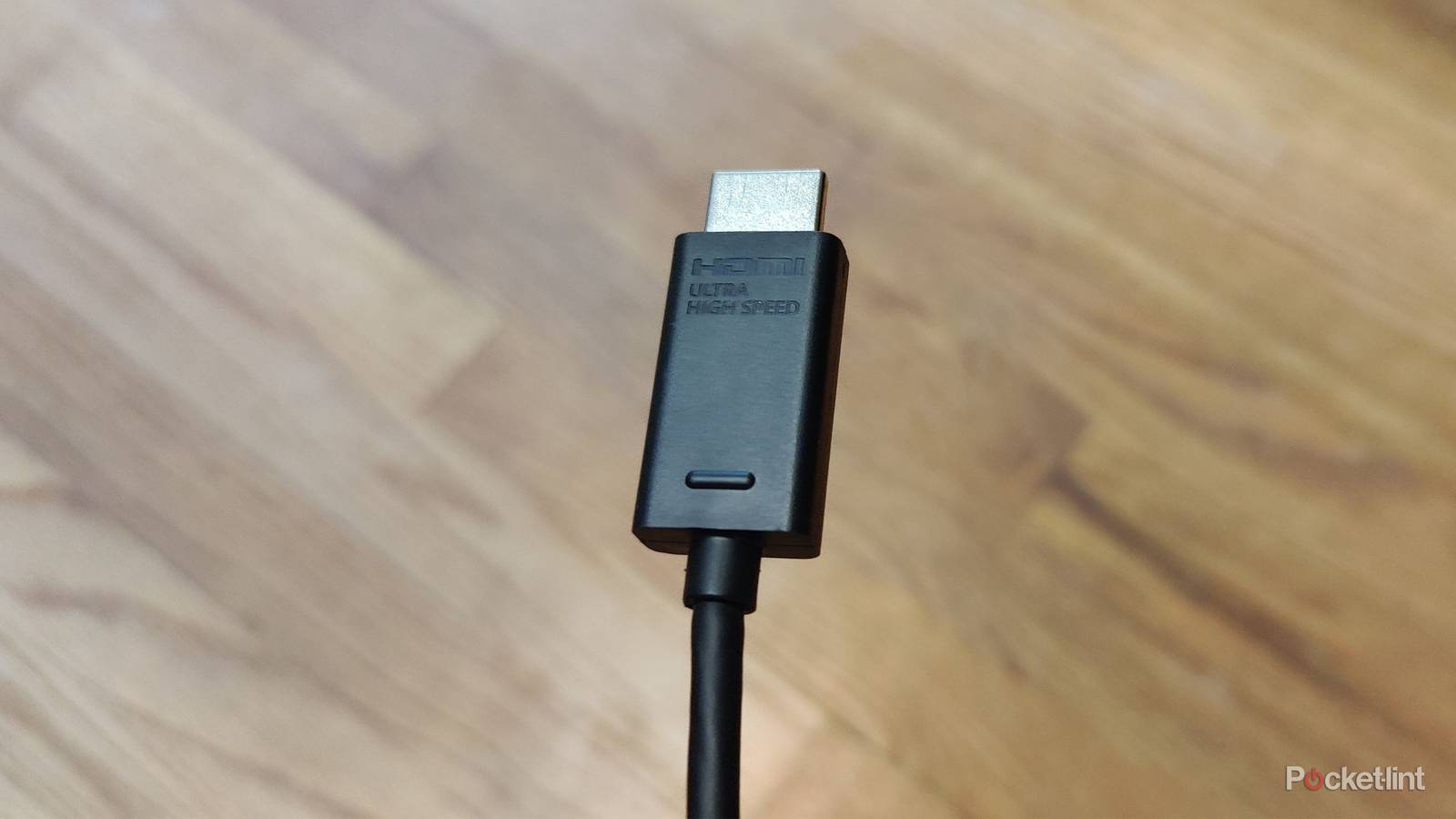

High-speed HDMI cables are just as important as your streaming devices. The good news is that most of your devices come bundled with an HDMI cable, and as long as you use the bundled cable, there’s nothing to worry about. However, that all goes out the window if you don’t have a bundled HDMI cable. That was the case when I bought my Apple TV 4K used, and it didn’t come with anything other than the device, remote, and power cord.
It can be difficult to tell HDMI cables apart, but it’s not impossible. If you’re looking for an HDMI 2.1 cable, and you should be, then you want something labeled as Ultra High-Speed on the cable itself. If that’s not there, then you might not have the speediest cable that you can have. That’s not the end of the world, as older cables work just fine, but you won’t always be able to get the best performance with something older. What’s nice about the Apple TV 4K is that there’s a way to check if your cable is up to snuff.

- Brand
-
Apple
- Bluetooth codecs
-
5.0
- Wi-Fi
-
6
- Ethernet
-
Gigabit (128GB model only)
- Storage and RAM
-
64GB, 128GB
Run the test yourself and find out
Your Apple TV will let you know

If you’re ever unsure about what your cable can do, your Apple TV 4K will get you back on the right track. In the settings, you’ll come across an HDMI connection test that sends a high-bandwidth signal to your TV from the Apple TV 4K to test your signal. If everything goes smoothly, your cable is good enough for the Apple TV. If it comes back and says your connection is unstable, you have some decisions to make.
An Apple TV 4K doesn’t necessarily need an HDMI 2.1 cable to work properly, but you should at least be using a 2.0 one. I think it’s just easier to upgrade everything to 2.1 since that has all of your bases covered. One of the best things about HDMI is its universal compatibility, and that means the same 2.1 cable you use with your PS5 can be used with your PS3, even if it means the extra benefits go to waste.
The test itself takes just a few minutes, and that could do wonders in letting you solve problems you didn’t even know you had. New HDMI cables, even 2.1 ones, aren’t very expensive nowadays. They are also sold in many stores, so you shouldn’t have trouble tracking one down if you need to pick up a new one. I certainly wouldn’t want a faulty or old cable holding me back from experiencing Dolby Atmos and Dolby Vision.
Your problem could also just be a loose or faulty cable, even if it is one that’s good enough for the Apple TV 4K. If you know that’s the case, then unplug it and plug it back in just so you can cross that off the potential list of problems.
Your HDMI cable is very important
Make sure you’re using the right one

The nice thing about streaming boxes is that HDMI 2.0 is good enough for most people, and while 2.1 gives you a little more bandwidth, it’s really just a case of the rich getting richer. HDMI 2.1 is arguably the most important for game consoles. Your PS5 and Xbox Series can both utilize VRR and 120 FPS, provided your TV also has the capabilities. Both of these things are only possible through HDMI 2.1, so while your console will work with 2.0, you can’t get the most out of it if you’re not using the newest cables. This is a situation where you’d be fine using the cable already bundled with your device, so I hope you’re doing that.
In the case of your game consoles, there’s a screen for both the Xbox and PlayStation that lets you know if you have VRR or 120 FPS support. If it says that you don’t, it either means you aren’t using the correct cable or there’s a setting on your TV that you have to change. My TV made me change my HDMI ports to enhanced to make sure I got the most juice from them. The default settings didn’t allow for these extra bells and whistles, so that’s definitely something you’ll need to check for if you’re having issues.
My advice is to rotate out your old cables if you can. Buying new ones doesn’t break the bank by any means, so if you can swing it, I don’t see many reasons to continue using something like an HDMI 1.4 cable. While that’s good for your old Xbox 360, I’d still rather use a 2.1 cable just so I don’t accidentally use that same cable on something newer or something. It’s better to be safe than sorry. At the very least, I’d make sure I upgrade my cables to HDMI 2.0. That’s not as good as 2.1, but it’s still perfectly fine for a lot of things.
