

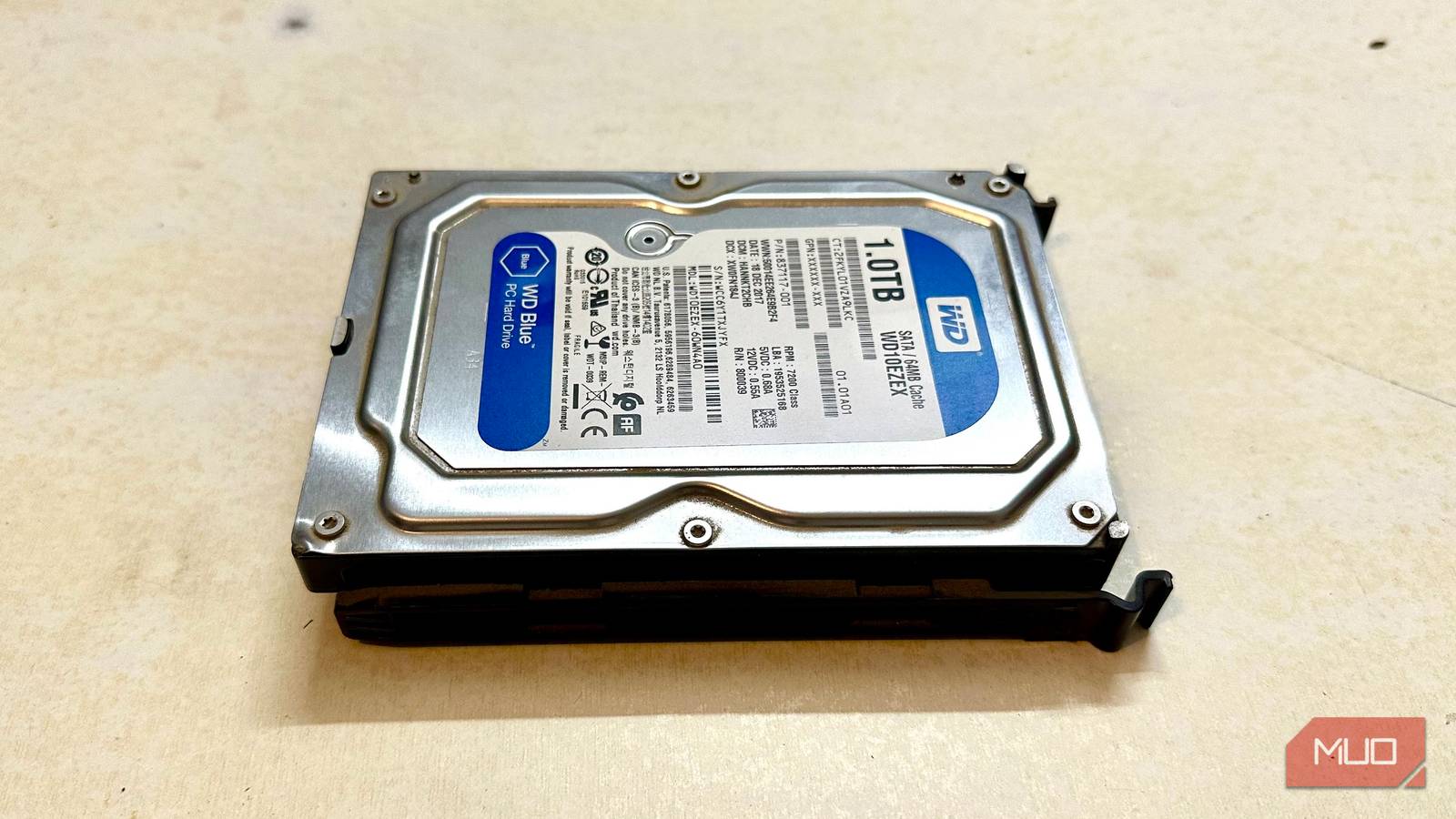

I find hard drives fascinating: the way they store data on a magnetic platter, how the voice coil actuator moves the read/write head across the platter while a spindle motor keeps the platter spinning. Oh, and the read/write head never actually touches the platter, but floats nanometers above it. They’re also a relatively cheap way to store large amounts of data compared to SSDs.
The only thing is that there’s no telling how long a typical hard drive will last. Some drives can last 10 years, while others may not even cross the 2-year mark. Add to that, early signs of a failing hard drive typically include performance degradation like slow reads, stutter, and long load times, which we often blame on bloatware, startup apps, or bad Windows updates; later, you may notice physical symptoms like consistent clicking or grinding noises from mechanical issues.
But what if I told you there’s actually a way to predict hard drive failure way before the symptoms become noticeable? Enter Self-Monitoring, Analysis, and Reporting Technology, or S.M.A.R.T. for short.
Your hard drive is tracking its own health
S.M.A.R.T. monitors errors, wear, and hardware problems

The impressive thing about S.M.A.R.T. is that it tracks the hard drive’s health across a wide variety of metrics. These metrics are called attributes, and each S.M.A.R.T. attribute has a raw value, current value, worst value, as well as a threshold which tells you the minimum acceptable value for that specific attribute.
There is an attribute that tells you the number of bad sectors — areas of the drive that can’t be reliably written to and read from — on the drive, as well as other things ranging from temperature to the amount of current it takes to spin up the hard drive. It may almost seem unnecessary to track such small details, but when put together, these details can be used to narrow down on what problem the hard drive’s facing, and whether it will fail soon.
Okay, so how exactly does S.M.A.R.T. get this information? Well, it’s all thanks to the drive’s internal sensors and firmware. However, because of this, and the lack of any real S.M.A.R.T. implementation standards, the attributes you see, threshold values, and measurement units can all vary among hard drive vendors. While bad S.M.A.R.T. values don’t necessarily mean your drive will die tomorrow, it’s wise to back up your data before doing anything else (this includes trying to repair it).

Your external hard drive won’t last long if you keep doing these things
Abuse your drive today, shop for a new one tomorrow.
You can access S.M.A.R.T. on Windows
Just don’t expect detailed info
A major qualm I have with Windows is that it doesn’t display detailed S.M.A.R.T. info. It can only query the drive’s S.M.A.R.T. status and tell you if the drive’s okay or not. Again, this is probably because S.M.A.R.T. specifications vary by manufacturer, and most users only want basic info. Regardless, here’s what you should do if you want a quick report of your drive’s health based upon its overall S.M.A.R.T. status:
- Launch Windows PowerShell as administrator.
- Type the following command and press Enter: Get-WmiObject -Namespace root\\wmi -Class MSStorageDriver_FailurePredictStatus.
In the output, look for the value next to PredictFailure. If the value is False, it means the drive is okay according to its S.M.A.R.T. reading, while a True value indicates that the drive could be failing.
You can also use the wmic command in Command Prompt to see your drive’s overall S.M.A.R.T. status. However, this command has been deprecated since Windows 10 21H1, and may not work on some Windows 11 builds:
- Run Command Prompt as administrator. One of the ways you can do this is by typing cmd in the Run app (Windows Key + R), and then pressing Ctrl + Shift + Enter.
- Type wmic diskdrive get model, status and press Enter.
You’ll see one of three outputs: OK, Pred fail, or Unknown / Caution. If you see Pred fail, it means the S.M.A.R.T. values are off, and the drive is likely failing. An Unknown / Caution message means that Windows couldn’t determine the drive’s S.M.A.R.T. status: this too is a red flag, and you should copy your files elsewhere before investigating it further.
So, what S.M.A.R.T. attributes should you worry about?
Not all of them are important for predicting failure

A detailed S.M.A.R.T. status can only be obtained through third-party apps. There are numerous such apps available on the web: CrystalDiskInfo (which offers an anime theme if you’re into it), Hard Disk Sentinel, and Smartmontools (comes with a command-line interface (CLI) only), to name a few. These apps let you see the raw values, current values, and thresholds for each S.M.A.R.T. attribute. Additionally, many HDD vendors have their own apps that can display detailed S.M.A.R.T. info, and also alert you if a value crosses the threshold.
Once you’ve downloaded and launched your S.M.A.R.T. monitoring app of choice, you’ll see a long list of attributes, each with various values listed next to it. I’ll admit, it can be confusing to know which attributes are important and which ones are not so much. You’ll see four types of values next to each attribute: Current, Worst, Threshold, and Raw Values. Focus on the normalized Current and Worst values relative to the Threshold (higher normalized is better); Raw values provide context but are vendor-specific and often encoded.

Is It Hardware or Software? How I Diagnose My Computer Issues Easily
If your computer doesn’t work, there are a few ways to figure out if it’s the software or hardware causing the issue.
Let’s go through some important S.M.A.R.T. attributes you should look at:
- ID 01, Read Error Rate: This tells you how frequently the drive faces errors when reading data from the platter. In my case, the Current Value is 200, while the Raw Value is 0. This means my drive hasn’t faced any read errors. The Current Value is more like a scale here, one that should be higher, while the Raw Value tells you the exact number: they have an inverse relationship. Keep in mind that the Current Value is a normalized score (typically 1-253), and the Raw Value being 0 is what actually matters — the 200 Current Value just means, “healthy, no errors detected.”
- ID 02, Throughput Performance: This is the average throughput performance of your drive. Basically, how comfortably the drive is performing within its limits and how much data it can comfortably read/write (usually measured in MB/s). A higher Raw Value is better. My WD Blue Hard Drive doesn’t display this info which is an example of how S.M.A.R.T. implementation depends on the vendor.
- ID 05, Reallocated Sectors Count: An important metric, this is the number of sectors that your hard drive has reallocated because they couldn’t be reliably written to or read from. A lower Raw Value is better. On my drive, there are 0 reallocated sectors, which means that it is healthy. Keep in mind that most drives will reallocate sectors over time as they experience wear. As long as the Current Value isn’t approaching the threshold, it is fine.
- ID 07, Seek Error Rate: This attribute tells you how often the read/write heads of your hard drive fail to reach the correct data track on the platter. Again, a lower Raw Value is desirable. If the Current Value is dangerously close to the threshold, there may be a problem with the drive’s read/write head, the actuator arm (the read/write head is attached to this), or the voice coil motor (responsible for moving the actuator arm). It’s also possible that the platter has expanded due to excessive heat.
There are other values like ID C2, Temperature that you should take into consideration. While temperatures up to 50-55°C during heavy use are tolerable for most drives, anything beyond 40°C when idle is a cause for concern — it may indicate poor cooling or an internal issue.
Bad S.M.A.R.T. values are a warning sign
Secure your data first
You should take less-than-ideal S.M.A.R.T. values seriously. Assume that your drive could fail anytime, and back up all your data as soon as you can (which you should be doing anyway!).
What you shouldn’t do is try to fix the drive before creating a backup. Instead, copy your files and then monitor the drive over time. If you see the values degrading rapidly, it’s best to simply replace the drive because it will no longer be reliable — especially if the affected attributes are the ones mentioned in the previous section.
