

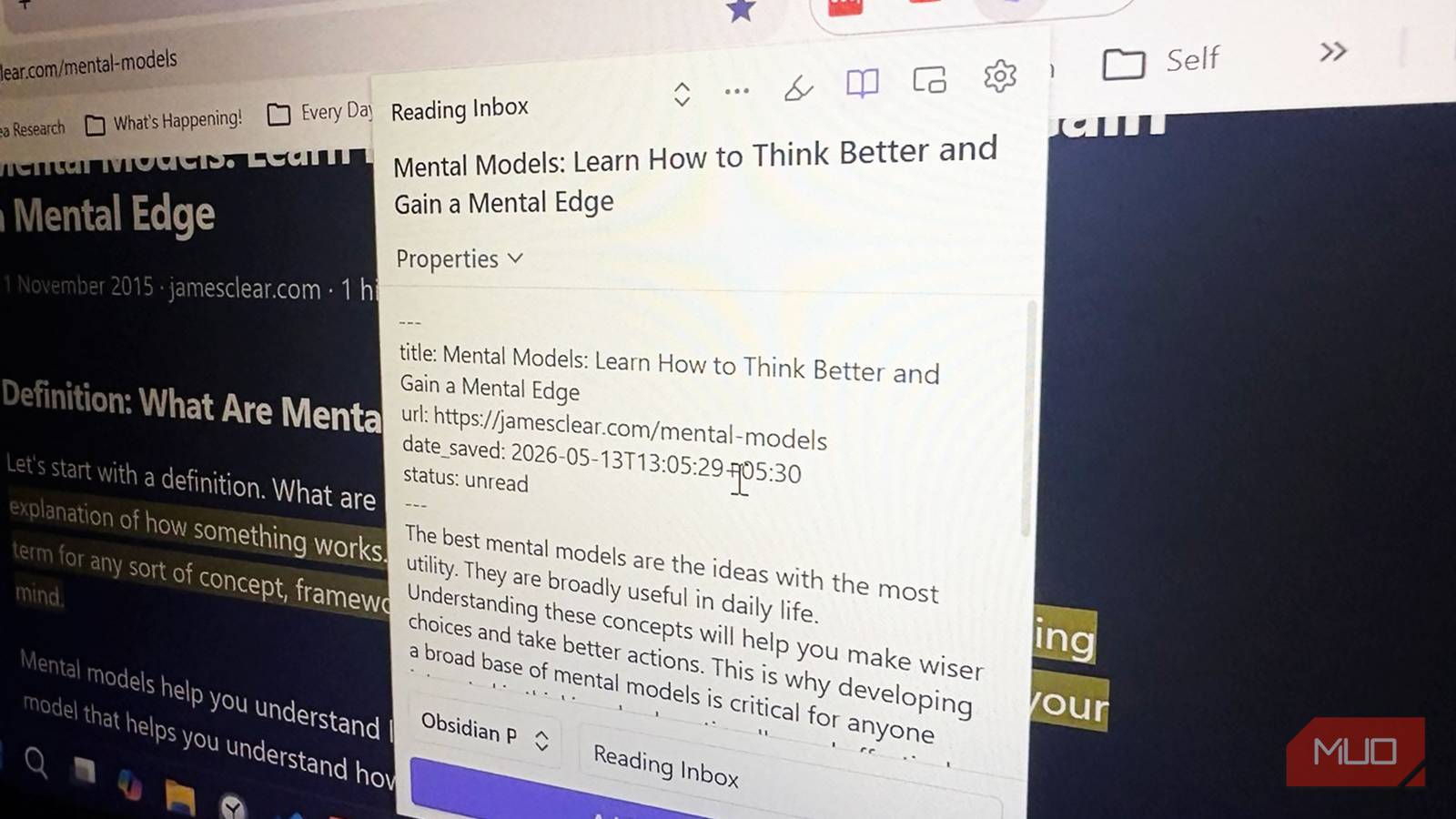

We tend to think of web clippers as simple bookmarking tools. You find an article, save it, and promise yourself you’ll read it later. The Obsidian Web Clipper can do that, but it also does a lot more. I solved my bookmarks problems with the Obsidian and its Web Clipper. Now, I am taking it further. It can clean up webpages, summarize articles with AI, organize research into databases, and even save YouTube transcripts and Reddit discussions. After I dug past the defaults, I realized it feels less like a browser extension and more like a Swiss knife for collecting information.
I use this simple workflow to turn my random web reading into a library I can actually use
This simple Obsidian workflow becomes so convenient that I find myself always reading my web clippings.
The Web Clipper leaves behind the clutter
It captures useful context too

The Obsidian Web Clipper saves full webpages in clean Markdown format. It removes ads, pop-ups, and sidebars so articles become easier to read later. It can also save highlights, links, authors, tags, and even selected text instead of the entire page. That makes research notes much cleaner and easier to search.
I usually saved links in my browser or a bookmarking read-later app in Chrome. I wasn’t sure why I needed another system for saving online content. But those were entire articles, and too much information to process. The Web Clipper’s highlighter fixes that.
Before you clip, read the page first. Mark only what matters. Then clip just your highlights. Check the Highlighter settings first, as there are three options for inserting highlights into your clipped notes. I love that the highlighter also works in the clutter-free Reading view of the clipper.
Templates make clipping smarter
Different pages need different notes
Templates are one of the best features in the Web Clipper. You can create separate templates for articles, recipes, YouTube videos, Reddit threads, or research papers. Each template can automatically add tags, headings, metadata, and formatting.
As an Obsidian beginner, I ignored templates when I first started using the clipper. They looked complicated, and I assumed they were only useful for advanced Obsidian users with huge vaults. But templates aren’t just about formatting. They define exactly what data gets captured and where it goes in your vault.
Set a trigger URL — say, for GoodReads as you see in the screenshot, and the right template fires automatically every time. The clipper can pull structured data like ratings, cast, taglines, and dates straight from the page.
AI can process your notes
Your clips become easier to use

The Web Clipper supports AI chatbots like ChatGPT, Gemini, Claude, and Ollama. You can use prompts to summarize articles, extract action steps, generate tags, or pull out key ideas before the note is even saved into Obsidian.
I was skeptical about another unnecessary layer of AI. But the Interpreter helps you process a web page even before you insert it into Obsidian. For instance, the AI Interpreter is the ideal tool for summarizing for long tutorials, research pages, and video transcripts.
The Interpreter lets you bake AI prompts directly into your templates. Write something like {{"2-sentence summary"}} in a template, and every time you clip a page, the clipper sends the content to your chosen AI model and drops the result into your note. It works with Claude, Gemini, ChatGPT, and local models via Ollama.
Interpreter prompt uses API credits. Those can quickly add up. To save tokens, use the small, fast models like Gemini Flash and Claude Haiku.
It works well with YouTube
Videos become searchable notes

Most people use web clippers for articles, but Obsidian Web Clipper also works well with YouTube. It can save video titles, links, timestamps, and transcripts. That turns long videos into searchable notes inside your vault.
At first, I wondered if saving YouTube transcripts was unnecessary. I already had playlists filled with tutorials I planned to revisit one day.
The problem is that playlists (like bookmarks) become hard to search over time. With transcripts saved in Obsidian, I can instantly search for keywords across dozens of videos.
I feel that YouTube is a powerful search engine for learning in its own right. So, one of my favorite uses is building a searchable learning archive of YouTube videos. I borrowed the YouTube template from Kepano and added a “transcript” property and variable to the template settings.It’s automatic with the template but not very neat at the moment. I am working at it.
The best clips are always selective
Saving less often works better

One of the smartest tips I found from the Obsidian community is to avoid clipping everything. The best workflows focus on saving highlights, summaries, and useful ideas instead of entire unread articles.
I made the mistake of saving too much when I first started using the clipper. My vault quickly filled with articles I never opened again because there was simply too much information.
Now I treat the Web Clipper like a filter instead of an excuse for hoarding everything again. I save fewer pages, but I integrate them better into my notes with proper wikilinks. That makes the information easier to remember and far more useful later. For instance, if you want to save only highlights from a web page, go into the extension’s settings and change the highlighter’s Clip behavior to Replace the page content.

- OS
-
Windows, macOS, Linux, Android, iOS, iPadOS
- Developer
-
Dynalist Inc.
- Pricing model
-
Free
- Initial release
-
March 30, 2020
Obsidian is a local-first, Markdown-based note-taking application that stores your notes as plain text files and lets you build interlinked “vaults” of knowledge. It supports plug-ins, graph visualisations, and full control of your data rather than locking you into a proprietary format.
Try building one custom workflow
There’s more to the Obsidian Web Clipper than I have managed to put down here. But let’s start small. Instead of clipping random articles this week, try creating one small workflow for a single purpose. Use the highlighter as a first pass while reading, then clip only what matters. For instance, save YouTube tutorials, collect writing ideas, or build a compact research folder, and you’ll quickly see why the Obsidian Web Clipper feels much more powerful than a normal bookmark tool.
