


We have all been here. Your laptop starts chugging, apps take forever to open, and you are often treated with the Blue Screen of Death errors. For years, our go-to solution for fixing such problems was to simply reinstall the Windows OS and get back to our tasks. Nuking it all has been the gold-standard advice in the tech community, and we have been conditioned to believe that for every problem, a fresh start to your laptop is the best option.
But let’s be honest. Reinstalling the Windows OS is not only a pain and a lengthy process, but it also requires a lot of work after the installation is finished. You have to get your files back, hunt down the license keys for the software you were using, reinstall them, reconfigure the settings to your liking, and so on. After researching, I found that reinstalling Windows is often overkill, and there is a much simpler way to fix your laptop.

Here’s how I deep clean my Windows PC
I spend one day each year to keep my Windows PC running like new.
The myth of a clean install
A solution that we’ve been using for almost all our laptop problems

Windows is a bit notorious for having errors and malfunctions (of course, with some contribution from our end). Most of us resort to performing a reinstallation because, first, it is a well-known and great fix, and second, though lengthy, we fear any other tweak may create more issues. If the software is the problem, then removing the software must be the solution; that is what we and our tech fraternity suggest.
However, this approach ignores the fact that most Windows issues aren’t caused by the operating system itself but by conflicting drivers, cluttered startup items, or corrupted system files and registry entries.
On top of this, reinstalling the OS means you have to start all over again. The pain of waiting for the Windows OS to get installed and its first boot up, then reinstalling all the software and tools that I use, calibrating the OS as per my taste, takes hours.
Additionally, it interrupts your workflow and increases the risk of losing small, important files that you may not have synced to your cloud.
Repair Install is the simple trick
It is the best-kept secret in Windows 11 that fixes almost everything
A quick research revealed that there is a much simpler way to fix all the annoying errors that you see on your Windows OS. The feature is the best-kept secret in Windows 11 and Windows 10 that lets you reinstall the OS without removing any of your files, settings, and apps.
This means that all of your files and settings will remain exactly the way they are. It is effectively a refresh of the operating system, where the process replaces the corrupt system files with healthy ones.
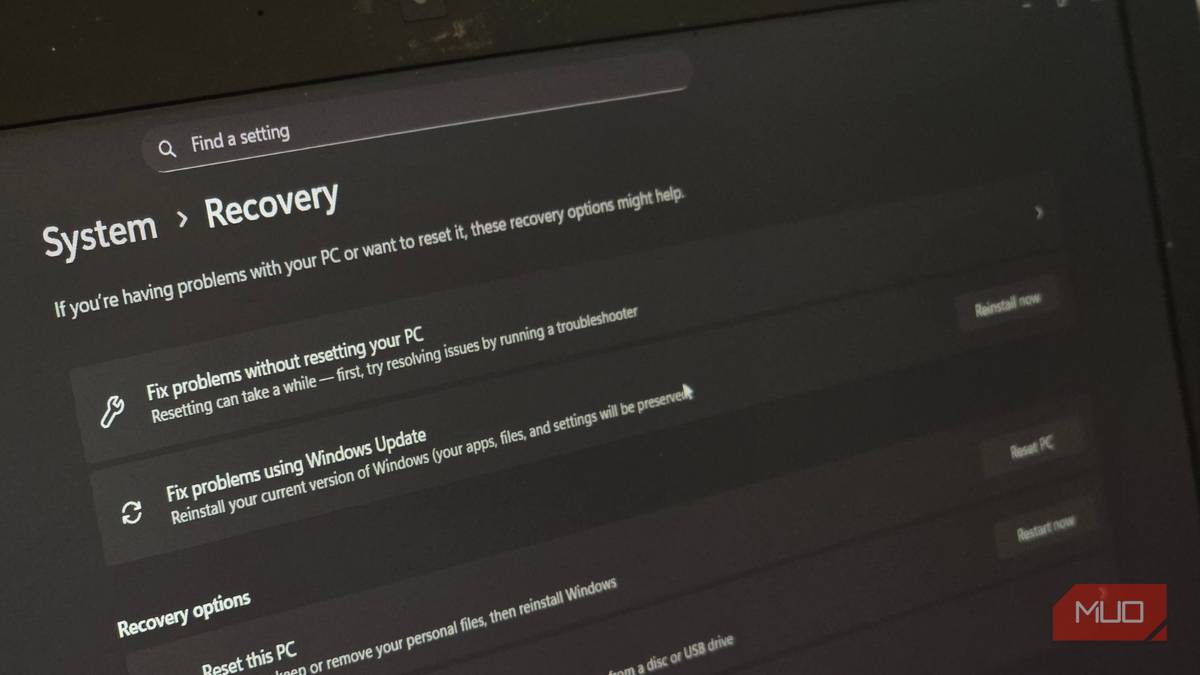
Microsoft has added a new feature directly into the Windows Settings menu called Fix problems using Windows Update. This simple trick is the solution that you should try before going for any other major step.
What this solution does is it installs a fresh version of the OS over your current one. Understand it in this way, it is like giving your PC a heart transplant while it is still running. This solution fixes the vast majority of stability and performance issues.
Here’s how you can reinstall Windows this way:
- Press the Win + I key together to open Settings. Alternatively, you can go the usual way of clicking the Start menu button and searching for Settings and then opening it.
- From the left pane, click on System.
- Choose the Recovery option from the right side.
- Click on the Reinstall Now button for the option Fix problems using Windows Update.
- In the Fix problems using Windows Update window, you can choose the option to allow the PC to automatically restart 15 minutes after the installation completes.
- Press the OK button to start the process.
After this, the reinstallation will take you back to the Windows Update page in Settings. It will start downloading a repair version of the last OS update that was successfully installed on your computer. Once the download is complete, the repair version will install and automatically restart your PC.

This Free Tool Solves the Most Common Windows Headaches—Effortlessly
Solve your issues while saving dozens of clicks.
Better than wiping the slate clean and starting afresh
The process of fixing your Windows OS using an update is different from resetting your PC, because this only affects the operating system files and nothing more. There is a slight wait time during this process before you can actually start using your computer. But it is much better than starting from scratch, which you have to do when you reset your PC.
If you are facing issues with specific errors rather than general slowness, you can run two old-school commands: SFC and DISM that still work wonders. Reinstalling Windows should be the last option and not your first step. Built-in repair tools can save you from hours of frustration and get you back to what actually matters.
