


I’ve never had enough storage. Although this is partly an occupational hazard, it’s also the nature of Linux. It doesn’t aggressively clean up after itself. After several months, you may start running out of storage. Buying external storage or paying for cloud storage can be a solution. However, not everyone can afford this route, and most storage problems can be fixed without spending money.
Over the years, I’ve discovered the best free solutions for when you are running out of storage on Linux. Several of them are effective because they are repeatable processes rather than one-time fixes. They go beyond simply deleting files to understanding what actually takes up space.
Audit your drive before deleting anything
Stop guessing and let Linux show you the real space hogs
Your worst course of action is to instantly start deleting files or programs because you get a low disk space warning. In my experience, deleting several small things rarely fixes Linux storage issues. You most likely have one or two large storage consumers triggering the warning. If you cannot find them, every cleanup attempt will be futile.
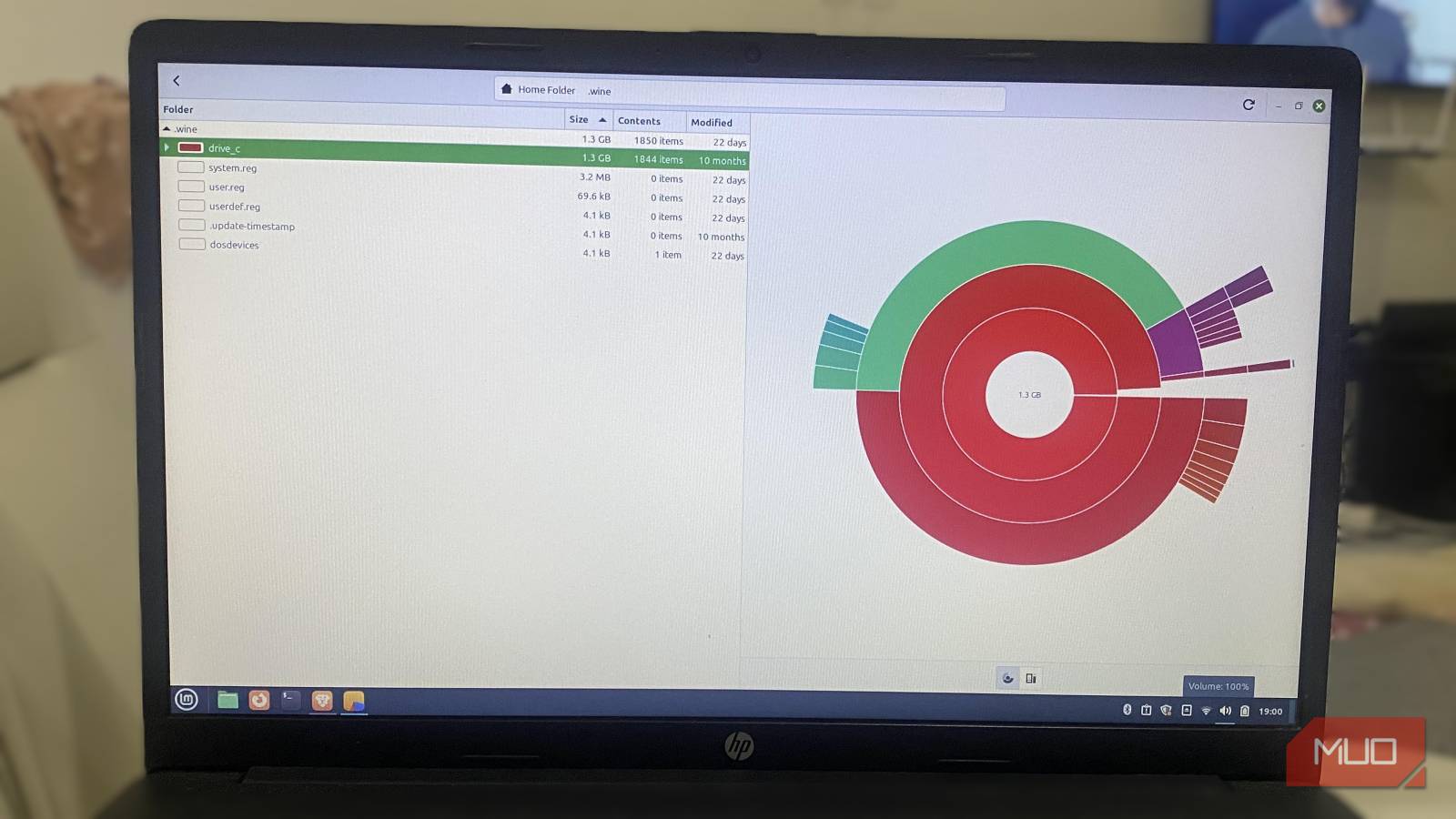
The fastest way to get clarity is to use Disk Usage Analyzer (Baobab). It’s a GNOME-specific app that comes pre-installed in Linux Mint, Fedora, Pop!_OS, and is also the default in Ubuntu and Debian. On lighter, non-GNOME distros, you can install it using one of the commands below:
sudo apt install baobabsudo dnf install baobab
Baobab scans the system and presents a visual folder breakdown by size. It’s one of the easiest ways to spot the culprit, and for me, it’s often a virtual machine image, an old ISO, or a backup directory.
The goal of using a tool like this isn’t just to see large files. It points you to those locations, allowing you to proceed with intentional steps. It’s generally safe to delete bloat in your home directory, but you should clean the system directory with caution, using only built-in maintenance tools.
Clear cached data Linux never cleans up for you
Reclaim gigabytes from APT, apps, and thumbnail caches

Linux is a conservative operating system. Typically, after downloading a package, it retains its files or application data just in case they are needed in the future. This is a safety net that quickly turns into unwanted clutter.
APT (used by Debian/Ubuntu/Linux Mint) is a big culprit, but this is also true for Fedora’s DNF package manager and pacman in Arch Linux, which store old installer files.
Cleaning the cache is safe, as it doesn’t touch the software itself but removes unused packages. After several months, cleaning the cache can free up several gigabytes. The table below shows cleanup commands:
|
Command |
Distribution |
Effect |
|---|---|---|
|
sudo apt clean |
Linux Mint / Ubuntu |
Wipes the entire local repository of retrieved package files (.deb). |
|
sudo dnf clean all |
Fedora |
Removes all cached packages and metadata from the system. |
|
sudo paccache -r |
Arch / Manjaro |
Removes all but the 3 most recent versions of cached packages (the safe Arch way). |
However, even your application files can pile up. You should clear thumbnails and temporary files from browsers, media players, and file managers. It’s safe to delete all these; the app will regenerate some of them, but typically only the parts it still needs, not the entire thing.
Remove system leftovers from updates and installs
Old kernels, unused dependencies, and forgotten runtimes

Linux kernel updates are not automatic in the same way as Windows, but they are handled in a way that can cause bloat. The previous version remains on the system as a fallback. This is great for security, but you don’t actually need a dozen of these fallbacks. Each one can occupy a considerable amount of disk space. On Ubuntu or Debian, you can use the command below to identify and delete old kernels and their associated files:
sudo apt autoremove --purge
On Linux Mint, do this:
- Navigate to Update Manager –> View –> Linux Kernels.
- Click Remove Kernels, and Linux Mint will suggest deleting everything but the current and previous versions.
The same applies to dependencies. Even after you remove an app, the libraries it depended on are not automatically removed. In the end, they become software baggage that you don’t need. You can clean them to free up space using one of the commands below:
|
Command |
Distribution |
Why it works |
|---|---|---|
|
sudo apt autoremove |
Linux Mint / Ubuntu / Debian |
Scans for libraries that no longer have a “parent” app and deletes them. |
|
sudo dnf autoremove |
Fedora |
Functions identically to the APT version for Red Hat-based systems. |
|
Arch |
A two-step process that forces you to make a conscious decision per package. |
Keep logs and crash data under control
When background errors silently eat your disk

When you encounter system problems, logs help you diagnose them. However, if you leave Linux alone, it will log forever. Systemd’s journald stores logs persistently, and they tend to grow rapidly when there is a problem on your device.
This can be particularly problematic because the system may not warn you until the disk is nearly full. Up until that point, everything runs fine: booting, apps, and processes. First, use the command below to check how much space logs are taking:
journalctl --disk-usage
If you have large logs, you can vacuum them using any of the commands below:
|
Command |
Effect |
|---|---|
|
sudo journalctl –vacuum-size=100M |
keeps only the last 100MB of logs |
|
sudo journalctl –vacuum-time=3d |
keeps only the last 3 days of logs |
Stop Timeshift from eating your SSD
Configure backups so they protect you without filling your drive

Timeshift is one of the most important features on several Linux distributions. It keeps the system safe by taking incremental snapshots and rolling back the system when there’s a problem. But when snapshots are not well managed, they pile up and become a storage problem.
When you’re running low on storage, you can move Timeshift to an external drive or reduce the frequency of snapshots. If you configure Timeshift properly, you’ll avoid storage problems. You can prune Timeshift from the terminal if your storage is full and the GUI won’t work. Follow these steps:
-
Launch the terminal and run the command below to show the snapshots using space:
sudo timeshift --list
-
Delete a specific snapshot using this command, entering the correct timestamp:
sudo timeshift --delete --snapshot '2023-10-01_12-00-01'
You can use this command in an emergency when you must reclaim large amounts of storage: sudo timeshift –delete-all. It’s a nuclear option that deletes all snapshots and must be used with caution.

Your New Windows PC Is Already Sluggish—Here’s the First Thing to Do
Tired of your new Windows PC feeling so slow? Try debloating it.
Make your storage work for you
When you’re running out of storage, knowing the right places to check and the right files to remove will make the difference.
If you have an old, unused computer, you can use it to self-host your storage instead of paying for cloud backup storage. This is my preferred option, as I don’t have to delete files just to make space.
