


File Pilot is an excellent File Explorer alternative. As of now, it’s in beta and free, but it will set you back $50 for a perpetual license once the stable release is available. While I still use it occasionally, I didn’t want to build my workflow around a tool that might require a license in the near future, so I’ve settled with File Explorer with Listary doing a lot of the heavy lifting.
However, I still needed a full-fledged file manager that felt fast to open with rapid search and some advanced features. Initially, I tried the classic Total Commander, but personally, the interface is a deal breaker. I want apps to have a modern touch and match the default look of modern File Explorer. So, I gave a shot to its sonic cousin, OneCommander, and I think I’m gonna stick with it this time around.
The issue with File Explorer
It’s slow and lacks some features

Microsoft has updated File Explorer with modern touches, including tab support and a somewhat decent preview pane. However, it still has plenty of unfixed issues that get in the way of my daily workflow.
A smaller annoyance is that File Explorer still can’t show folder sizes in the Column view. You have to either hover over each folder to view its size or open the classic Properties dialog. I did find a way to show folder size in File Explorer using Windhawk and Everything Search, but it requires two additional tools to work, which means an update to any of these tools could break the functionality.
It also doesn’t have a multi-pane view to see folders side by side, and the file preview is too basic if you want to view anything beyond images. But my biggest gripe with File Explorer is its speed. It’s slow when moving between directories, loading files, and especially when I need to search through my markdown files and images, something I do hundreds of times every day.
OneCommander fixes a lot of these problems, even when I’ve used its free version.
Cleaner interface
Modern design with plenty of customization

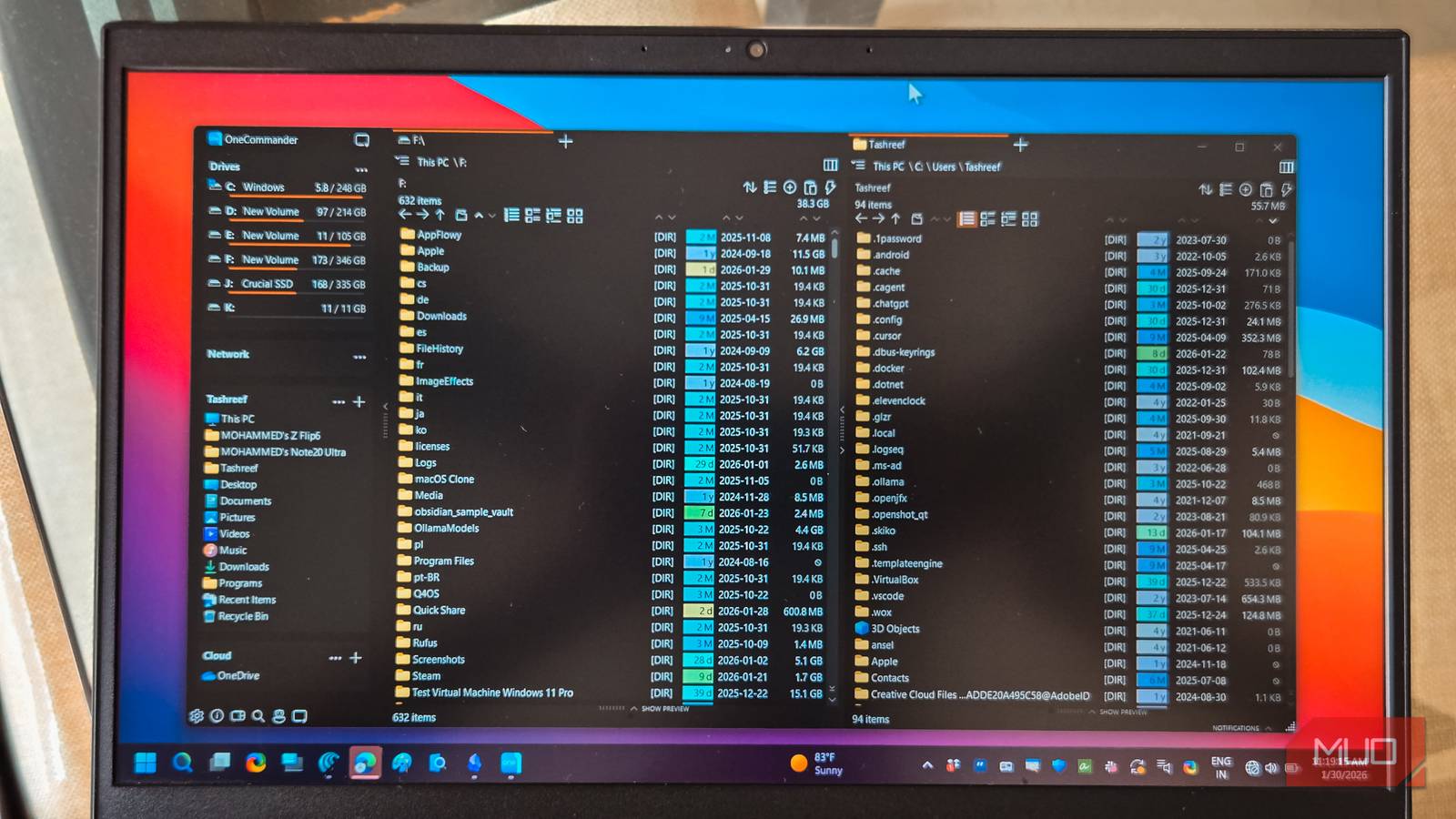
The first thing I noticed when launching OneCommander was how polished it looked. It doesn’t try to reinvent the wheel, but it adds enough visual changes that make File Explorer feel cluttered in comparison. On first launch, you get to choose a theme and a layout, but you can customize a lot more to make it look the way you want.
You can tweak font sizes, adjust element visibility, and even enable a feature that highlights files over 1 GB with a distinct color. That last bit is helpful when I’m hunting for large files eating up my storage. For those working across Windows and Mac, there’s an option to treat files starting with a dot as hidden, so you don’t see .DS_Store files are cluttering your folders.
Dual-pane layout and organized favorites

OneCommander uses a dual-pane layout by default with one pane pointing to my C drive and the other to D. I prefer the top-bottom mode rather than left-right, which fits my workflow better. Each pane shows drive info, free space, and the current path, and I can navigate folders using arrow keys while seeing a quick preview of selected items.
The sidebar is where OneCommander has an edge over File Explorer. Instead of the confusing Quick Access section, I can show groups for my preferred shortcuts. So, if I want to set up a dedicated group for network drives and another for my active projects, I can do it. There’s also a history section that tracks recently visited locations, which makes jumping back to a folder you were working in earlier much faster.
You can switch focus between panes with an Alt+F shortcut. Since my workflow involves copying from one pane and pasting into the other, using the dual layout keeps the source and destination clearly separated.
Excellent file management
Sorting options, folder ordering, and display controls
OneCommander also excels when it comes to sorting flexibility. Like File Explorer, it supports sorting by name, type, or date. But it also has a toggle that controls whether folders stay on top or get mixed with files in a single alphabetical list.
Turning this off lets you view everything together alphabetically, which matches how our brain organizes information. File Explorer forces folders to stay at the top, and there’s no way to change that behavior without third-party tools.
OneCommander also displays folder sizes directly in the listing, a feature File Explorer still doesn’t offer natively. The app calculates directory sizes on the fly, though it still can’t sort folders by size due to a Windows limitation.
Advanced features
Hotkeys, Quick Look integration, and automation

The hotkey support in the file manager lets you override the default Win+E shortcut so that pressing it opens OneCommander instead of File Explorer. This is important as my muscle memory is tied to Win + E to open the File Manager, and I don’t need to learn the rather long Win + At + O shortcut that’s default to launch OneCommander.
Furthermore, OneCommander integrates with Quick Look or Seer for macOS-style instant previews. With Quick Look installed, selecting a file shows a preview, and pressing the spacebar opens it in a larger view. It’s the closest I’ve gotten to the Finder experience on Windows.
There’s also a File Automator for batch tasks like adding date/time to filenames, regex-based renaming, and image conversion. The color tagging feature is useful too, though if you need more robust tagging with hierarchical organization, TagSpaces is worth trying.
What’s missing
A few features I wish it had

OneCommander can preview zip contents in the preview pane, but it can’t open zip archives as if they were normal folders. As a result, I still need to extract archives or use another tool to peek inside.
I also miss having a tree view. The column navigation works fine, but sometimes I want a simple collapsible hierarchy alongside it for a quick glance at the folder structure. The search, while functional, feels basic compared to Everything. I’d love to see saved search presets or a search box within the settings UI.
There’s no way to sort folders by size, though that’s a Windows limitation rather than something OneCommander can fix. I’d also have preferred it if I could edit file metadata directly in the preview pane, but that option is still only available via the Properties dialog.

- OS
-
Windows
- Price model
-
Free, Pro version available
OneCommander is a file manager for Windows, with a dual-pane interface and tabs. It replaces Windows File Explorer for power users.
OneCommander is a better alternative to File Explorer
After using OneCommander for a few weeks, I’m not going back to File Explorer for my daily work. The dual-pane layout, inline folder sizes, and customization options address most of my frustrations with the default file manager. It’s free for personal use, portable, and doesn’t require admin rights to run.
That said, if you need tight Windows integration above all else, File Explorer with a few add-ons might still be the better choice. But for me, OneCommander hits the right balance between features and familiarity.
