

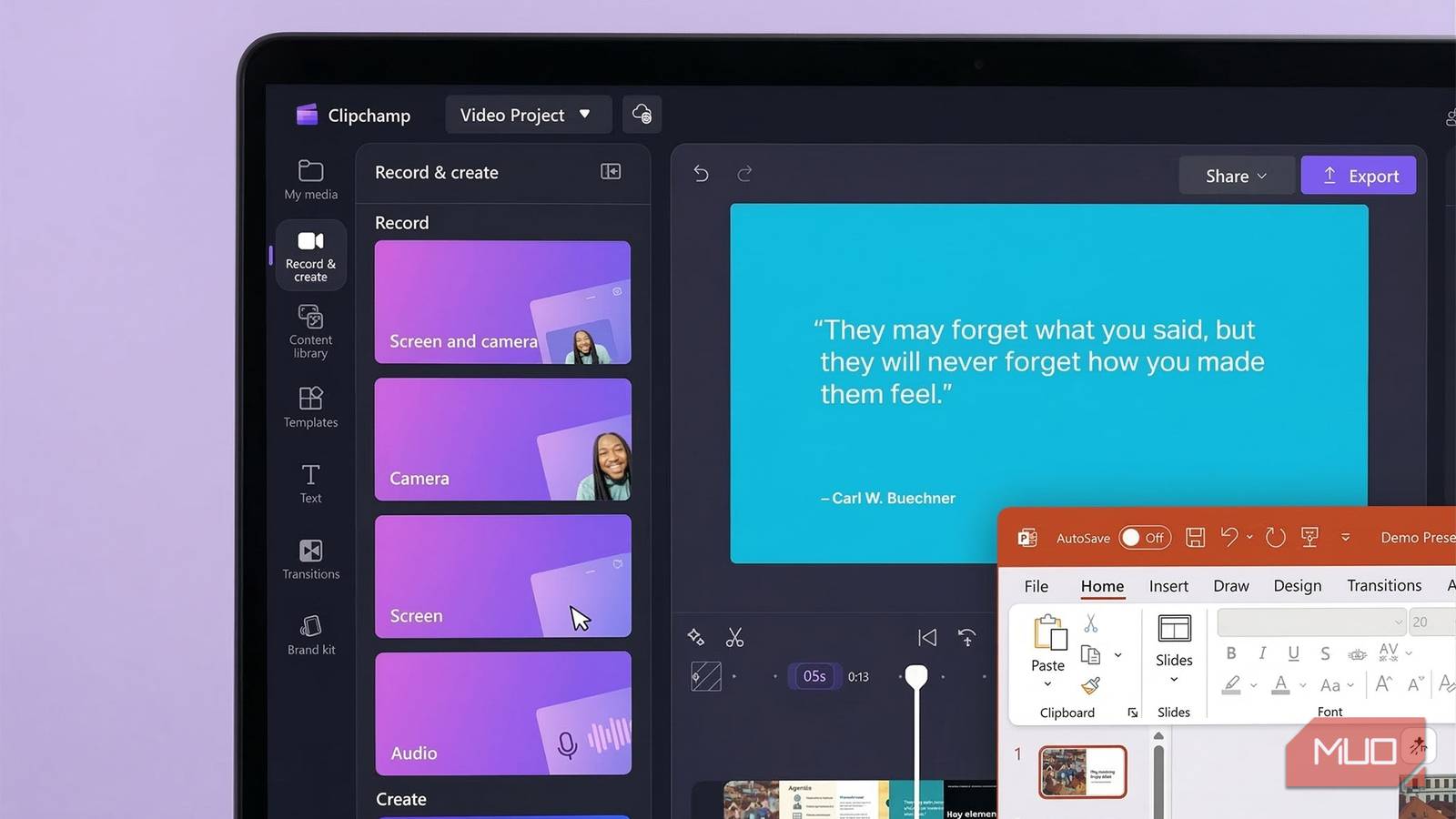

You can put together slides in PowerPoint in minutes with Copilot. But you still have to sit through them. Storytelling is one of the tools in your arsenal that can pump some life into a dull presentation. How do you do that if you are not in the room? A video presentation that rides on your voice could be the answer.
Personally, I prefer recording my own voice because tone, pauses, and humor make ideas clearer. Still, AI voices have improved a lot and are a huge time-saver when you need to produce something quickly. With a Microsoft 365 account and the built-in Windows video editor Clipchamp, I found a simple workflow to turn a plain PowerPoint into a polished, narrated video.
Export your PowerPoint as a video file
Start by turning slides into a playable video

The first step is to export your PowerPoint presentation as a video. In PowerPoint, go to File -> Export -> Create a Video, choose your resolution, and export the slides as an MP4 file. This converts the entire deck into a single video that’s easy to edit in Clipchamp. It’s the fastest way to move your slides into a video workflow.
You can also export slides as individual images instead of a video. I’ve sometimes preferred this when I want more control over timing and transitions in the editor. However, exporting a video is usually quicker when the slide order and animations are already set up.
In most cases, the video export works best because it preserves slide timing and animations automatically. This way you spend less time tweaking inside Clipchamp and more time focusing on narration and polish.
Import the PowerPoint video into Clipchamp
Bring your presentation into Windows’ own AI video editor
Once your PowerPoint file is saved as a video, open Microsoft Clipchamp, which should be pre-installed as it’s the default video editor on Windows. Create a new project by selecting Create a new video. Then drag the exported MP4 file into the Import media panel. From there, drop the clip onto the timeline to begin editing.
Clipchamp treats your presentation like any other video clip. You can trim sections, split scenes, zoom into slides, or add overlays. This gives your static presentation the flexibility of a full video editor.
I initially wondered if importing a long presentation video instead of individual slide images would limit editing options. After all, you’re essentially working with one big clip rather than individual slides. But Clipchamp’s Split tool solves this quickly. You can cut the video wherever slides change, which effectively recreates slide-level control while keeping the original PowerPoint design intact. You can also take the help of AI suggestions to further enhance your video at this stage.
Add an AI voiceover in Clipchamp
Use text-to-speech to narrate your slides

One of Clipchamp’s most useful tools is its built-in AI voice generator. Open the Record & Create -> Text to Speech panel, paste your script, choose a voice, and generate narration. The audio file appears on the timeline, where you can align it with the slides. There isn’t an automatic “sync to slide” feature, so you adjust the timing manually by controlling the audio clip length and the slide/video timing on the timeline. I like to split the video where the slide changes. Then, control the pacing slide by slide.
The voices are surprisingly natural. You can adjust speed, tone, and pacing to better match the rhythm of your presentation. This makes it easy to turn bullet points into a clear spoken explanation without recording anything yourself. Test the voice with the Hear this voice and Preview options.
That said, I still prefer recording my own voice when possible with the Audio tool. A human voice adds emotion, humor, and subtle voice tones that AI can struggle to replicate. Clipchamp has many stock voices across languages, but nothing beats the cultural personality of your own.
But when you need speed, AI voiceovers are hard to beat. If you’re producing training videos, internal demos, or quick explainer presentations, the ability to generate narration in minutes is incredibly practical.
Know the workflow’s limitations
Understand what this setup can’t do yet

This workflow works well, but it does come with a few limitations. Once you export a PowerPoint as a video, you lose direct access to individual slide elements. You can’t easily edit text or rearrange objects from within Clipchamp. I’ve occasionally found this frustrating. If a small typo appears on a slide, the fix means going back to PowerPoint, correcting the slide, and exporting the video again.
However, that’s also why it’s best to treat PowerPoint as your design stage and Clipchamp as your polishing stage. Finalize slide visuals first, then move into video editing only when the layout is stable. Thanks to Copilot and smart PowerPoint add-ons for designing professional slides, it isn’t as laborious as it used to be. Another limitation involves animation. Some complex PowerPoint animations may not translate perfectly into the exported video format.
Still, for most presentations, the export process works reliably. I like to think that “less is more” with presentations. As long as you keep animation minimal and your narration enthusiastic, the final video should look polished.
Combine slides with video effects
Add captions, music, and visual polish

Once your slides and narration are in Clipchamp, you can add razzmatazz with more video-style elements. Add background music, captions, transitions, or Brand Kit overlays to create a more engaging viewing experience.
Captions are especially useful for accessibility. Clipchamp includes tools for generating subtitles, which can make your presentation easier to follow for viewers watching without sound.
At first, I thought adding extra Clipchamp effects might make a presentation feel gimmicky. After all, slides are meant to be straightforward. But subtle enhancements coupled with voice can make the storytelling pop. Just ensure that loud elements like background music don’t interfere with your commentary. It’s best to use them on static, voice-less slides. After the finishing touches, click Export and share your narrated video presentation. Clipchamp often suggests a few automatic fixes at this stage, which makes the final product better and more professional.

9 Tips and Tricks to Make the Most Out of Microsoft Clipchamp
If you think you know all there is to know about Clipchamp, think again.
Try the workflow with a simple five-slide test
Before committing to a big project, create a short five-slide presentation and run it through this workflow. Export it from PowerPoint, edit it in Clipchamp, add an AI voiceover, and see how quickly you can produce a polished video presentation.
