

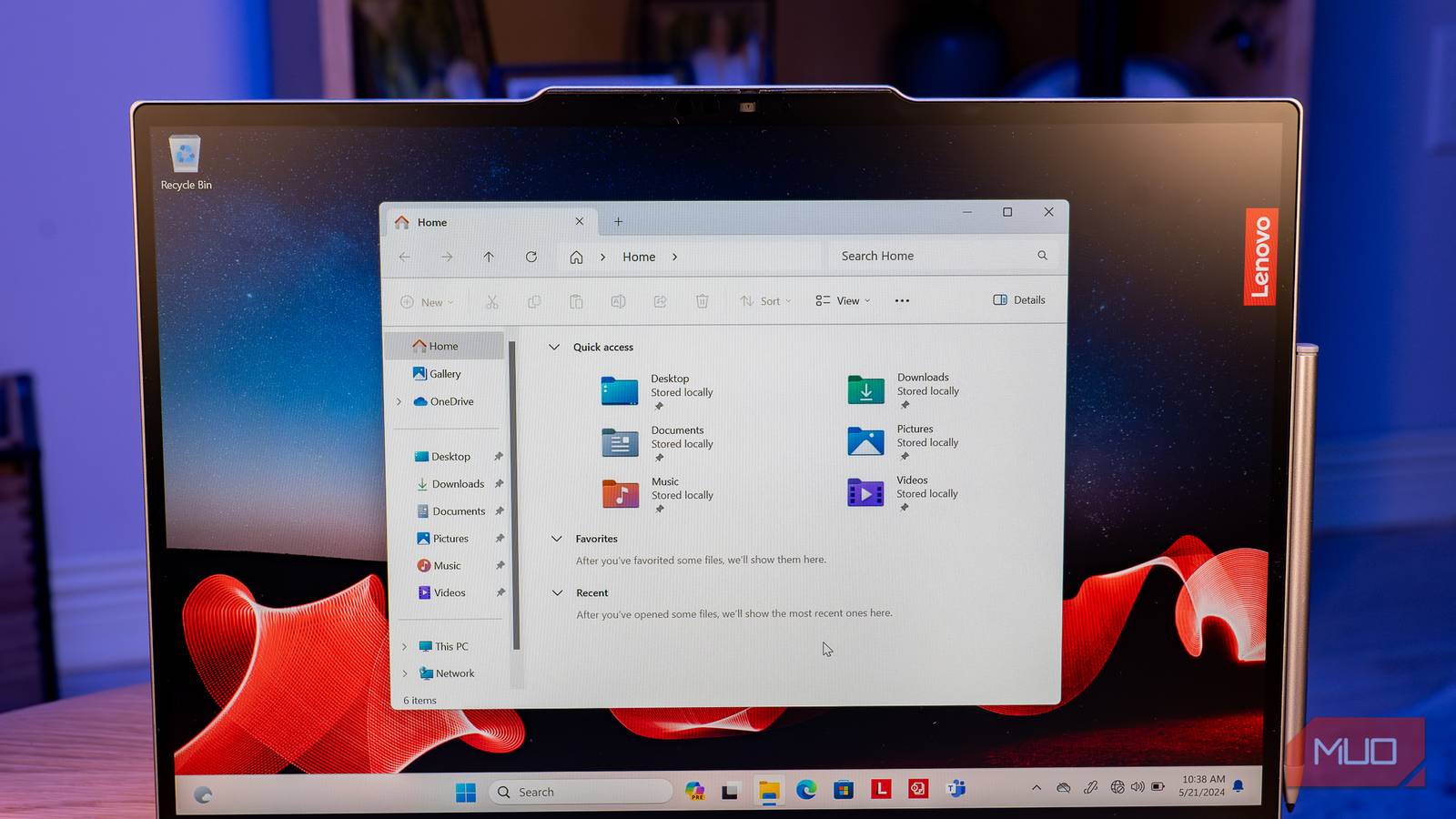

Like most people, I’ve used File Explorer for years. And also, like most people, I thought I knew everything about it. But I couldn’t have been more wrong. File Explorer has a few tricks that go unnoticed.
You can use search filters to improve how you find files, preview documents without opening them, and organize your most important files so they’re always easy to reach. Now that I’ve started exploring some of its lesser-known features, I’ve realized File Explorer is way better than most of us give it credit for.
Search works better when you use filters
Stop scrolling through an endless list
I used to treat the File Explorer search bar like the one in any other app. Type the name of a file and folder, hit Enter, and hope for the right result to magically appear near the top. Most of the time, that never happens, which means scrolling through a wall of files and trying to visually spot what I need.
But File Explorer’s search is much more powerful than it looks. It supports plenty of search filters that can dramatically narrow down the search results. One of the most useful ones is the kind: filter. Along with the file name, you can type something like kind:image for pictures or kind:pdf for documents.
Another handy filter is file size. If you know you’re looking for a large video file, type size:>500MB or size:>1GB to tell File Explorer to only show files larger than that size. This works the other way around too, if you want to look for smaller files.
There’s also the date filter if you remember when you last modified the file you’re looking for. Type datemodified:last week and File Explorer will only show you files you’ve created or edited last week. Finally, File Explorer also supports boolean operators like AND, OR, and NOT so you can refine your searches. For example, if you want to find files with invoice in the name but exclude 2025, you can type invoice NOT 2025.

The Home tab is more useful than it looks
Stop ignoring it

Filters make file searches quick, but what’s even more helpful is the Home tab in File Explorer. It has a couple of sections that eliminate the need to find your frequently used files altogether.
The first one is Recent, which does exactly what it says. It shows any files you’ve opened recently, including those saved in OneDrive. This means if you’ve just opened a file and closed it too soon, you don’t need to go looking for it.
Right next to Recent is the Favorites section. It’s a place where you can save all your important files. To add them, all you need to do is right-click on a file and choose Add to favorites. This is more useful than you think. Instead of cluttering your desktop with files you need, you can add them to the Favorites tab.
PowerToys unlocks features File Explorer should already have
Give File Explorer a helping hand

PowerToys is one of those apps that adds a lot of useful features to your Windows PC. And some of them are aimed to improve your File Explorer experience. For instance, File Explorer already shows thumbnails for most file types, but with PowerToys, you can enable icon previews for several other file types, like PDFs, SVGs, QOIs, and others. This lets you glance at files without actually opening them.
The most useful feature, though, is PowerToys Peek. It adds spacebar previews to File Explorer, similar to how they work on macOS. You can select an image, video, or PDF, and hit the spacebar to preview it. Instead of waiting for the dedicated app to load and open the file, these previews are almost instant. This can save you a lot of time when you’re finding a specific file.
PowerToys also brings features that feel like they should’ve been part of Windows all along. PowerRename makes batch renaming far more powerful. It lets you add sequential numbers, alter text cases, and standardize file names with ease. There’s also Image Resizer, which lets you resize a bunch of images at once directly from the context menu.
Don’t underestimate File Explorer keyboard shortcuts
Stop clicking so much

File Explorer is perfectly usable with the mouse, but if you want to navigate even more smoothly, memorizing a handful of keyboard shortcuts is a must. And no, I’m not talking about the ones you already know, like Win + E to launch File Explorer and Alt + Enter to open file or folder properties. I’m talking about shortcuts that let you navigate folders, manage tabs, and speed up everyday actions.
|
Shortcut |
Action |
|---|---|
|
Alt + P |
Show or hide preview pane |
|
Alt + Shift + P |
Show or hide details pane |
|
Alt + D |
Select the address bar |
|
Ctrl + F |
Access the search box |
|
Ctrl + T |
Open a new tab |
|
Ctrl + N |
Open a new window |
|
Ctrl + W |
Close the current File Explorer tab |
|
Ctrl + Tab |
Move to the next tab |
|
Ctrl + Shift + Tab |
Move to previous tab |
|
Shift + Mouse right-click |
Display the show more options context menu for the selected item |
I used to think File Explorer was as basic as apps get. But while its interface may be minimalist, it packs dozens of features that can help you get things done quickly and stay organized. It’s all about exploring these features and using them more often.
