

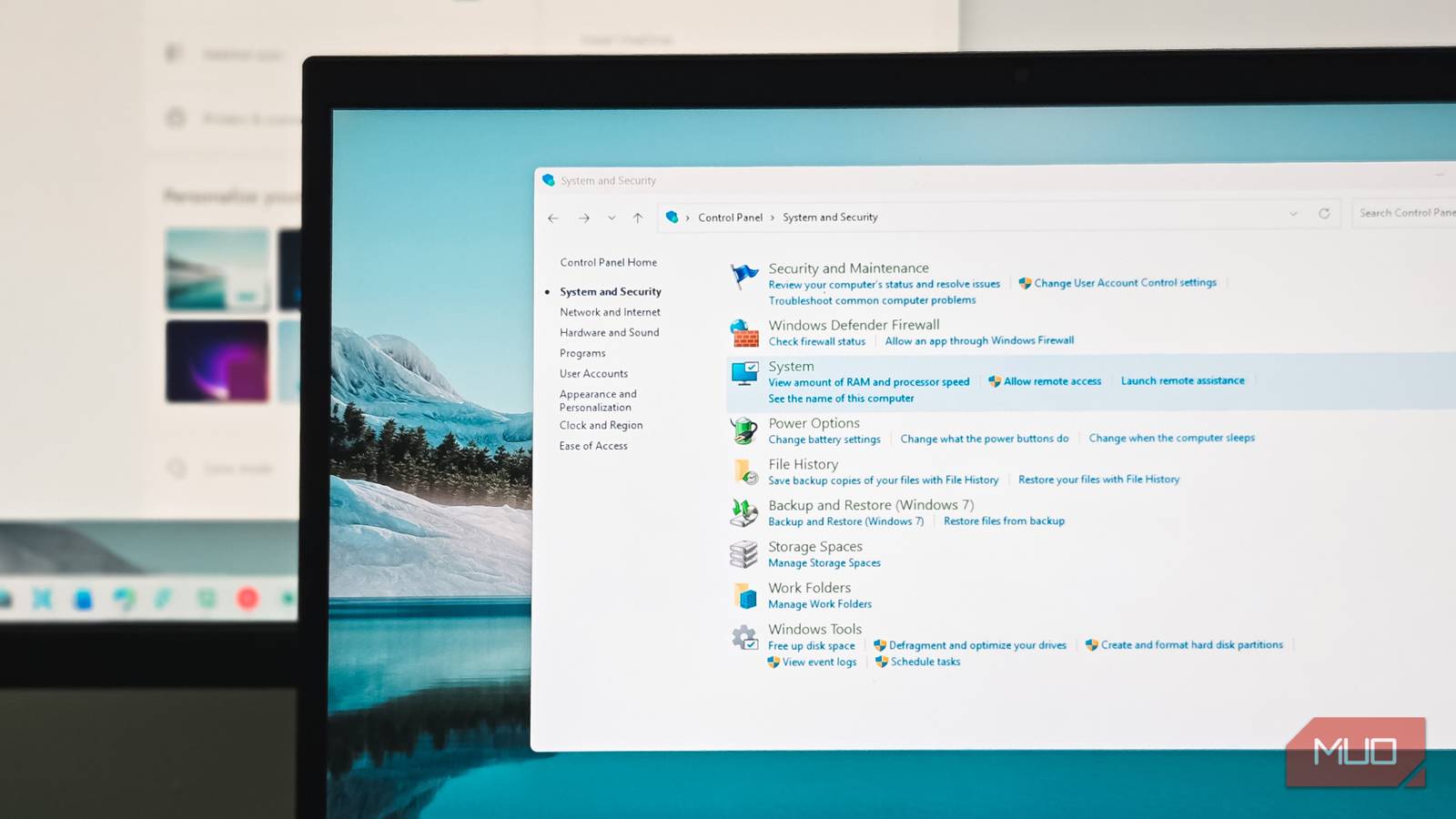

Microsoft has been phasing out the Control Panel in favor of the Settings app since 2012. But more than a decade later, it’s still in no hurry to disappear.
The Control Panel is still necessary for many system-critical features that are not available in the new Settings app. Remove the Control Panel, and all of a sudden, we don’t have essential features like restore points, advanced power options, File History, User Account Control settings, and the disk management tool. No matter how much Microsoft tries to hide the legacy app, it’s still necessary for the proper functioning of the computer.
System Restore
Create, configure, and restore points

It’s been a while since I last needed to use a restore point on my PC, but System Restore is still a core part of Windows 11, and for good reason.
For the uninitiated, System Restore is part of the System Protection settings. It lets Windows take a snapshot of your system configuration before you make any major changes. If something goes wrong, you can roll things back to when everything was running smoothly.
Due to storage considerations, Windows doesn’t enable System Protection by default. That means you’ll need to turn it on manually. And even today, configuring, enabling, or using System Restore still requires a quick trip to the Control Panel.
While I have a solid Windows backup system in place, I always enable System Restore on all my PCs. It’s a convenient safety net for fixing problems that affect only system settings, without the hassle of a full system image restore.
File History
Save backup copies of your files as they change

Before Microsoft’s push toward OneDrive as the primary cloud backup solution in Windows 11, File History was the go-to option for local file versioning. It lets you automatically save copies of your files as they change, so you can restore them if they are ever lost or damaged. File History is still available in the Control Panel under System and Security -> File History.
In Windows 11, File History now only backs up files from Libraries, Desktop, Contacts, and Favorites. To include folders outside these locations, you’ll need to manually add them to the Library.
You can also choose where the backups are saved, adjust how often versions are created, and set how long Windows should keep them. It may not be the most advanced backup solution, but File History remains useful if you don’t have a dedicated file backup like FreeFileSync set up on your PC.
User Account Control settings
Occasionally used, but still very important

One way Windows protects your PC from malicious apps making unwanted changes is by showing a User Account Control (UAC) prompt. This appears whenever an app tries to launch with administrative privileges or when attempting to access system-protected directories.
By default, UAC is set to alert you when apps try to make changes to the computer. However, it offers several levels of control, including the option to disable it entirely. To adjust these settings, open Control Panel -> System and Security, then select Change User Account Control settings. In the UAC settings window, move the slider up to receive more frequent security notifications or down to reduce them.
Most people never need to change these settings, but developers and power users often adjust UAC levels when testing software or running specific tools. The Settings app doesn’t provide this level of control, so the Control Panel is still required.
Advanced system settings
Multi-boot, system restart, user profiles, and performance options
The Advanced tab in System Properties remains one of the most powerful configuration areas in Windows, and it’s still only accessible through Control Panel. Here, you can optimize system performance by adjusting visual effects and memory options, making older computers run significantly smoother by disabling unnecessary animations and transparency effects.
You’ll also find critical options for managing user profiles, which IT administrators use to troubleshoot corrupted profiles or manage roaming profiles in enterprise environments. The startup and recovery settings let you configure how Windows handles system failures, including whether to automatically restart or write debugging information to memory dumps.
Perhaps most importantly for developers and power users, this is where you edit environment variables. These are system-wide settings that applications use to find important directories and configure behavior. Without access to these settings through Control Panel, many development tools and enterprise applications simply wouldn’t work properly.
Device Manager
Troubleshoot hardware and driver issues

Device Manager might not be something you open daily, but when hardware acts up, it’s irreplaceable. This Control Panel component gives you detailed control over every piece of hardware in your system, from graphics cards to USB controllers.
From fixing driver issues to tweaking power management settings for specific devices, Device Manager remains essential for troubleshooting. When a device isn’t working properly, you can update drivers, roll them back to previous versions, or completely uninstall problematic hardware. The Settings app offers basic device information, but it can’t match Device Manager’s granular control over hardware configuration and driver management.
BitLocker Drive Encryption
Full-blown BitLocker encryption still needs Control Panel

The Settings app in Windows 11 now includes a device encryption option that’s enabled by default on new PCs when you set them up with a Microsoft account. However, it’s not the full BitLocker experience you get with the Pro, Education, or Enterprise editions of Windows.
The complete BitLocker management interface, with options for encrypting removable drives, choosing encryption methods, and backing up recovery keys to multiple locations, still lives in the Control Panel. If you need to encrypt USB drives, change authentication methods, or manage TPM settings, you’re heading straight back to the Control Panel’s BitLocker Drive Encryption section.
For businesses and security-conscious users, these advanced BitLocker features aren’t optional extras—they’re essential security tools that the simplified Settings app version can’t replace.
Control Panel is not going anywhere anytime soon
Microsoft keeps talking about phasing out the Control Panel in favor of the new Settings app, but most of these critical features haven’t been migrated yet. After more than a decade of trying to replace it, the Control Panel stubbornly remains because Windows simply can’t function properly without it.
I actually prefer the Settings app for everyday tasks—it’s cleaner, more modern, and easier to navigate for basic options. But the legacy Control Panel isn’t going anywhere, at least not in the immediate future. Too many essential Windows features, enterprise tools, and system administration tasks depend on it. Until Microsoft finds a way to properly integrate all these advanced options into Settings without breaking compatibility with decades of software, we’ll keep needing that old Control Panel icon in our system.
