


Google’s NotebookLM is one of the very few AI tools that hasn’t faded out of my rotation after the initial novelty and charm wore off. It’s earned a consistent spot in my workflow since its early Google Labs days. The reason mostly comes down to the fact that NotebookLM doesn’t try to do everything. It launched with the aim of helping people cope with the rapid growth of information by letting them interact directly with their own sources instead of the entire internet.
Unlike many tools that lose the plot down the line, NotebookLM has stuck to its initial vision. While Google has certainly gone all in on updating the tool with meaningful new features, those additions have always built on the same core idea: helping you make better sense of your own material. And as someone who began using it purely for research-heavy projects, the new Data Tables feature feels like the most natural upgrade yet.
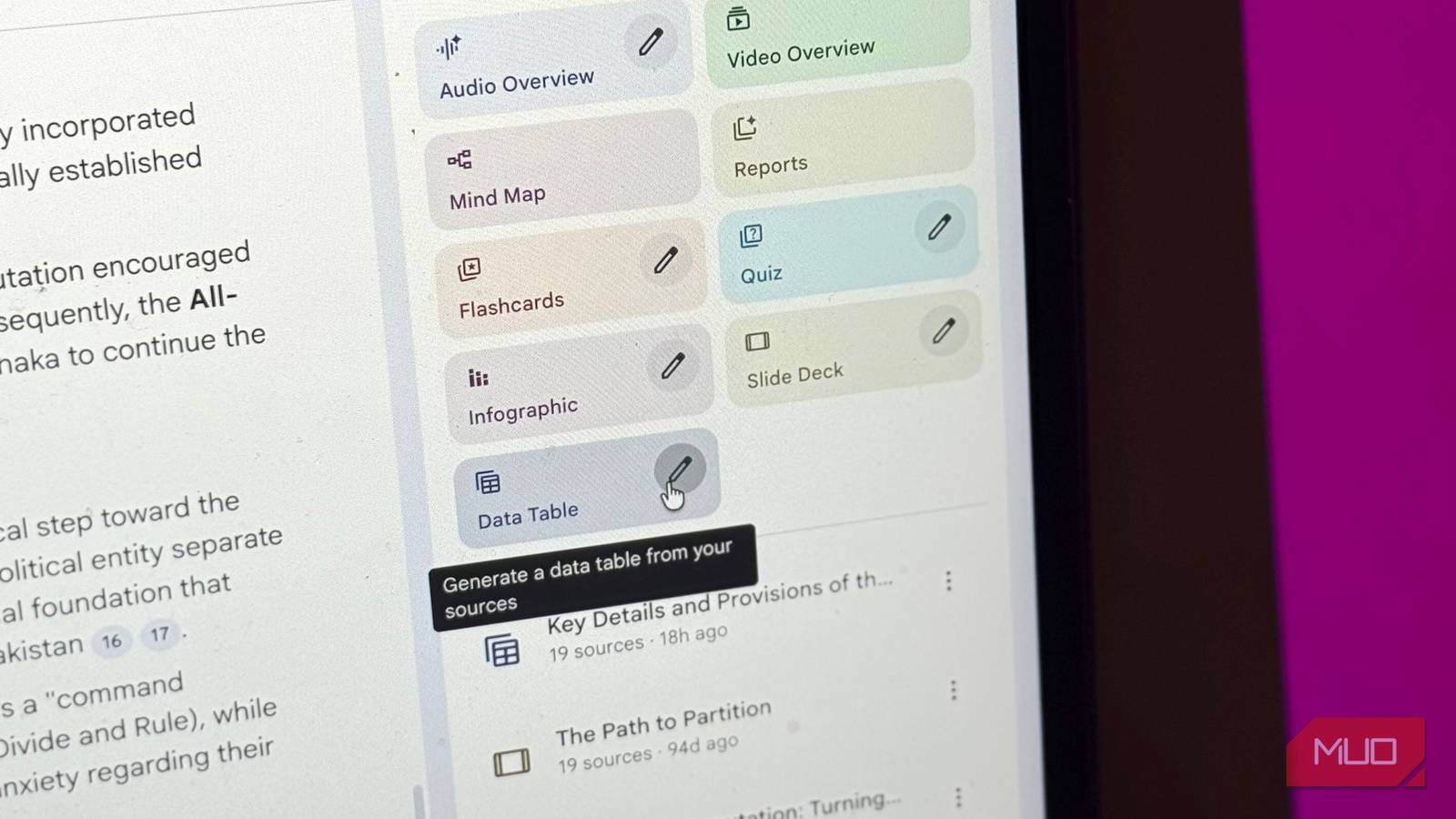
Data Tables is the latest addition to NotebookLM’s Studio panel
It’s the feature I didn’t know I was waiting for

NotebookLM’s Studio outputs consist of the different outputs you can generate from the sources uploaded to your notebook. This includes the viral Audio Overviews feature, Video Overviews, Mind Maps, and more. Data Tables is the latest addition to this lineup and was introduced toward the end of 2025.
The feature does exactly what you would expect from its name — it automatically synthesizes your sources into structured tables. To make these tables actually useful, NotebookLM lets you describe what you want the table to consist of in natural language. You can go as far as specifying the columns, the structure, and the kind of information you want extracted, and NotebookLM pulls it all together from your sources. As with every AI-powered feature, the more detailed your prompt is, the better the output.
Once generated, the tables can be exported directly to Google Sheets. This way, you can edit the output and build on it further without needing to go through the hassle of copying everything over manually.
The output is always an excellent starting point
Might not be perfect, but it beats a blank spreadsheet

Spreadsheets have always…terrified me. I’ve never been the biggest fan of creating them, regardless of how simple the one I want might be. With AI in the game now though, the process of generating a spreadsheet has gotten a lot easier. The great part about having this feature within NotebookLM specifically is that it only pulls the data from your uploaded sources. The tool analyses the data you’ve uploaded, and does all the heavy lifting of creating the table.
The Data Tables feature is great when you have a notebook filled with research sources and need to make sense of them all at once. For instance, I could drop two hundred research articles into a NotebookLM notebook and then generate a Data Table that breaks down each article’s methodology, sample size, key findings, and conclusions. This is the type of work that would previously take days of reading and manually compiling notes into a spreadsheet. Now, it takes seconds.
Although the Data Table you generate using NotebookLM might not always be perfect, it’s an excellent way to decide which sources are worth diving into more deeply and to identify gaps in your research.
It’s also useful outside of heavy research
Works just as well for chaos as it does for research
Similar to how NotebookLM isn’t just for students, the Data Tables feature isn’t just for researchers buried in academic papers. Any notebook with enough sources to start feeling overwhelming can benefit from it. For instance, I’ve been using NotebookLM as a replacement for my read-it-later app.
I noticed that while read-it-later apps effectively store content I want to read in the future, I would forget about it mere days later. To combat this, I decided to create two NotebookLM notebooks — one to maintain the actual read-it-later queue and another to store all the content I’ve consumed (sort of like a knowledge base). Now, given how busy life can get, there are times when my read-it-later queue is overflowing with content I’ve saved for later.
To make it easier to choose what I should read next, I use Data Tables to generate a quick overview of everything in the queue, with columns for the article title, author, main topic, and key takeaways. Instead of opening each source individually to remind myself what it’s about, I get a scannable summary of my entire backlog in seconds. From there, I can decide what’s worth prioritizing based on what I’m working on or interested in at that moment.
I also generate a similar Data Table for the “archive” notebook in this workflow, which comes in handy when I need to quickly reference something I read weeks or even months ago without digging through the actual sources I’ve added.
NotebookLM’s on a roll
Ever since NotebookLM went from a quiet Google Labs experiment to one of the most talked-about AI tools out there, Google’s been constantly shipping new features and improvements. The Data Tables feature is another example of NotebookLM evolving without losing what made it great in the first place.
