

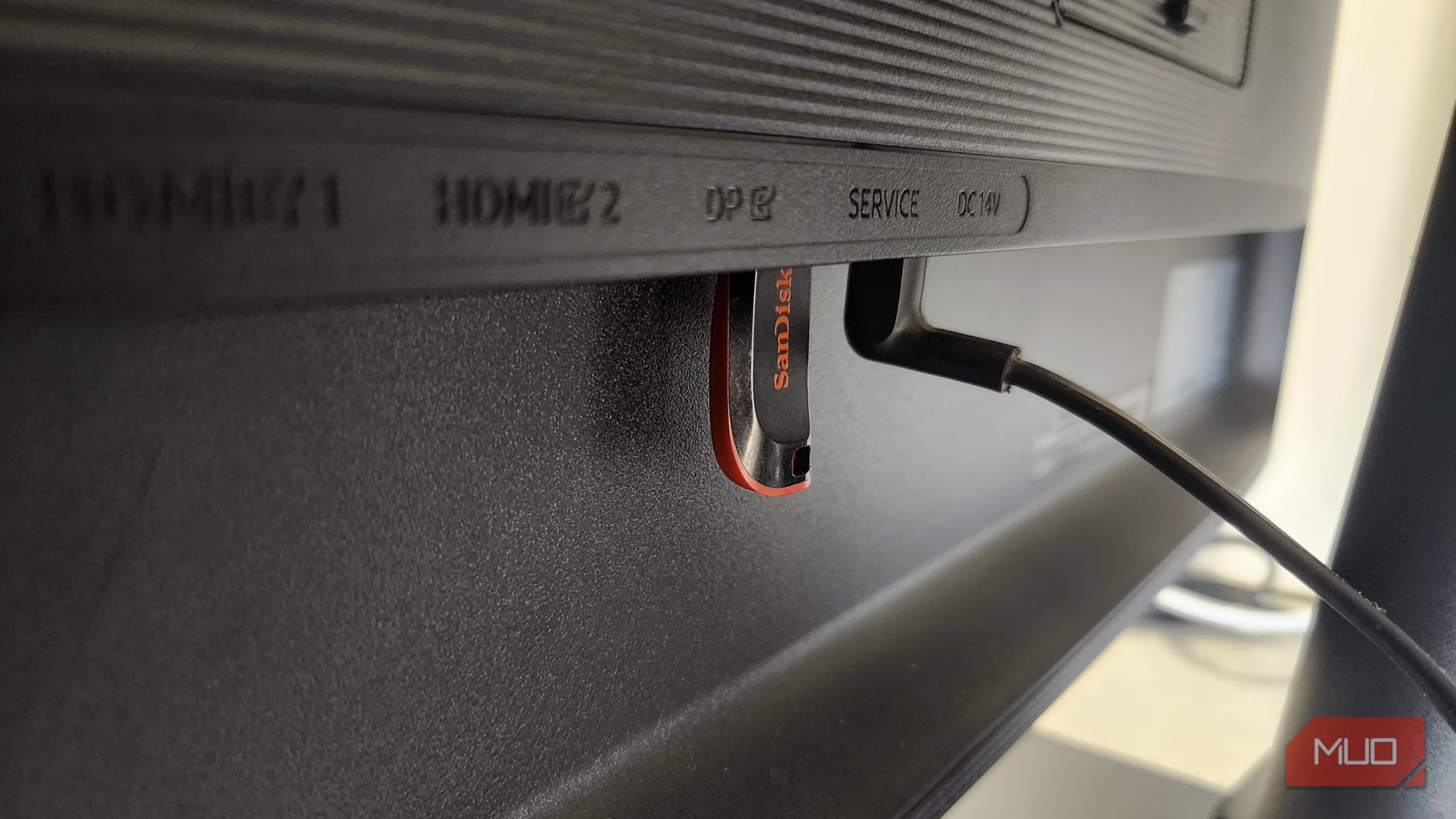

Once you’ve set up your monitor, you’ll rarely look at the ports on the back again. But aside from the display and power connections you’ve already used, most monitors also include a USB port.
That little USB port on your monitor can serve several purposes, depending on its specifications, but assuming it works like your computer’s USB ports is where many people go wrong. In most cases, these ports aren’t the powerful, all-purpose hubs you might expect. That’s why it’s important to understand what that port is actually for before you plug in anything.
What are a monitor’s USB ports actually for (most of the time)
When a USB port isn’t really for you

Monitor USB ports can be a bit confusing. You might spot one on the back or side of your screen and assume it works just like a USB port on your PC, but that’s often not the case.
On most monitors, the USB ports exist only for diagnostics and maintenance. Manufacturers include them so you can run tests, update firmware, or troubleshoot display issues. When a monitor develops issues like flickering, color calibration problems, or firmware bugs, these ports can be used to reflash the monitor’s firmware, access hidden diagnostic menus, or pull internal logs that help identify faults.
So while that little USB port might look tempting, it’s not meant for connecting your devices to the computer. That said, it’s not completely useless either. It can charge small devices like wireless keyboards, mice, smartwatches, TWS earbuds, or even tiny USB-powered fans. But don’t expect fast charging. Your devices will power up, but it’ll likely take longer than if they were plugged directly into your PC or a proper wall charger.
This is true for most monitors, but there are exceptions. Some monitors are equipped with full USB hub functionality, and we will cover those in a moment.
Don’t bother connecting these devices to a monitor’s USB port
It’s not you — it’s the port

It’s tempting to treat that USB port on your monitor like a convenient plug-and-play hub, but unless your monitor has a proper USB upstream port, your devices will likely be disappointed.
Without that upstream connection, your monitor’s USB ports cannot actually talk to your PC. That means your hard drive won’t transfer files, your webcam won’t stream video, and your keyboard won’t type a single letter. Likewise, your gaming controller won’t respond, your speakers won’t play audio, and your monitor won’t suddenly start playing media from a USB flash drive.
The same goes for other common peripherals like printers, scanners, microphones, external SSDs, capture cards, wireless dongles, and more. None of them will work because there’s simply no data link between the monitor and your computer. If you’re trying to connect something that needs your computer’s attention, skip the monitor and plug it straight into your PC instead.
When a monitor can actually act as a USB hub
Not all monitor USB ports are useless

Some modern displays come with built-in USB hub functionality, which can genuinely make your setup more convenient. The key difference lies in that upstream connection, which is usually a USB-B or USB-C cable that runs from your monitor to your computer.
Once that connection is in place, the monitor essentially becomes an extension of your PC’s USB ports. You can plug in your keyboard, mouse, webcam, or even an external drive directly into the monitor, and everything will communicate seamlessly with your computer.
Certain monitors with USB-C ports can deliver power, handle data, and even transmit video through a single cable. That means you can connect a laptop with just one cord and have access to your monitor, peripherals, and sometimes even power delivery to keep your laptop charged.
How to tell what kind of USB ports your monitor actually has
Labels, shapes, and a little detective work

The easiest way to tell is to check your monitor’s manual or spec sheet. Most manufacturers clearly list the type of USB ports included and what they’re designed for. If the documentation mentions Service or Firmware Update, that’s your cue to leave it alone.
You can also check the physical ports on your monitor. A square-shaped USB-B port (often labeled Upstream) is a clear sign that your monitor includes a built-in USB hub. To enable it, connect the port to your PC with a USB cable — only then will the monitor’s other USB ports (usually USB-A) function properly.
A USB-A port on its own, with no USB-B port nearby, is often there for diagnostics or firmware update. A USB-C port can mean a few different things depending on the monitor. It might support data, power delivery, video input, or all three. Again, the manual is your best friend here.
Knowing what your monitor’s USB ports can and can’t do can save you from a lot of trial and error — and maybe a little frustration, too. It’s not that difficult to figure out once you know what to look for, and it can really pay off if you’re planning to upgrade your setup.
