

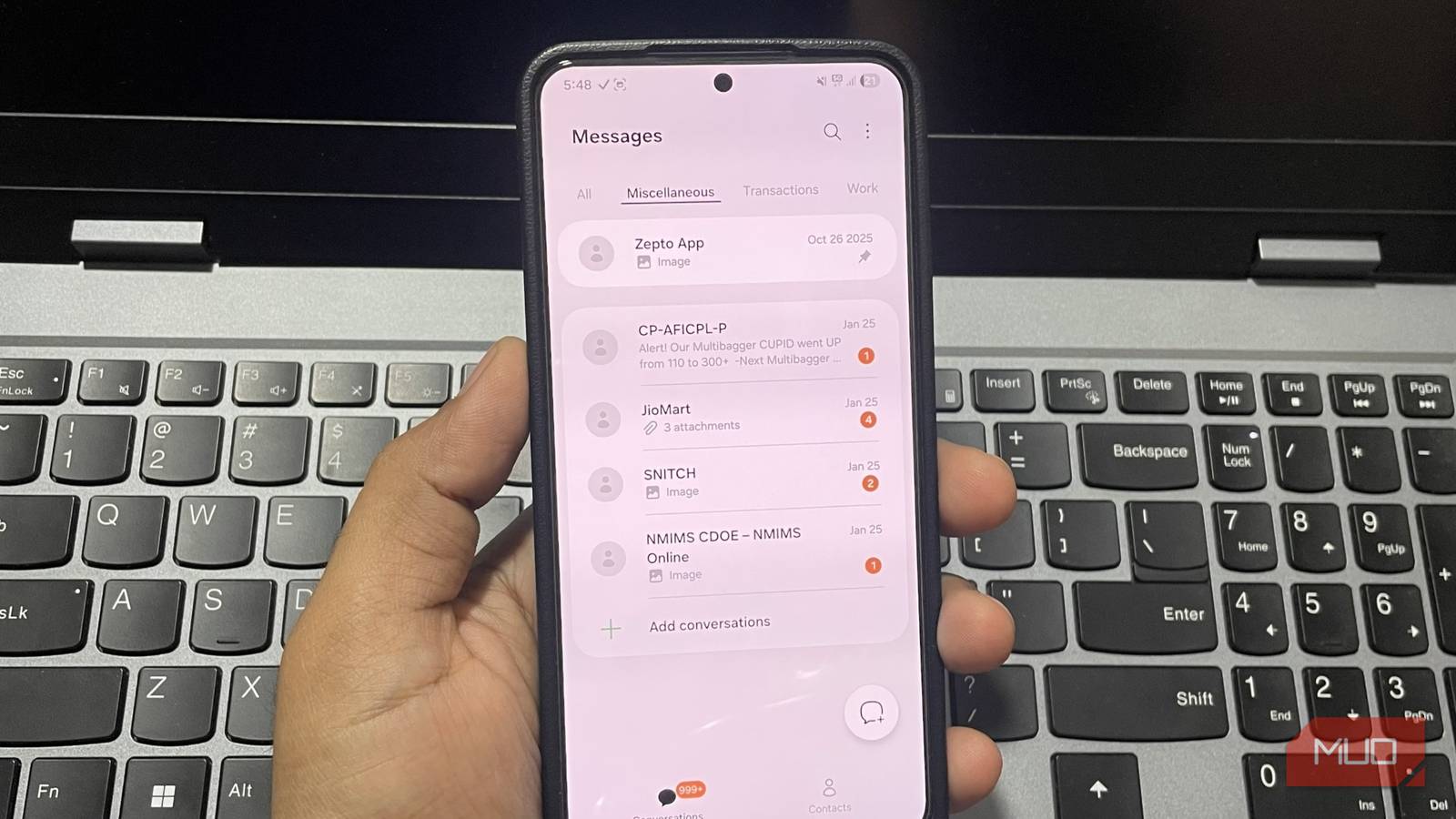

SMS feels boring, outdated, and mostly just a place where one-time codes and delivery updates go to die. This is why, after a point, your inbox can start to feel like a never-ending mess with bank alerts, spam promos, and, of course, your personal chats.
Google Messages does let you pin important conversations to the top, but it only goes so far. Once you scroll past those few pinned chats, you are back in the same cluttered feed, where there is no clear separation between a message from a friend and a random promo. Samsung Messages has a feature called conversation categories that fixes this. It brings structure to your inbox and turns that endless list into something you can actually manage.
Why conversation categories are so useful
The easiest way to tame your SMS clutter

Unlike your WhatsApp or Instagram DMs, text messages usually include all kinds of alerts. One minute you’re chatting with a friend, the next you’re getting a bank OTP, a food delivery update, a spam promo, and a doctor’s appointment reminder. And when everything lands in the same place, your inbox can feel like a junk drawer.
Samsung Message’s conversation categories feature fixes this beautifully. Instead of seeing every message you receive in one endless list, it lets you divide them into separate tabs. It’s like creating different folders on your PC, but for your texts.
And it gets better. Within each category, you can pin important chats to the top. This way, your family group or your bank alerts stay visible even if dozens of new messages arrive. Of course, the usual limit of pinning up to 20 conversations still applies, meaning you can’t pin more than 20 chats across all categories.
This simple organization matters more than you might think. Text messages are still where the most important stuff shows up, like verification codes, emergency notices, booking confirmations, and delivery updates. When it’s mixed together with promotional messages and other generic alerts, it’s easy to miss something critical.
Google Messages still treats SMS like a single stream, with only spam filtering. This means your messages are sorted only by time. This creates a timeline that keeps growing but never gets easier to manage.
Creating and managing categories is easy
Custom inbox with just a few taps
By default, Samsung Messages lists all your chats under a single tab, much like Google Messages. But creating new categories is as easy as it gets. For that, tap the plus icon next to All and type in the name of the category. That’s it.
Once it’s created, you can start selecting the conversations you want to add to that group. If you ever need to move or remove a chat later, long press it, tap the three-dot icon, and choose Add to category or Remove from category. You can create as many categories as you like, and then organize messages accordingly. This makes it much easier to find what you want to read at the moment.
For example, I’ve created a Personal category for friends and family, a Transactions tab for bank alerts and OTPs, a Promotions category for stores and subscriptions, and an Others tab for random one-time messages.
After you’ve set up all the categories, you can fine-tune them. Tap the three-dot menu and choose Edit categories to manage and re-arrange them. Here, tap the three-dot icon and tap Select. Then, use the up and down arrows to rearrange them.
You can also rename or delete categories from this menu. Don’t worry, deleting a category won’t delete your messages inside it. It’ll simply move them to All list.

10 Things You Didn’t Know You Can Do With Samsung Messages
Samsung Messages is packed with features that you might not have noticed if you only use it for basic texting. Here’s how to get more from the app.
There’s a lot more to like about Samsung Messages
Google, please take notes
Conversation categories are undeniably useful, but they are not the only reason I find Samsung Messages better. After all, Google Messages has RCS, and it’s a big deal for many people.
But Samsung Messages has a lot of smaller features that are hard to pass. For instance, Samsung Messages lets you customize each conversation with its own background. You can even fine-tune the opacity of the chat bubble and adjust the text contrast for better readability.
Another useful feature is the built-in chat translation. If you ever receive a message in a local or foreign language, you can translate it inside the Samsung Messages app. All you have to do is select the text and choose Translate. This is something you don’t get in Google Messages.
There’s also the Trash folder, which can be a lifesaver if you accidentally delete a message or an entire conversation. It keeps it for 30 days before removing it permanently, so you have a good chance of recovering it. Samsung Messages also doesn’t push any AI features on you. These are all small details, but they really make a difference once you make the switch.
If you deal with dozens of text messages every day, you already know how quickly things can get out of hand. Conversation categories is a simple feature that solves that. And sometimes, the best upgrades are not the loudest ones, but the ones that make your life easier.
