


I live in my browser just like most internet users, and I’ve gotten used to opening tabs and visiting websites to get basic things done. However, not every single daily task requires a browser. In fact, for many of these, you can do them more cleanly, faster, and more reliably using the terminal.
Let me introduce you to some of the everyday tasks I now perform on my terminal. When you see them in action, you’ll wonder why you haven’t tried them sooner. These are not bash shortcuts for programmers or complex commands with a steep learning curve.
Download files without interruptions
Resume large downloads instantly

I’ve struggled with large file downloads in my browser, especially when the connection isn’t great. When a download fails, you may have to start from scratch. In your terminal, you can use the curl command. On Linux and macOS, a basic curl command to download a file looks like this:
curl -O https://example.com/largefile.zip
And if you want the download to automatically start from where it stopped after an interruption, use this command instead:
curl -C - -O https://example.com/largefile.zip
On Windows, you can achieve the same things using curl, but the commands are slightly different:
curl.exe -O https://example.com/largefile.zipcurl.exe -C - -O https://example.com/largefile.zip
On Windows, you can use wget alternatively, but it has to be installed first using winget:
winget install GnuWin32.Wget
Once installed, you can run the command below to download a file:
wget -c https://example.com/largefile.zip
The downloaded files go to your current directory. You can use cd to navigate to the folder where you prefer to save the file before running the download command. For example: cd C:\Downloads, then run your curl command.
Check the weather instantly
Fast, text-based forecasts

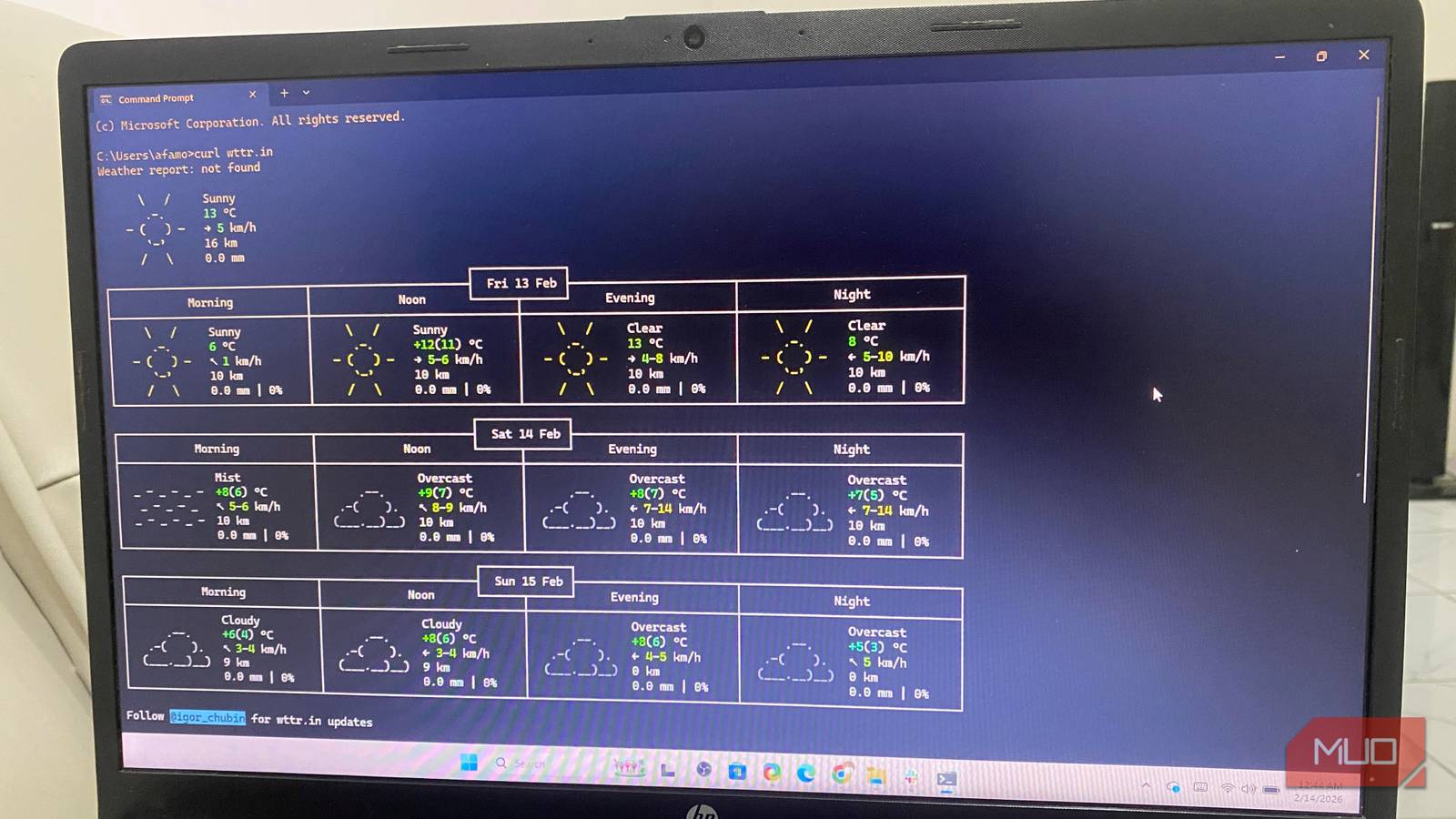
Searching for the weather on Google pulls up several websites, including a nice Google Weather infographic. Most people will choose one of these, wait for a script to run, then dismiss cookies before scrolling through the forecast. But you can get one of the cleanest weather reports in your terminal using the curl command. It works the same across Linux, macOS, and Windows.
curl wttr.in
This command instantly detects your location using your IP address and outputs a formatted forecast to the terminal. You can check the weather for other cities by including the city in the command:
curl wttr.in/Lagos
If you need a minimal summary, you can include ?0 in the command. For example, curl wttr.in/?0 gives a minimal summary without the large ASCII layout.
YouTube, X, and more
I’ve used several different media downloaders. They tend to work for a while, then stop working. Instead of searching for the next browser YouTube downloader, use yt-dlp. This command supports several platforms. You need to install yt-dlp before using it. The table below shows installation commands for different operating systems.
|
Operating System |
Installation Command |
|---|---|
|
Windows |
winget install yt-dlp |
|
Linux (Ubuntu/Debian) |
sudo apt install yt-dlp |
To do basic downloads into your current directory, use the command below, including the video URL:
yt-dlp https://www.youtube.com/watch?v=dQw4w9WgXcQ
If you need the highest-quality video, include the -f flag before adding the URL, and use -x –audio-format mp3 to extract only the audio. Using yt-dlp allows pure downloads without the ads and pop-ups you run into in a browser.
Check your internet speed
Terminal-based speed tests

Speed test websites are very popular, and most of them do a decent job of showing data like upload and download speed and latency. However, you have to see a fair dose of ads on most websites. The cleanest option is using the speedtest terminal command. But first, you must install Ookla Speedtest CLI. The table below shows installation commands for different OSes:
|
Operating System |
Installation Command |
|---|---|
|
Windows |
winget install Ookla.Speedtest.CLI |
|
Linux (Ubuntu/Debian) |
curl -s https://packagecloud.io/install/repositories/ookla/speedtest-cli/script.deb.sh |
Once installed, run the command below, and you’ll get instant results showing download speed, upload speed, as well as connection latency:
speedtest
Alternatively, you can run the command below to test your connection speed using specific server IDs:
speedtest --server-id=SERVERID
Running the command speedtest -L lists servers close to you with corresponding IDs.
Look up your public IP address
Instant IP without a website

A common way to find your public IP is to search “what’s my IP” and click on a website from the search results. This works, but if you’re already working in the terminal, you don’t need to open a browser to perform this task. Depending on your OS, run one of the commands below to get the IP address of all connected network interfaces.
|
Operating System |
Command |
|---|---|
|
Windows |
ipconfig |
|
Linux (Ubuntu/Debian) |
ip a |
If you want to get more detailed IP information, including your public IP address, geographic location (city, region, country), ISP information, coordinates, and timezone in JSON format, run the command below. It works on both Windows and Linux.
curl ipinfo.io
Generate QR codes without a website
Create scannable QR codes instantly

QR Code Generator is one of the more common websites people visit when they need to generate a QR code. On this website, they have to navigate through cookie requests and ads before finally entering text or a URL and downloading the QR image.
In a single command, the terminal can generate a QR code instantly using the Qrenco service. Run any of the commands that match your OS to generate a QR code, substituting https://yourwebsite.com with your actual website or text.
|
Operating System |
Command |
|---|---|
|
Windows |
curl.exe qrenco.de/https://yourwebsite.com |
|
Linux (Ubuntu/Debian) |
curl qrenco.de/https://yourwebsite.com |
One of the creative ways I use QR codes is to grant access to my Wi-Fi network, so anyone who scans it can use it without knowing the password. However, since I don’t expect people to scan the QR code from my terminal, I use the commands below to save the image to the current directory so I can print it out.
|
Operating System |
Command |
|---|---|
|
Windows |
Invoke-WebRequest -Uri “https://qrenco.de/https://yourwebsite.com?type=png” -OutFile qrcode.png |
|
Linux (Ubuntu/Debian) |
curl qrenco.de/https://yourwebsite.com?type=png -o qrcode.png |
Real everyday terminal power
The terminal gives a lot of control, making it an ideal tool for power users. However, many of the things you can do with the terminal don’t have to be advanced or high-level system operations. Basic daily workflows can become part of how you use the tool. Even though most of the commands I have shared may seem basic, they’ve become some of my most useful terminal commands.

6 Fun Tricks You Can Do in Windows Command Prompt
It might look boring, but Command Prompt does have some fun tricks up its sleeve.
