


As time goes on, the quality of 4K screens and TV displays has been getting so much better. While some may argue that plasma screens were where things peaked, we’ve only got room to expand from those heavy, heat-producing displays of yesteryear. Even back in the day, Samsung was a pioneer in creating a great display, and they’ve kept that quality high since flat screens were unleashed on the world.
But, there’s a chance that you may not know that your Samsung device has a hidden service menu that unlocks even more customization for your picture and device. PWM, calibrating colors, and backlight adjustments are just the start for curious consumers.

Before trying this for yourself, make sure you research and understand what each setting in the service menu does. MUO and the author are not responsible for any damage done to your devices without prior research into Samsung service menu settings.
Messing around with electronics has been a passion of mine for years. Regardless if it’s tinkering with and disassembling different consoles and PCs, or messing around with the settings on my displays to get the best picture possible, I love doing things like this. But the service menu, hidden away behind a string of key presses on a Samsung display, is something I was unaware of until recently.
The service menu is meant for diagnostic purposes, and a wrong step along the way could result in your display not functioning correctly. But if you’ve got the patience and have done the research beforehand to ensure that you are capable of tweaking these settings, this menu can help adjust your preferred settings. Pair these tweaks with a DNS blocking service to get rid of ads, and your TV could feel brand new again.

Gaming on a Smart TV Is So Much Better With These Settings Tweaks
Your smart TV has a heap of features that make gaming much better—you just need to know where to look.
If you’re ready to take the risk, give this a try

It seems like the service menu can be a little tricky to access, depending on the device that you’re hoping to use. The Samsung display I have in my office, model UN65MU6500, was not able to pop the service menu regardless of the key combination that I tried. I even tried with two different remotes — one with the keypad, and the other without — and still had no luck. My smaller, newer Samsung model (UN50TU690TFXZA) was able to access this on the first try. If you’re hoping to keep your device from phoning home and tracking everything you’re doing, you don’t need to worry about going into the service menu to stop that.
Depending on your device, there are a few different codes that you can try to input. All of these require the TV to be powered off, and if done correctly, the TV will power on with the service menu enabled:
- Mute > 1 > 8 > 2 > Power
- Mute > 1 > 1 > 9 > Power
- Info > Menu > Mute > Power
When using a non-numbered remote, you can try inputting the following to access the service menu while the TV is powered on:
- Mute > Up > Down > Enter/OK > Mute
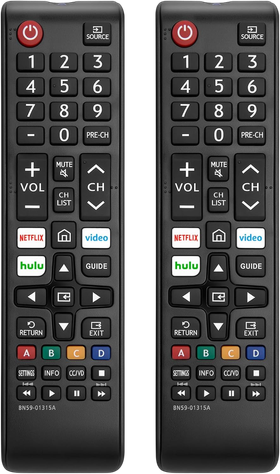
- Power Source
-
AAA Battery x2
- Dimensions
-
6.9″L X 1.65″W X 0.9″H
- Brand
-
LOUTOC
- Voice Control
-
No
What will you see if this is successful?
A whole smattering of different options to play with
Now that you’ve entered the service menu, the first thing I’m going to recommend is this: take pictures of every setting that you plan on changing, just in case something goes wrong during the process of changing things around. This menu is meant for service people to mess with, so things can get screwy with just a simple press of a button. Verify everything that you’re changing, and do the research needed to ensure that you’re not changing something that could fundamentally alter your TV.
That being said, users can disable store mode or bypass hotel locks on Samsung displays with this method, calibrate colors and balances on the display, check how many hours the panel has been used for, and more. I’m pretty happy with the display on mine, so outside of gathering pictures, I didn’t change any additional settings on this menu. I’ve already turned off the most egregious offenders in my settings menu.
What’s the worst that could happen?

If you decide to mess around with the service menu and things don’t go as planned, don’t completely fret — there’s a fair chance that you may be able to rescue your device and restore it to factory settings via hardware buttons. As long as your device has physical buttons, which most TV sets do still have, you’ll want to unplug the device for a full minute, plug it back in, and hold the power button for 30 seconds to a minute.
Samsung support may not be willing to help, as messing with settings in the service menu can potentially void your warranty. As stated multiple times throughout this article, do not attempt this if you’re not 100% comfortable altering the settings that your device came with. If you are comfortable with the idea, be sure to research fully before committing to any of these changes.
The service menu is a fun little trick, especially if you know what you’re working with when it comes to TV settings. Auto-dimming settings, color calibration, and ways to make your display pop without spending any additional money. It’s a great feature to have, and could be very beneficial in the right hands.
If you’re cautious about trying it, I can’t blame you. It can be scary to alter any of the settings on your device, especially something as expensive as a TV. But if you’re curious to see if your TV has it, you can try the steps listed above and pop the service menu up, and then just power your set down to leave without making any changes. You can see what makes your set work behind the scenes, all without the worry of messing anything up. At least, that’s 100% what I did.
