

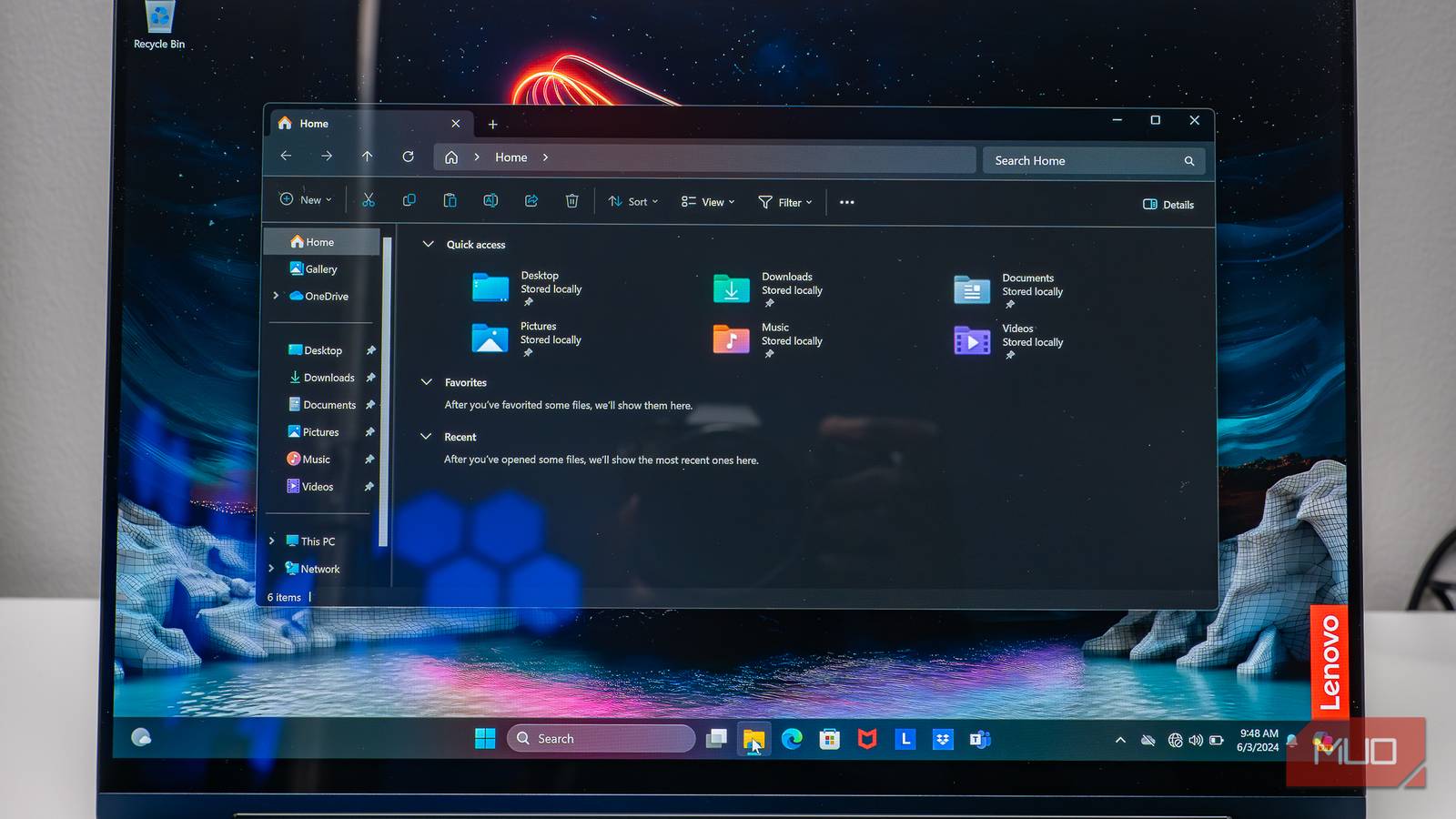

You drag a folder from one spot to another, expecting an instant handoff. Instead, File Explorer stalls on “Calculating…“, the progress bar nowhere in sight, leaving you to wonder whether the system has locked up. It’s a familiar irritation — and one that can surface even when you’re moving a modest amount of data.
The truth is, File Explorer isn’t actually stuck; it stems from a deliberate design choice in how Windows stages file operations before they begin. Understanding that decision not only explains the lag but also finds ways to copy files faster on Windows by working around these default behaviors.
File Explorer prepares files first (and that’s why copying seems slow to start)
Your computer is taking attendance before class begins

When you ask Windows to copy or move a batch of files, File Explorer doesn’t start pushing data right away. It first enters an enumeration phase, scanning everything you’ve selected. During this pass, you’ll see prompts like “Discovering items” or “Calculating time required to copy files.” Windows is essentially building a complete manifest, which includes counting files and folders, estimating the total size, and estimating how long the operation might take.

How to Fix a Freezing File Copy Progress Bar in Windows 10 & 11
Windows’ somewhat sluggish progress bars are the butt of a lot of jokes, but sometimes they stop altogether. Here’s how to fix them.
This behavior has been around since Windows Vista and is still very much alive in Windows 7, 10, and 11. The idea was to improve the quality of the progress indicator. By understanding the scope of the job upfront, Explorer can present a progress bar that tracks the operation more faithfully, rather than sprinting to 99 percent and then stalling on a single large file, a familiar frustration in earlier versions of Windows.
Windows also needs this information to handle potential conflicts intelligently. If duplicate filenames exist at the destination, the system must present you with options — replace, skip, or keep both versions. Without knowing what lies ahead, File Explorer couldn’t offer these choices until partway through the operation, creating a messier user experience. By cataloging everything up front, File Explorer can batch similar decisions, letting you click “do this for all items” rather than responding to individual prompts for thousands of files. You either endure a calculation period now or suffer constant interruptions later.
There is a catch, though. The math Windows does is only a rough estimate anyway. The actual bottleneck is still the underlying hardware: how fast your drive can read and write, and what kind of files you are dealing with. A folder packed with 10,000 tiny text files, for example, can take longer to enumerate than a single 100MB video, even though the video contains far more data.
The best solution is working around the problem
The most straightforward solution is to avoid asking File Explorer to enumerate massive collections of files all at once. Rather than copying all data simultaneously, divide large file collections into smaller chunks and copy them separately into one directory. If you have 100GB of files spread across thousands of items, create logical groupings — perhaps by file type, date, or project — and transfer them in batches. This approach not only reduces computational time but also makes the transfer more manageable if something goes wrong midway.
For folders that consistently cause slowdowns, optimizing how File Explorer handles them can yield significant improvements. Right-click on the problematic folder, select Properties, navigate to the Customize tab, and change the Optimize this folder for setting to General items. This prevents Windows from treating the folder as an image gallery or music library, thereby preventing unnecessary metadata from being retrieved during enumeration. Apply this template to all subfolders for maximum effect. Your Downloads folder, in particular, benefits enormously from this adjustment.

If File Explorer’s behavior continues to frustrate you, consider using alternative file transfer tools that handle enumeration differently. Windows has a built-in command-line utility called Robocopy (“Robust Copy”) that’s optimized for large-scale file operations. Robocopy starts copying immediately and avoids the GUI’s pre-calculation phase, which can save time for huge jobs. It’s also more resilient, as it can perform multi-threaded copying (copying many files in parallel) and auto-skip problems without stopping. If you are comfortable in a terminal, it is a beast.
However, if you prefer a graphical interface, there are solid third-party options that move files just as fast. Tools like FastCopy, TeraCopy, SuperCopier, or Copy Handler can step in and handle transfers faster and more reliably than the default Windows copy routine.
And one last, sneaky culprit to check: network drives. If you are dealing with slow or disconnected network locations, no file tool in the world can save you from a bad connection. Make sure any mapped drives or VPN connections are active before you start a transfer. You can use the net use command to fix ghost connections in Command Prompt, allowing you to see all your mapped drives and clear out those that are not really connected.
Now you’re equipped to outsmart the waiting game
So, you can see that slow file-copying isn’t your computer misbehaving; it’s Windows being extra careful. The upside is a more predictable transfer with fewer hiccups. But if speed is of the essence, you now have some options up your sleeve. So, here’s to faster, happier copying!
