

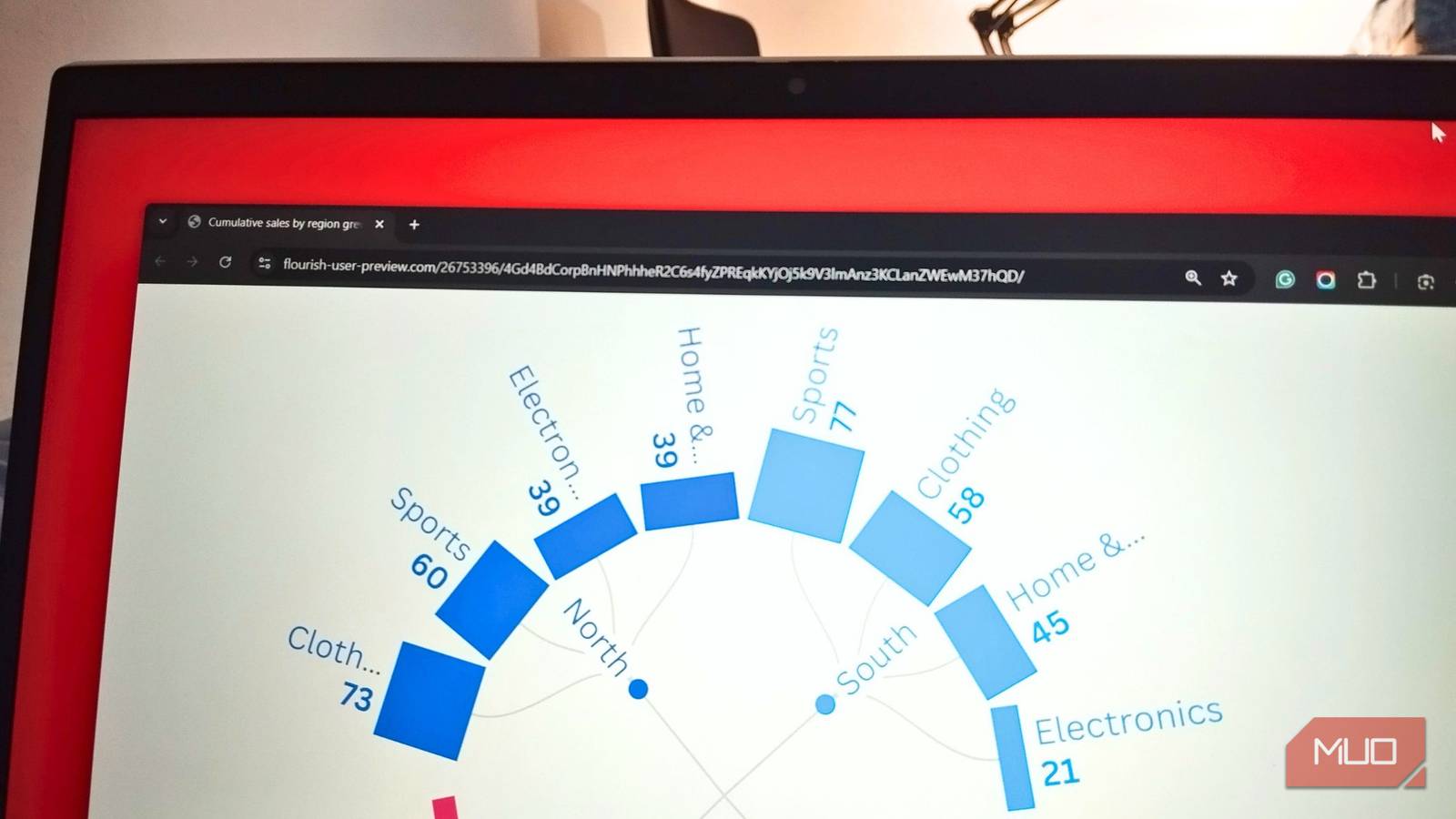

Excel has always been my go-to for charts and graphs. It gets the job done, and for quick internal reports, Excel templates make complex tasks dead simple. There’s nothing wrong with a basic bar chart. But when I need something that doesn’t say “made in five minutes before presentation,” Excel’s limitations become obvious. Static charts with default formatting don’t exactly hold attention in presentations, nor do they look professional on a website.
I’m not suggesting you ditch Excel, as it’s still unmatched for data manipulation. But for visualizations that need to impress, there are tools purpose-built for the task. These three options handle different scenarios well.
Flourish
Turn your spreadsheets into interactive animated stories
Flourish is a browser-based visualization tool popular with newsrooms, marketers, and anyone who needs charts that do more than sit on a page. If you have ever seen a “Bar Chart Race” video on YouTube where rankings swap positions in real-time, it was likely made here. While Excel excels at calculation, Flourish specializes in animated and interactive visuals, zoomable hierarchy charts, maps, and story-driven presentations. You don’t need design skills or coding knowledge.
The template library is extensive. You’ll find standard options like line, bar, and pie charts alongside more distinctive formats such as population pyramids, streamgraphs, arc diagrams, and 3D maps. You can filter these templates by purpose, such as comparison, change over time, or hierarchy, to narrow down the right choice. If you’re unsure which chart fits your data, the purpose filters help narrow things down quickly.
There are two ways to start a project. The usual route is to select a template first, then upload your data. However, Flourish also lets you start by uploading a spreadsheet first, where it detects columns (like my sales data) and recommends chart types like bubble charts or heatmaps. The suggestions aren’t always perfect, but they’re a useful starting point if you’re exploring options.
Speaking of pricing, the free tier gives you unlimited projects with access to the full template library, but all published work displays Flourish attribution. If you’re a Canva Business or Enterprise subscriber, you can access Flourish through Canva’s integration, which removes the attribution and adds SVG export. However, for occasional use or public-facing content, the free version covers most needs.

8 Types of Excel Charts and Graphs and When to Use Them
When numbers get boring, let these charts and graphs do the talking.
I tested this with a quarterly sales spreadsheet containing 32 transactions across four regions, four product categories, and eight salespeople. Using the sunburst chart, Flourish displayed concentric rings for regions and products that were fully clickable. A dropdown allowed viewers to switch between metrics such as commission and revenue.
I also tried the radial tree chart, which shows the same hierarchy differently, with branches extending outward from a central point. It’s less compact than the sunburst but easier to read when you have many categories.
Flourish works best for presenting data to an audience rather than analyzing it yourself. The interactive elements make it suitable for embedding in articles or sharing on social media.
Bricks
Stop copying and pasting screenshots into PowerPoint
One of the biggest pain points in office work is creating charts in Excel, taking screenshots of them, and pasting them into PowerPoint. Bricks solves this by combining spreadsheets, documents, and presentations into one platform with AI built into every layer. Bricks is ideal for people who frequently present data and want to skip the export-import step between apps. Instead of manually formatting cells, you rely on the AI Chat panel to interact with your data.
The spreadsheet interface is similar to Excel, but the AI Chat panel on the left helps you interact with data. You can type a request like “create a dashboard showing regional sales performance,” and Bricks will automatically generate charts, summary tables, and written insights. You’re not limited to pre-built templates, though; the AI interprets your data and can decide what visualizations make sense.
The free tier limits you to 20 AI messages, which go quickly when experimenting. Paid plans start at $25/month and offer 200 AI messages.
I imported the quarterly sales spreadsheet and clicked Create Dashboard. Bricks analyzed the data and produced a multi-section report that included regional revenue summaries, top-five transactions, and KPI cards for total units sold, the highest-revenue region, total revenue, and several other charts.
Beyond just visuals, the AI also generated written insights. It identified top performers, noted revenue volatility, and flagged regional trends, placing these bullet points right next to the charts.
The Quick Actions bar lets you add charts or apply filters without rebuilding the whole view. If your underlying spreadsheet changes, the dashboard syncs automatically, and the Present button turns everything into a full-screen presentation immediately.
Bricks handles standard chart types well, so pie, bar, stacked bar, and line charts all came out clean with proper labeling. The AI isn’t perfect; however, you can regenerate or adjust manually, but expect some back-and-forth.
Datawrapper
Create clean journalism-style charts for the web
Datawrapper is a browser-based tool that newsrooms have relied on for years to create charts that load quickly and work across all screen sizes. But the focus here isn’t animated visuals or AI-generated insights. Rather, if you need a chart that communicates information without getting in the way, Datawrapper handles that well. Unlike Bricks, which builds dashboards, or Flourish, which focuses on animation, Datawrapper is about creating clean, responsive, and accessible visualizations for the web.
The process is strict but effective: Upload, Check & Describe, Visualize, and Publish. You can paste data directly or connect a Google Sheet. The Check & Describe step verifies that your columns are interpreted correctly, where numbers appear in blue, dates in green, and text in black.
The Visualize step offers a range of chart types, including bar charts (stacked, grouped, split), column charts, line charts, area charts, scatter plots, and pie and donut charts. There are also a few specialized options, such as range plots and election donuts. The selection isn’t as broad as what Flourish offers, but the default styling is clean enough that most charts look presentable without much adjustment.
It offers four tabs under Visualize that include Chart type, Refine, Annotate, and Layout. The last one lets you view your chart through different color-vision-deficiency filters, with automatic dark mode support. These accessibility options are built into the standard workflow rather than hidden away.
The tool generates a responsive embed code for websites. It also supports “tooltips,” meaning hovering over data points displays values automatically.
When you edit data in the Check & Describe step, the chart preview sometimes takes a few seconds to reflect your changes. The lag can be confusing if you’re making quick adjustments, but refreshing the page or moving to the next step usually resolves it.
Datawrapper’s free tier is fairly generous, and you can create unlimited charts, though they display a small watermark. Custom plans start at $599/month for 10 user licenses, which remove branding and adds team collaboration features. The gap between free and paid is noticeable, but the free version covers most casual use cases without issue.
Picking the right tool for the job
Picking the right tool depends entirely on where your data is going. Flourish works best when you want viewers to interact with your data—clicking through hierarchy levels or watching trends animate over time. Bricks saves time when your spreadsheet needs to become a written report or presentation by the end of the day. Datawrapper is well-suited to situations where the chart will live on a webpage and needs to load quickly on any device.
You don’t have to pick just one. Since all three offer free tiers, try importing an existing Excel sheet into each and see which workflow fits your style.
