


After using several security tools on Windows, I’m convinced the built-in firewall is solid. Despite this, it doesn’t feel like something made for me. Even though it runs quietly, is rarely in your way, and shields the computer from danger, I strive for a bit more visibility and control.
So when I stumbled onto TinyWall, I instantly liked it. It brings the straightforward, no-nonsense feel I’ve always loved from Linux tools. The good part is that, rather than replacing the built-in Windows defenses, it attempts to make them more usable. And as the OS has been missing a tool like this, it’s a welcome upgrade.
A simple way to make Windows Firewall usable
TinyWall keeps the power but removes the noise
Windows Firewall is effective; it’s part of Windows Security, which I prefer to several antivirus tools. That’s why TinyWall is a great addition to my security stack. It takes the existing Windows Firewall and gives you a cleaner, more intentional way to use it.
Windows Firewall’s decisions generally do not come with any justification. In some cases, it only informs you after the fact; in other cases, it may allow a connection you never meant to approve. In contrast, I started understanding what was being blocked as soon as I installed TinyWall.
It makes Windows Firewall approachable. While you get the same top-level Windows security, it wraps it in an interface that respects your attention.
TinyWall (from v3.x onward) is a standalone firewall using WFP, not just a front-end for Windows Firewall.

- OS
-
Windows
- Price model
-
Free
TinyWall is a free, lightweight, user-friendly, and secure firewall made exclusively for Windows. It relies a lot on Windows functionality, and gives you control over underlying Windows Firewall features.
A cleaner way to approve apps and block the rest
Connectivity only happens when you want it to

TinyWall has a silent deny-by-default approach, which is the biggest improvement in security management I have noticed. It blocks any app requesting network access, making sure the connections don’t happen unless I approve them. It takes away the pop-ups or flashing warnings that other security solutions often have, ensuring I’m not forced into making a split-second decision.
This approach goes beyond minimalism, offering better security. With traditional firewall prompts, you typically have to guess, which often leads to clicking the allow button. TinyWall allows you to decide on your own schedule whether something needs your attention. This gives you adequate time to determine if the app deserves access.
I was surprised by its impact on my daily computer experience. It removed the subtle anxiety I get when I receive a firewall prompt. I am more intentional with whitelisting apps because I clearly understand what they are and what they do. This new approach has made my workflow calmer.
Profiles that actually change how you work
Switch between trusted and untrusted networks in one click

TinyWall has incredibly powerful modes and profiles. Technically, Windows Firewall also supports profiles. However, switching between them rarely feels useful, and it’s buried deep in menus. With TinyWall, on my home Wi-Fi, I use Normal mode with my essential apps whitelisted. But for shared or public networks, I switch to Block All. Without reworking any rules, it cuts off everything instantly.
TinyWall’s Autolearn Mode is a helpful onboarding feature. After installation, I turned it on, launched my regular apps, and TinyWall learned the required connections. Once that was done, I switched back to Normal mode, a working rule was set, and I didn’t have to micromanage the process. I get everyday practicality with these profiles, filling the usability gap that Windows Firewall never addressed.
Exceptional visibility without the complexity
Connections, blocked attempts, and active rules you can actually understand

After a few weeks of using the tool, I realize visibility is one of TinyWall’s underrated strengths. While Windows Firewall logs everything, the information it logs can seem invisible unless you enjoy combing through log files.
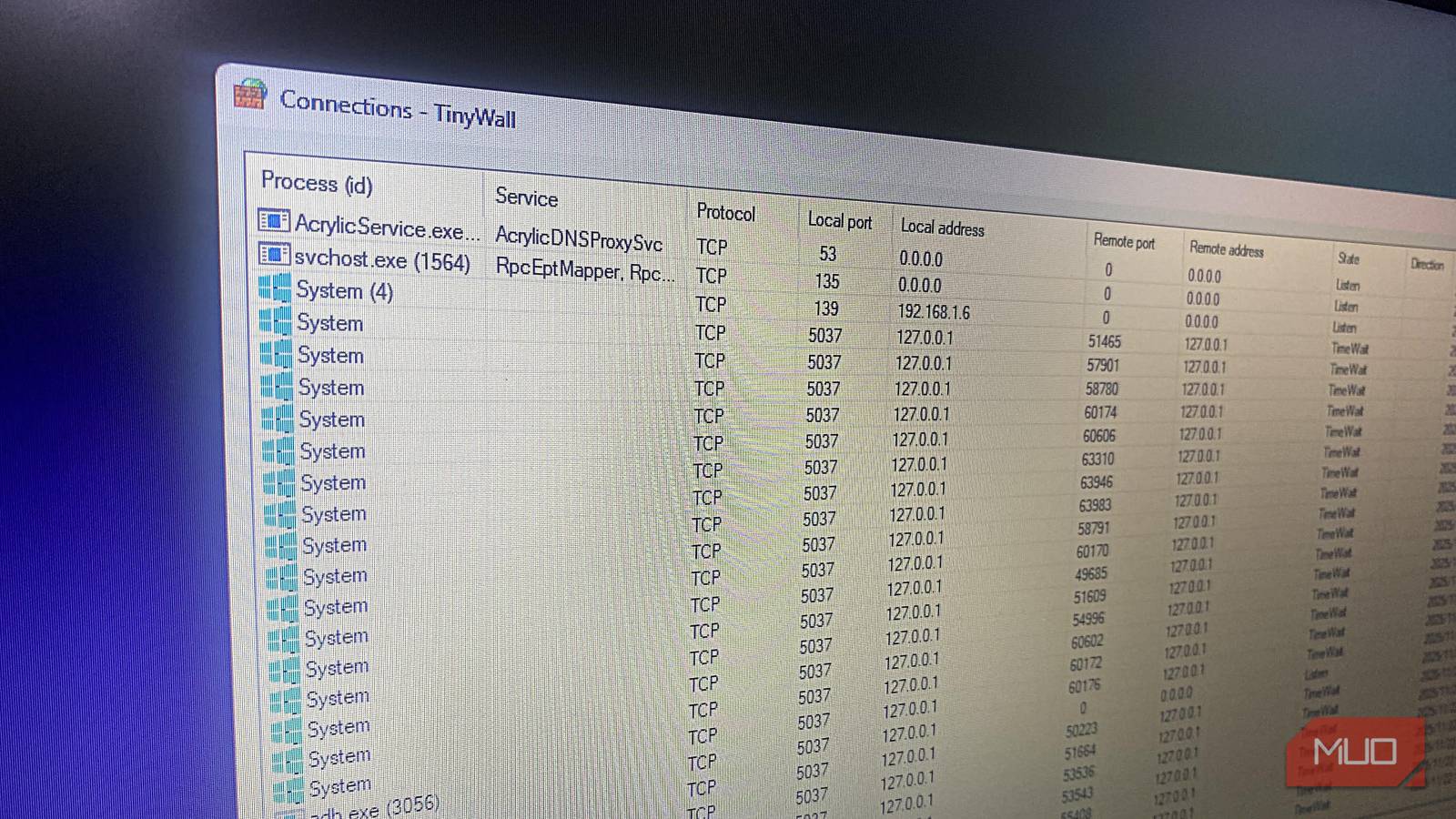
TinyWall converts all the buried data into a simple, readable toolset. You see what applications are actively talking to the network in the Connections window, and the Blocked Apps window shows disallowed connections. At a glance, I can easily make sense of the list of active rules.
I started to understand my system more comprehensively, as I didn’t have to enable debug logging or run PowerShell commands to see what an app is trying to do. I’ve been able to confirm when apps are behaving naturally and when they are reaching out even though they shouldn’t be.
The difference that TinyWall’s visibility makes is subtle, yet it’s enough to build your confidence: your network rules are active and doing exactly what you set them to do.
It’s important to know that TinyWall is now community-supported; the app doesn’t receive support from its original creators.
Control without breaking what already works
TinyWall is the firewall that Windows has been missing, and it’s evident in how elegantly it respects the underlying system. It’s lightweight: there’s no kernel driver installation and no deep hooks into the networking stack. It doesn’t attempt to replace the built-in firewall. It’s one of my must-have security apps.
It’s so lightweight it barely registers in memory, and it doesn’t slow boot times. TinyWall never interferes with normal network activity, and after a few weeks of use, it feels like a native Windows element rather than a third-party add-on. I like it because it is very Linux-like. However, even if you have never used Linux, you’ll find this level of transparency and control liberating.
