


Notifications are important as they alert you the moment something important happens. For example, when you have an upcoming meeting, you don’t have to keep checking the clock, as you’ll be notified just before it begins. Similarly, a security notification about an app trying to access your files is important because it needs your attention.
Windows, however, sends you notifications for almost everything under the sun, including one for not opening an app for a while. Winhance is a free Windows optimization app that can help you tame all the annoying notifications without digging through the settings. However, make sure to configure it correctly so that you don’t miss anything important.
The problem of Windows notifications
Too many interruptions are breaking my flow

The most infuriating notification I’ve encountered has to be the “Complete your setup” message that haunted Windows 10 and somehow survived the journey to Windows 11. Even after I’ve explicitly chosen my settings during installation, Windows insists I’m not done setting up my PC. It pops up every few days, suggesting I link my Microsoft account, enable OneDrive, or try Microsoft 365—things I’ve already decided against.
Then there’s the ironically annoying notification about turning off notifications. Windows actually sends you a pop-up saying, “Turn off notifications from Settings? We noticed you haven’t opened these in a while.” Yes, it even does this for the Settings app itself. I can’t count how many times I’ve seen this while working on something important. While Microsoft has tweaked the notification logic over the years to reduce these interruptions, they still happen regularly enough to disrupt my workflow.
The Xbox notifications are another headache altogether. I don’t game on my work PC, yet Windows assumes everyone wants Xbox Game Bar and Xbox companion notifications. What’s worse, when you check Settings -> System -> Notifications -> Priority notifications, you’ll find Windows has automatically added these Xbox apps to your priority list. That means even when you enable Do Not Disturb mode to focus on work, Xbox still gets through.

Windows does offer a way to manage some notifications. You’ve got the main toggle in Settings -> System -> Notifications, individual app controls below that, additional settings for Windows tips and suggestions, and then the whole priority notifications system. Each app can have its notification behavior customized further with sound, banner style, and notification center options. It’s comprehensive, but finding and tweaking every annoying notification source takes forever.
Using Winhance to turn off Windows notifications
Turn off Windows notifications with one click

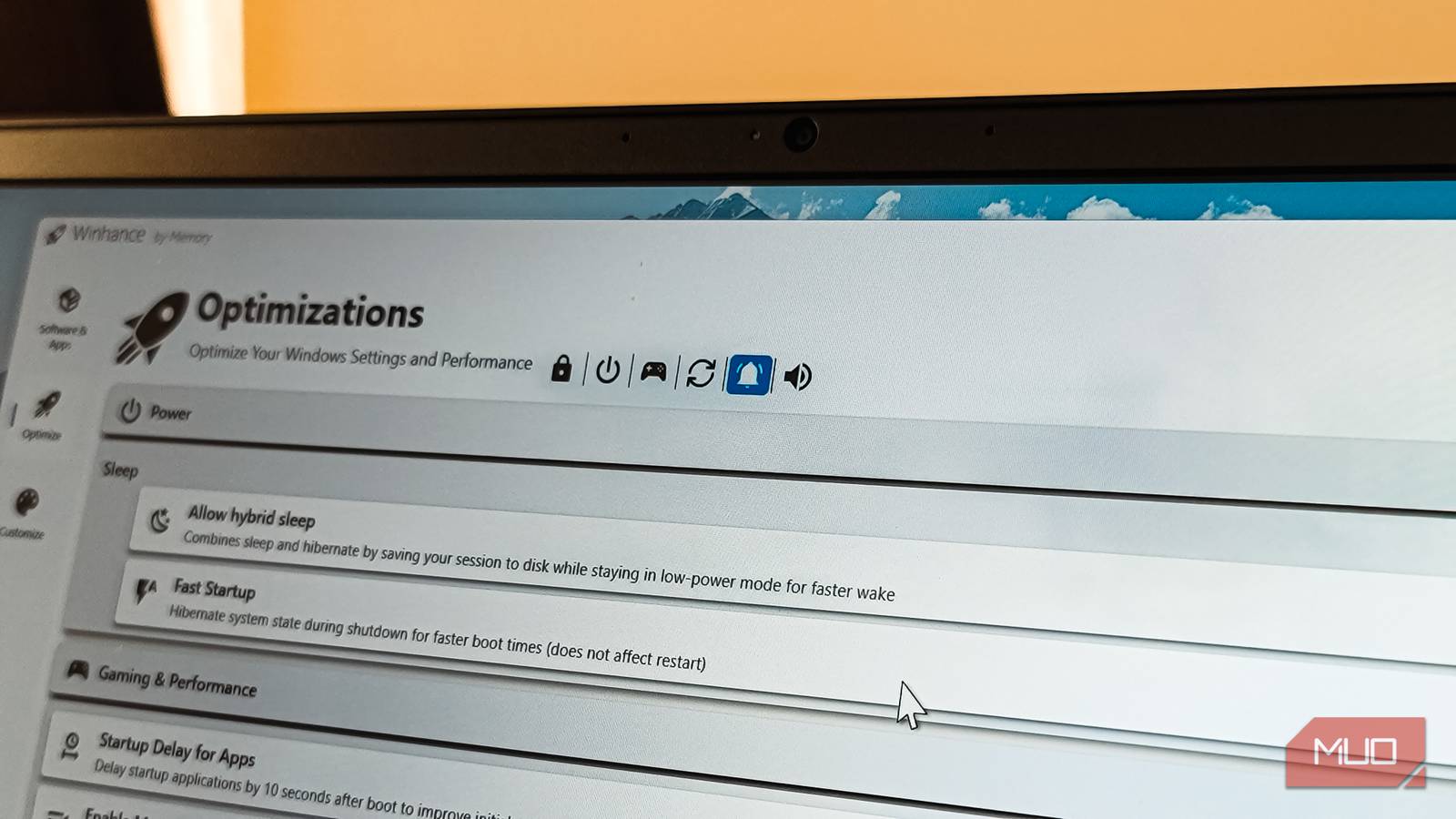
I often use Winhance to optimize my PC. However, its notification controls are equally impressive. The app’s Optimization tab shows all notification settings in one clean interface. You can see exactly what Windows is doing with my notifications and change multiple settings at once.
You can disable notifications from appearing on the lock screen with a single toggle. The app lets you turn off those “helpful” system engagement notifications that suggest features that Microsoft thinks you might like. There’s even an option to disable the notification bell icon entirely if you want complete peace.
Winhance also handles the more buried notification settings well. You can disable Startup app notifications, Windows Security notifications about threats, and maintenance notifications from the Action Center. Each toggle displays a small warning icon when a registry value is missing or a restart is required to apply changes, so you always know exactly what’s happening.
The app doesn’t just turn things off blindly, either. Winhance preserves critical notifications like reminders and VoIP calls on the lock screen if you want them, while still blocking the annoying stuff. I’ve configured mine to show only the notifications I care about, including calendar reminders and security alerts, while everything else stays quiet.

- OS
-
Windows
- Price model
-
Free
Winhance is a Windows enhancement utility that simplifies debloating, optimizing, and customizing your system, providing users with easy tools to control performance and personalize their Windows experience effortlessly.
Winhance can do a lot more
Windows optimization, app uninstall, and automation
Beyond notifications, Winhance is useful for cleaning up Windows bloatware. The Software & apps tab scans your system for pre-installed apps and presents them in a simple list. I’ve used it to remove Cortana, Xbox apps, and several other Microsoft apps I never use. The tool even creates scripts to prevent Windows from reinstalling these apps during updates.
Furthermore, you can adjust User Account Control notifications with a slider instead of navigating the old Control Panel. You can also toggle some privacy settings directly from the Winhance interface. For example, I have disabled activity history, turned off personalized ads, and stopped Windows from collecting my typing data.
It also includes a few performance-related tweaks to make your PC feel a bit faster. You can enable CPU priority for gaming (I mainly use it for demanding apps), optimize visual effects, and delay startup apps by 10 seconds after a reboot to reduce the initial lag caused by everything loading in the background.
The External Software section offers two options. First, you can remove third-party apps without having to click through their uninstallation wizards. Second, it provides a curated list of essential tools you can install in a single batch. This is especially useful when setting up a new PC and you want to quickly add essentials like 7-Zip, Notepad++, VLC, and more without downloading each app separately.
Taming Windows notifications
Windows notifications can be annoying when they are irrelevant to your work. Yes, you can enable Do Not Disturb to see fewer notifications, but I still want to receive important notifications. Microsoft should show fewer Xbox Game Pass notifications and stop treating our PCs like billboards for free marketing. Until that happens, Winhance should help you fix the annoying notifications problem on your PC.
