


The other day, I was tackling some light video editing on my Windows 11 PC when a friend of mine — someone who practically lives in CapCut and knows his way around video software — stopped by. He glanced at my monitor, paused, and asked what new software I was trialing. When I told him it was just the native Windows editor, he didn’t buy it. He kept circling back, really curious about the interface he was seeing on my screen. At first, I thought he was just messing with me, but it quickly became clear he had no idea Windows 11 ships with its own video editor.
That got me thinking, so I started asking around. I realized most people fall into two camps: those who have noticed the Microsoft Clipchamp icon but never bothered to open it, and those who had no idea it was sitting on their computer at all. If you find yourself in either of those boats, you’re overlooking one of the most capable tools Microsoft has ever bundled with its operating system.
Microsoft Clipchamp brings professional-grade features without complexity
All the bells and whistles, none of the migraine
Unlike the heavy-duty video editors that demand a steep learning curve and dozens of tutorials, Clipchamp opens to a clean, intuitive interface, with a clean timeline at the bottom, a media library on the left, and a real-time preview window. The timeline-based editor lets you drag and drop your footage, trim clips with precision, and layer multiple tracks of video, audio, and text without the typical overwhelm.
One of the first things that sold me was the massive built-in content library. Usually, when I’m editing, I have to jump between a dozen tabs to find royalty-free background music or a decent piece of B-roll. Clipchamp integrates this directly into the sidebar, and with the recent Clipchamp update to its stock library, you get access to thousands of stock videos, audio tracks, and even GIPHY content. If you need to record something from scratch, that’s covered too: you can record your screen and webcam simultaneously with Clipchamp, then edit the results in the same workspace. Beyond just cutting and joining clips, the app also handles various aspect ratios, from 16:9 for YouTube to 9:16 for Instagram Reels and TikTok, adjusting the canvas automatically so you don’t have to restart your project from zero.

9 Tips and Tricks to Make the Most Out of Microsoft Clipchamp
If you think you know all there is to know about Clipchamp, think again.
Clipchamp also tucks a good amount of AI-powered features behind its friendly exterior. The auto-captions function uses Microsoft’s speech recognition technology to generate accurate subtitles in over 140 languages—and it does so remarkably well. I’ve tested it on podcast clips, tutorial recordings, and even videos with heavy accents, and the transcription accuracy consistently impresses. Even better, you can download those captions as an SRT file, edit the text directly in the interface, and customize the font, color, and positioning to match your video’s aesthetic.
Another one is the silence remover, a godsend if you often record voice-overs or tutorials. It scans your footage, identifies any silence longer than three seconds, and presents them for your review. You can preview each pause individually and decide whether to keep or delete it — or just nuke them all in one click. There’s also the Green Screen tool, which was what impressed my CapCut-loyalist friend. By applying the “Chroma Key” filter, you can strip away backgrounds with ease, provided you have a decent lighting setup. While the free version is exceptionally generous — allowing watermark-free 1080p exports, which is the “sweet spot” for most creators — it is important to remember that 4K exports and the full brand kit are behind a premium paywall at $11.99 per month.
Accessing and using Clipchamp is just as easy as other popular video editors
If you can drag a file, you’ve already mastered the interface
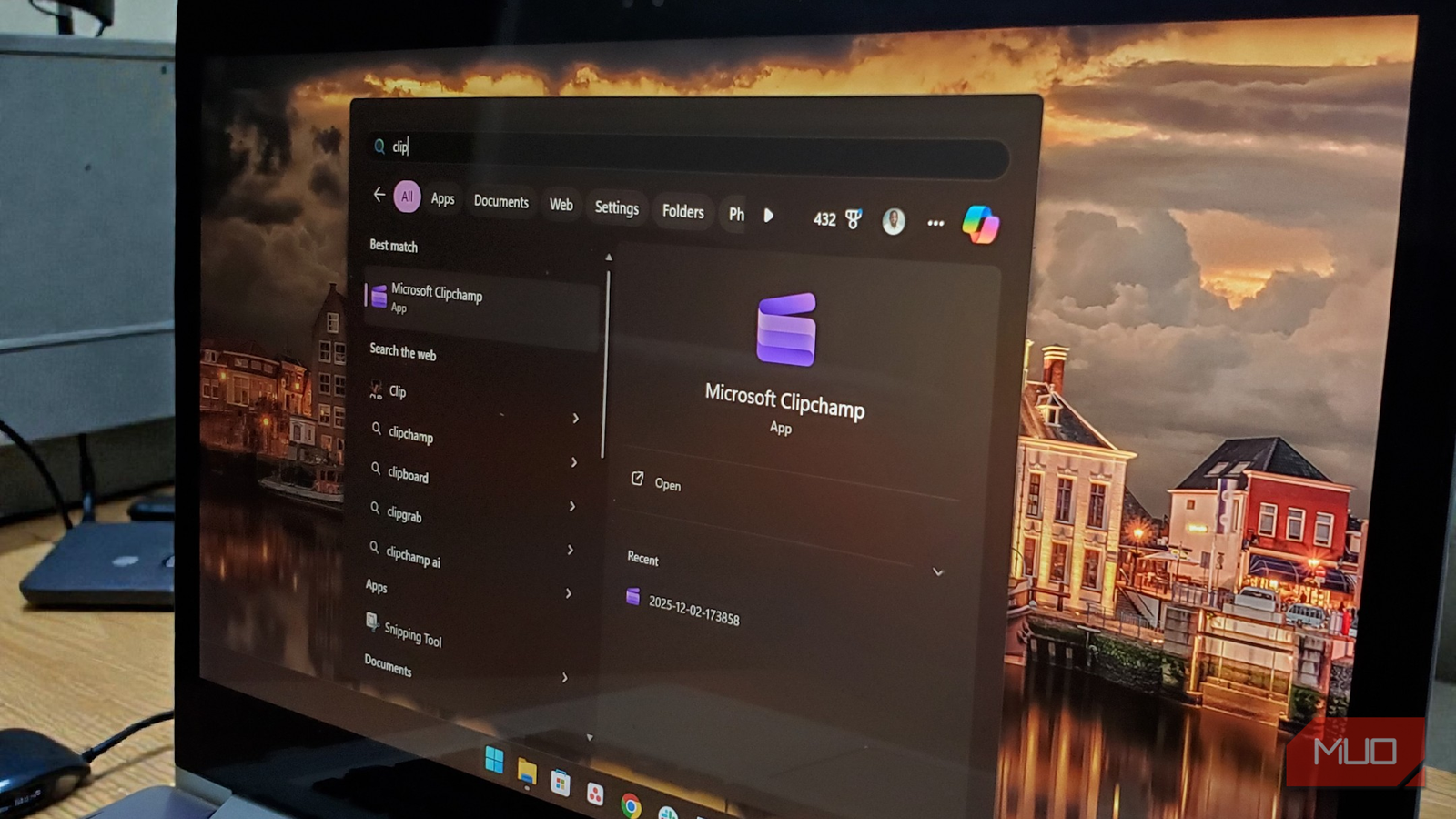
Getting started couldn’t be simpler if you’re on Windows 11, as Clipchamp comes pre-installed. Just type “Clipchamp” into the taskbar search, and it’ll pop right up. If you’re still on Windows 10, you can grab it from the Microsoft Store in a matter of seconds. While you do need a Microsoft account to sign in, doing so immediately unlocks a generous free tier. This isn’t a “trial” in the traditional sense; it’s a fully functional workstation that allows for unlimited watermark-free exports at 1080p, which remains the high-definition standard for most social media and personal projects.
Creating a new project follows a natural flow. You can choose between “Create a new video” or use the AI video editor in Clipchamp to automatically assemble a draft using your own media, and you’re dropped into the editor. From there, you select an aspect ratio using presets tailored for YouTube, Instagram, TikTok, and other platforms. You can import files from your computer or pull videos from OneDrive, Google Drive, Dropbox, or Xbox. Otherwise, you can choose to record. Nearly everything supports drag-and-drop, from clips and images to audio files and even prebuilt templates for a faster starting point.
The templates, by the way, offer more than just aesthetic shortcuts. Clipchamp organizes them by intent: social posts, business promos, event invites, educational videos, the whole spread. You don’t have to use them, but they’re a lifesaver when you’re staring at an empty timeline and waiting for inspiration to show up.
The February 2025 update brought some welcome improvements that further polish the experience. Clipchamp now supports both light and dark modes, matching your system preferences or letting you override them manually. The interface is now more modular; you can collapse the sidebar and the timeline to maximize your preview window, and the addition of a full-screen playback mode finally allows you to review your work with cinematic clarity. Small touches, but they add up to a smoother editing process.
I’ve also noticed the improved asset grouping makes managing complex projects less chaotic. When your project starts getting complex with background music, voiceovers, and text overlays all competing for space, you can now select multiple elements, right-click, and group them into a single track item. This consolidated group even shows a tiny thumbnail and a count of the assets inside, making it easy to move entire “scenes” around the timeline without losing synchronization.
Exporting your finished video is equally straightforward. Clipchamp lets you save files directly to your computer or upload them straight to YouTube, TikTok, LinkedIn, or OneDrive.
Stop searching for free editors and just click Clipchamp
For all its strengths, Clipchamp isn’t trying to be DaVinci Resolve or Adobe Premiere Pro. It doesn’t offer advanced color grading, motion tracking, or multi-cam editing. If you’re producing high-end cinematic content, you’ll eventually outgrow what it can do and might find yourself looking for more powerful free video editors for PC that offer a steeper learning curve in exchange for professional-grade features.
But for everything else, such as quick edits, social media clips, tutorial videos, family projects, and business presentations, it handles the job with competence. So, take five minutes and search for Clipchamp on your Windows 11 machine. You might be pleasantly surprised by what’s been hiding there all along.
