

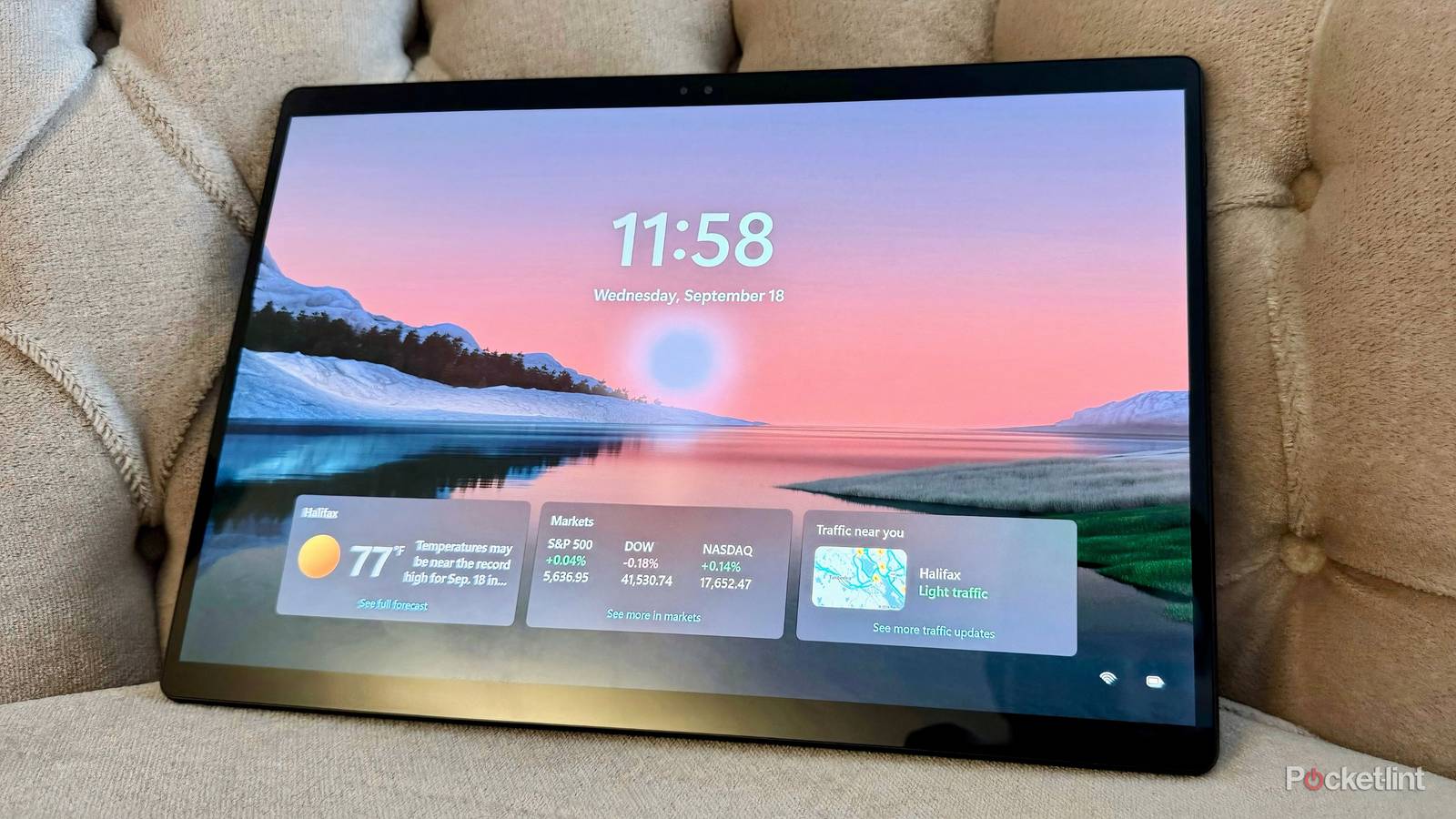

Windows 11’s user interface is a marked improvement over its direct operating system predecessor in the looks department, with major shell components like the Start Menu, the taskbar, Quick Settings, and notifications having received various modernization treatments since the platform’s launch back in 2021.
One area of Windows 11 that hasn’t gotten nearly as much love, proportionately speaking, is the lock screen. While it does feature an updated clock style and placement when compared to Windows 10, the rest of the interface is woefully outdated when compared to its Android, iPadOS, and macOS contemporaries.
There are plenty of lock screen changes and improvements that I’d love to see Microsoft implement in a future Windows release, but that’s neither here nor there. In the meantime, it is at least possible to configure certain aspects of the UI to make it look and feel fresher. Out of the box, the lock screen is a gunked-up experience — here are three measures I personally take to strip away some of the clutter.
I disable all the gunk
The out-of-box experience is far too cluttered

By default, Windows 11 is configured to surface various tips, tricks, and suggestions on the lock screen. For newcomers, these snippets of information might prove useful, but they can quickly become a source of digital clutter and cognitive overload. Thankfully, Microsoft allows you to turn off these lock screen banners, in addition to switching off suggested widgets from appearing automatically.
To reduce the prevalence of clutter on your PC’s lock screen, follow these steps:
- Launch Settings.
- Navigate to Personalization > Lock screen.
- From here, toggle off Get fun facts, tips, tricks, and more on your lock screen, as well as Suggest widgets for your lock screen.
For more ways to reduce Windows 11’s clutter-filled interface, and for ways to make the operating system a calmer, more zen-like experience, check out my dedicated Pocket-lint piece on the subject.
I only keep the ones that are actually useful to me

Speaking of widgets, Microsoft has recently upgraded the lock screen experience to support all ‘Small’ sized applets that can otherwise be found via the Widgets Board. This includes default first-party widgets, as well as compatible ones from third-party developers. I highly recommend configuring lock screen widgets to suit your preferences, thereby removing the unnecessary ones and adding in the entries that you find genuinely useful.
To customize the widgets that appear on your PC’s lock screen, follow these steps:
- Launch Settings.
- Navigate to Personalization > Lock screen.
- Next, toggle on Widgets and expand the section to manage accordingly.
For more information on Windows 11 lock screen widgets, including a more in-depth guide on how to configure the feature, check out my dedicated article on the subject right here on Pocket-lint.
I turn on the parallax effect
A subtle nicety that makes tablet mode feel premium

Parallax is an advanced technique used in user interface design (as well as in video games) that makes the foreground appear to move quicker in relation to the background. Various operating systems have implemented wallpaper parallax effects in the past, and Microsoft has implemented the feature into the Windows 11 lock screen. When toggled on, your PC’s wallpaper will subtly shift in response to your physical movement, which is a nice addition to the user experience.
To enable a nifty parallax effect on your PC’s lock screen, follow these steps:
- Launch Settings.
- Navigate to Personalization > Lock screen.
- Lastly, toggle on Make the lock screen image react when I move my PC.
Windows 11’s parallax effect is limited to devices ( read: tablets) that feature motion sensors like accelerometers, gyroscopes, and magnetometers. As a general rule of thumb, if your PC includes the ability to auto-rotate its display, it also supports parallax on the lock screen.
