

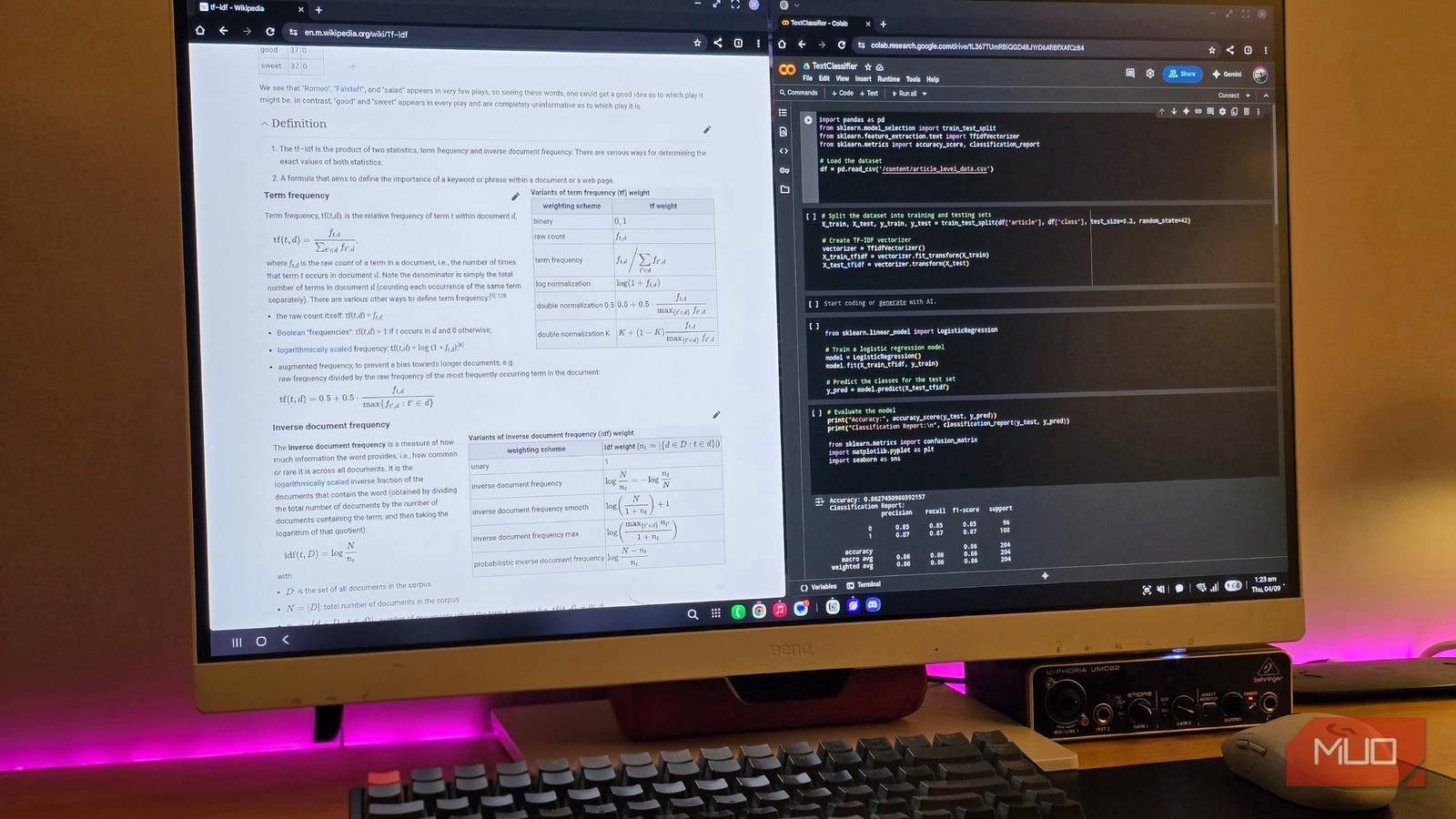

We walk around with phones that out-gun the computers that once sent astronauts to the moon, yet most days we use them to scroll timelines and fire off quick replies. It feels a little wasteful when you think about it. The funny part is that the slab of glass in your pocket is already an actual desktop computer, just waiting for you to notice.
It sounds like science fiction, but for many Android users, especially if you’re carrying a Samsung Galaxy like me, it’s been hiding in plain sight for years. And with it, you may even find that you can work entirely from your phone, which proves that for many tasks, the “traditional” PC is no longer the only game in town.
This built-in feature transforms your phone into a PC
Samsung pioneered this, but now it’s available on Pixel, too

Samsung has been iterating on DeX since its debut in 2017 alongside the Galaxy S8. Today, it’s available on most flagship Galaxy devices, including the S series (S8 through S25), the Note series (Note 8 through Note 20), Z Fold devices, select tablets like the Tab S series, and even the recently launched Z Flip 7 as of the time of writing. If you own one of these, you already have DeX sitting there, even if you’ve never gone looking for it.
The nice thing about DeX is that you don’t need to “hack” your phone to get it. It is baked right into the software. For us Samsung users, the process is delightfully plug-and-play. You connect your phone to a monitor or TV using a USB-C to HDMI cable. That’s it. Your phone detects the external display and, instead of mirroring your vertical phone screen, projects a horizontal desktop environment. You’ll see a taskbar at the bottom, a “Start” menu for your apps, and a system tray with your clock and notifications.
If you don’t see it immediately, swipe down to open your Quick Settings panel and look for the DeX toggle. Tap it, and the interface snaps into place. Wireless DeX is also an option if you have a compatible smart TV or monitor, though a cable still delivers a more responsive experience.
For my friends using Google Pixel phones (specifically the Pixel 8 series and newer), you can join the party, too, though your path is a bit more adventurous. Google has a native desktop mode, introduced in Android 16, but it’s currently tucked away behind developer settings.
- You’ll need to enable Developer Options by tapping your Build Number (in Settings -> About Phone) seven times.
- Then, navigate to System -> Developer options and scroll down to the Window management section, where you’ll enable three specific toggles: Force activities to be resizable, Enable non-resizable in multi-window, and Enable desktop experience features.
- After a quick reboot, connecting your phone to an external display (using either a USB-C to HDMI adapter or a hub to bridge your phone to a monitor) triggers a prompt asking whether you want Desktop or Mirror mode. Select Desktop, and you’ll see a completely different interface materialize on the larger screen.

The 13 Best Android Developer Options Worth Tweaking
Here are the best developer options in Android: disable absolute volume, animation scales, peak refresh rate, and more!
It’s fair to say the Pixel version feels rougher around the edges compared to Samsung’s more refined take, but the idea is the same. In both cases, your phone steps into the role of a desktop computer, acting as the brain of an unexpectedly capable workstation powered by the device already in your pocket.
The interface feels so much like using a laptop
Windows, taskbars, and multitasking — yes, on your phone
Once you are up and running, the experience feels far closer to a lightweight laptop than a stretched phone interface. The first thing you notice is the taskbar anchored at the bottom of the screen. It holds your app drawer and pinned apps, and as you open new programs, they populate the bar just like they would on Windows or macOS. It is intuitive enough that you don’t really have to learn how to use it. If you have spent time on Windows or macOS, your muscle memory fills in the gaps.
I love the window management in this mode. Instead of taking over the entire screen as on a tablet, apps open in independent, resizable windows. You can drag them around, snap them side by side, and minimize them when they start to clutter. I routinely ran Google Docs in one window while researching in Chrome in another, and the setup supported focused, uninterrupted work. This is a massive upgrade over standard mobile multitasking. While split-screen and App Pairs finally make sense on large phone screens, the freeform windowing of desktop mode offers true laptop-level flexibility.

4 things Android phones still do better than iPhones (that I actually use)
Android habits that don’t survive switching to iPhone.
Speaking of Chrome, it automatically requests the desktop versions of websites, complete with tab bars and bookmark shortcuts, so you aren’t stuck dealing with mobile layouts on a 27-inch monitor. The system also thoughtfully adapts Android’s status bar information. Your battery life, Wi-Fi signal, and notifications are tucked away in the corners, accessible but unobtrusive. And if you are worried about your phone dying in the middle of a session, you shouldn’t be. Many setups support charging through the hub itself, especially on newer phones like the Pixel 10, which means you can keep working for hours without watching the percentage tick down. Even better, the phone itself stays cool. Driving a big display sounds demanding, but as long as you’re running a flagship phone, it will handle it without breaking a sweat.
It won’t replace your main rig, but it’s a brilliant backup plan
Before I wrap this up, it’s important that I set realistic expectations. This isn’t a complete replacement for a Windows PC or Mac, nor is it meant to be. You won’t run traditional desktop applications like Adobe Creative Suite or intensive development environments. Some mobile apps don’t scale perfectly to larger windows, occasionally resulting in awkward stretching or unusual layouts. Keyboard and mouse behavior, while generally responsive, can sometimes feel slightly less optimized than native desktop operating systems. In fact, you might notice subtle friction when unlocking the phone or navigating certain menus.
That said, watching Android’s desktop mode mature, especially from a Samsung user’s perspective, is quite exciting. It signals that this idea is becoming part of the platform itself, not just a flashy manufacturer’s extra. We’re edging toward a future where your phone might be the only computer you actually need. We’re not quite there yet, but even now, it’s a powerful setup to have sitting in your pocket.
