


With modern TVs, it can be all too easy to lose yourself in a sea of distracting settings menus. Dynamic contrast levels, expression enhancers, tone mapping, true motion, MPEG noise reduction; we’ve come a long way from the days when all you really had to worry about on a CRT set was adjusting brightness levels.
While many of these settings will only subtly tweak how your favorite movies or shows look, one option many of you should definitely have enabled is game mode. If your TV offers such a preset and you regularly play PS5, PC, or Nintendo Switch 2 games, enabling this console-friendly option can massively reduce latency, making your favorite titles feel a good deal more responsive.
If you’re not using your TV’s game mode either due to confusion around what it does, or you simply forgot to toggle it on, let me run you through why reducing screen latency is a big deal for gamers.
What is screen latency?
Explaining input lag

Input latency is measured in milliseconds, and it can be described in fairly simple terms. In essence, it’s the delay between you interacting with a remote/game controller/mouse and keyboard and seeing the corresponding response on screen. Input lag is mostly keenly felt when playing games. The higher the amount of latency you’re dealing with, the less responsive the resulting action is going to feel.
Several hardware and software factors can contribute to increasing latency. The responsiveness of your peripheral, frame buffering times, how quickly your GPU can render frames, and the pixel response time of your TV or monitor can all add to input lag.

I didn’t realize how much I needed G-Sync until my TV forced me to turn it off
Losing VRR support caused this PC gamer massive woes.
If you’re a serious gamer, and you want the most responsive experience possible, you ideally need an HDMI 2.1-compatible 120Hz TV. And for those who play on PC, lightning-fast 240Hz and even 360Hz (and above) panels have been widely available for a few years. And on the topic of refresh rates, here’s how to enable 120Hz on your Xbox Series X/S.
Buying a high refresh rate display is probably the single most important factor when it comes to reducing latency. Yet unless you’re enabling game mode, you’re likely adding way more input lag than can quickly be reduced by toggling a simple menu option.
Slaying lag with game mode
Reducing latency with console-friendly features

I’ll level with you: I’ve upgraded TVs at a rate that’s flat out embarrassing. Since 2016, I reckon I’ve owned at least nine different OLED televisions. I might have a slight problem when it comes to “light-emitting diode” display tech. As such, every time I upgraded a set, I’d sell my old one. Normally, I’d list my TVs on eBay, but more than once, I’ve sold a TV to a friend. It’s in these situations that I’ve had to explain what game mode does to my pals.
Two of said chums who took OLED sets off my hands picked up PS5s during the pandemic, having barely touched a controller since the PS2 generation. So it’s no surprise they had a lot to catch up on when it comes to modern gaming-focused TV features. Unlike them, I haven’t touched my PS5 Pro since I discovered this one Steam feature.
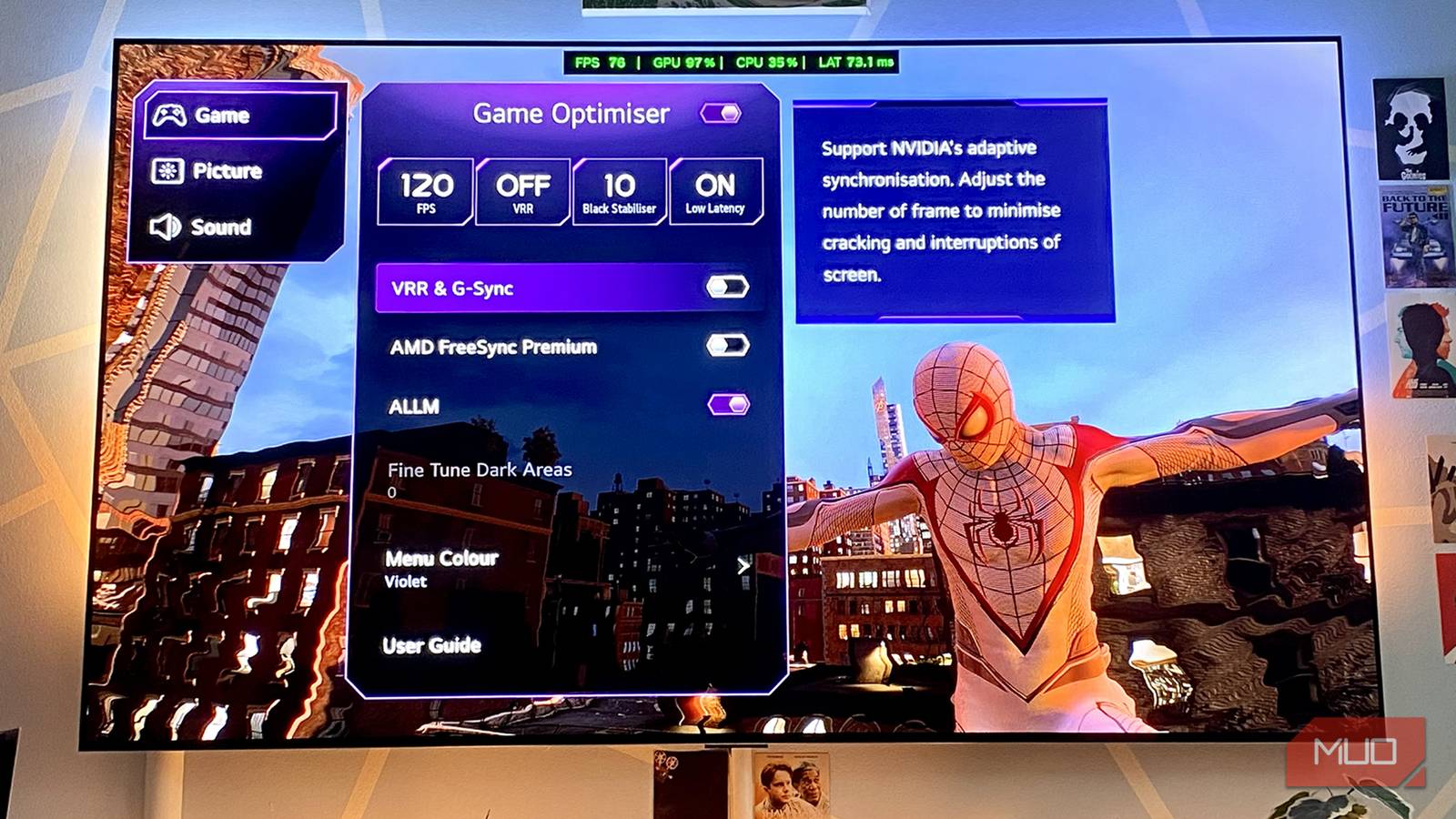
Now, while the last few LG OLEDs I’ve owned have their fantastic Game Optimizer enabled by default (more on this shortly), the Philips and Sony sets I sold to my friends didn’t have such an easily accessible suite of settings. With me having factory-reset both displays before my pals took them off my hands, both of their game modes had been switched off. And finding them buried away in different settings menus is something that my (not exactly tech-savvy associates) understandably struggled with.
This was a good few years ago, of course. Thankfully, enabling a TV’s game mode from its main display settings menu is now normally fairly straightforward. And when it comes to easily accessible game modes, there’s just no beating LG sets in my experience.
LG’s gaming features lead the way
The South Korean firm’s sets are next level for playing games

While Samsung makes some excellent gaming TVs, LG is widely accepted for making displays that squeeze the most out of your PS5 or Xbox Series X. Pretty much every modern form of frame-smoothing and latency-reducing tech can be found in LG TVs manufactured over the past few years.
Take my LG G3 OLED. This is a display so good I replaced my monitor with this TV and I’m never going back. Nvidia G-Sync and AMD FreeSync Premium VRR, an OLED motion mode, and Auto Low Latency Mode (ALLM) — these features can make gameplay feel smoother while also reducing latency (especially in the case of ALLM).

Gaming on a Smart TV Is So Much Better With These Settings Tweaks
Your smart TV has a heap of features that make gaming much better—you just need to know where to look.
With Game Optimizer enabled on my G3, screen latency measures in at around 5-10ms. Disable it, though, and if you happen to be watching/playing content in FilmMaker Mode in particular, input lag on this MLA panel can jump well over the 50ms mark.
I switched off my G3 OLED’s game mode just for “fun” while writing this feature, and I’m not sure my fingers will ever fully forgive me. Playing the likes of Resident Evil: Requiem or Doom: The Dark Ages felt akin to smothering my controller in molasses, then giving myself a semi-severe head injury; they felt so sluggish to play without LG’s Game Optimizer.
Don’t increase screen latency by sleeping on game mode
Some measure of screen latency is always going to exist, regardless of whether you own a 60Hz TV or a 144Hz model. There’s no getting around it. Yet you can significantly reduce input lag as a console or PC fan by enabling your display’s game mode. After briefly messing around in a normally responsive first-person shooter like The Dark Ages without my LG set’s Game Optimizer enabled, my digits have a newfound appreciation for latency-reducing features.
