


Any Windows packet analysis guide that starts with “download Wireshark” may be skipping a very important step, especially since Windows already has a built-in packet analyzer. It’s called PktMon (Packet Monitor). Even though you most likely haven’t heard of it, it’s far more robust than you’d expect.
It’s primarily a command-line tool that captures real network traffic, filters it, and can export it for further analysis. Depending on what you have to accomplish, it may be the only packet analyzer that you ever need, and an effective free diagnostic tool.
What Packet Monitor is
The hidden network analyzer already on your PC

When you load a website or launch an app, or when background syncs run on your computer, small chunks of data are sent across the network. These are called packets, and PktMon (Packet Monitor) can capture and monitor them on Windows. It’s become an effective network troubleshooter for me because I can observe the packets my system is sending and receiving when processes behave slowly or act strangely, without installing third-party tools.
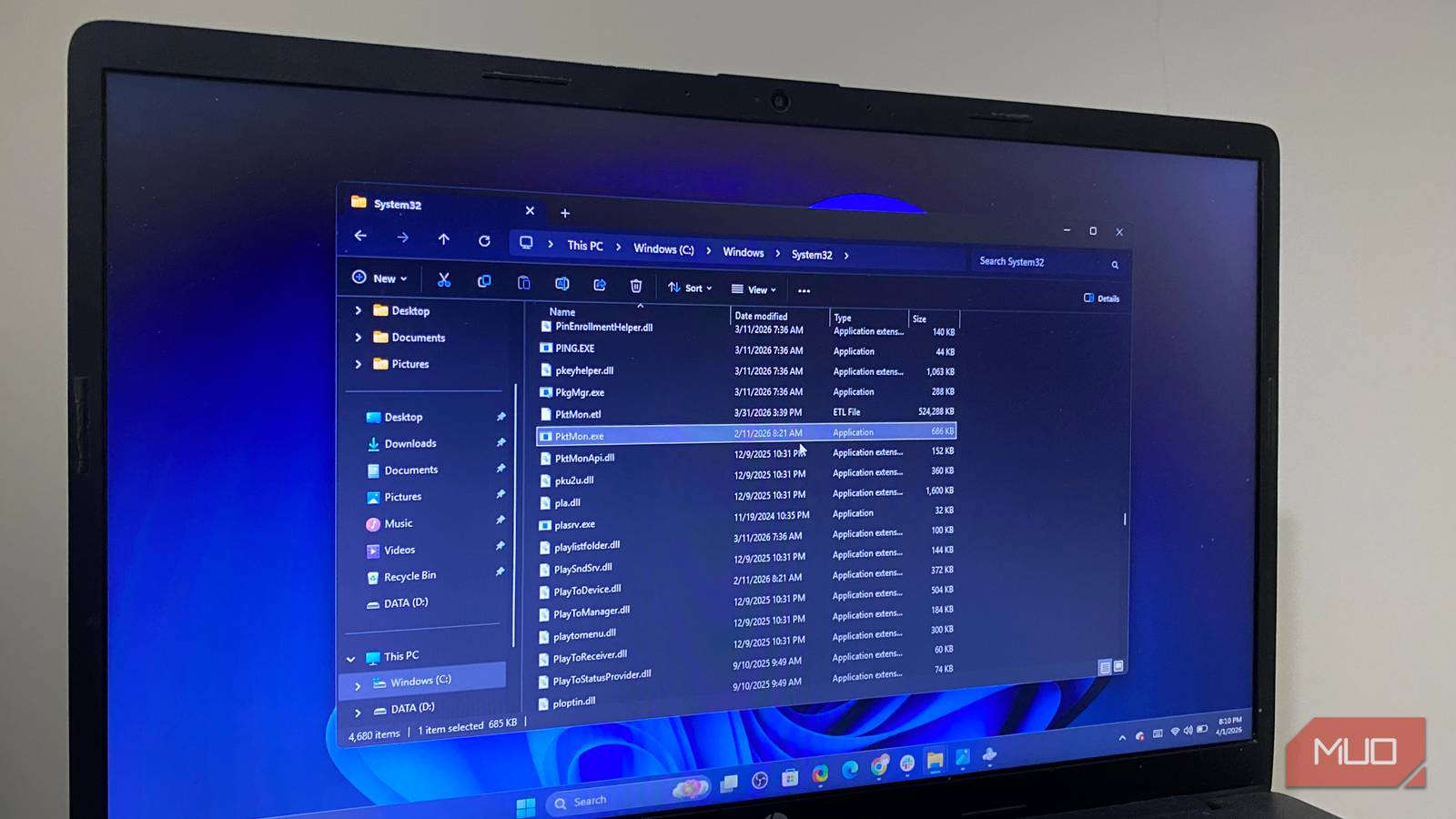
After its introduction in Windows Server 2019, Microsoft included it in Windows 10. In Windows 11, you can find it in this directory:
C:\Windows\System32\pktmon.exe
It doesn’t require installation of drivers or setup wizards, and stacked against other common options, here’s how it compares:
|
Feature |
PktMon |
Wireshark |
netsh trace |
|---|---|---|---|
|
Built into Windows |
Yes |
No |
Yes |
|
GUI |
No |
Yes |
No |
|
Output formats |
ETL / PCAPNG |
PCAP / PCAPNG |
ETL |
|
Ease of setup |
Very easy |
Medium |
Hard |
|
Best use case |
Quick capture |
Deep analysis |
Legacy tracing |
Why PktMon is more powerful than it looks
PktMon and Windows networking internals

I initially underestimated PktMon because it doesn’t have a graphical interface, graphs, or friendly dashboards. However, it’s extremely powerful for Windows because it uses Event Tracing for Windows (ETW) to directly integrate with Windows’ networking stack. This implies that, compared to most third-party tools, PktMon sits closer to the system—an advantage that reduces overhead while capturing traffic.
This integration allows it to start instantly without requiring traditional drivers like Npcap or WinPcap. But the best part is that it works in locked-down environments where installing software won’t be possible. More importantly, its deep integration with the system lets you see traffic exactly as the system sees it, rather than how the app decides to expose it.
The very first time I used it, I ran a capture command that lasted just a minute with one open browser. However, it revealed several background outbound connections, and even though some of these were expected, a few others weren’t so obvious. It gave me a quick understanding of how much background chatter there is, even when you aren’t actually using apps.
By default, PktMon captures traffic across Wi-Fi, Ethernet, and virtual adapters. This can make results a bit overwhelming, but combined with the right filters, they become more manageable. Across all of these, what stood out the most was how PktMon felt and acted seamlessly — a true built-in diagnostic layer for Windows.
How to capture network traffic with PktMon
A simple workflow that covers most real-world use cases
You need just a few basic commands to get started with PktMon, but first, start the Command Prompt with admin rights. This is an important step because you need system-level access to capture traffic. The commands below represent a typical workflow:
pktmon filter add -p 443
pktmon start --capture
pktmon stop
With the first command, I included a filter that captures packets only on port 443 (HTTPS). While you may skip this step, it’s the kind of targeted capture that helps you avoid drowning in excess data. Running the second command starts the capture, and the third stops it. Your output is automatically saved in a file called PktMon.etl in the current working directory. This ETL file is not human-readable; run the command below to view it in plain text.
pktmon format PktMon.etl -o output.txt -x
The -x flag ensures your output stays in a human-readable format. It’s also possible to convert this output into a format that a tool like Wireshark can understand using the command below:
pktmon pcapng PktMon.etl -o output.pcapng
I often use PktMon for quick captures; if I need deeper inspection, I switch to GUI tools. Below are some important flags you may need:
|
Flag |
What it does |
Example |
|---|---|---|
|
-p |
Filter by port |
-p 443 |
|
-t |
Filter by protocol |
-t TCP |
|
-i |
Filter by adapter |
-i 3 |
|
-c |
Limit packet count |
-c 100 |
These are easy Windows commands for you to learn. After a while, you develop muscle memory that makes them second nature.
How to make sense of PktMon output
Turning raw logs into something actually useful

After running a scan, the raw output can be overwhelming, so you should know where to look. Entries always have a timestamp. This applies to both incoming and outgoing traffic (Rx and Tx) and holds for all protocols and packet sizes. It’s important to spot the patterns.
You can filter before capturing, but you can also search through the formatted output. In practice, this is how it works. If I need to diagnose a slow app, I filter by its known IP address or port. Next, I observe repeated requests, delays, or unusual traffic patterns.
I run the command below if I need real-time mode with a live stream of packet headers:
pktmon start --capture -m real-time
The above command will display timestamps, direction (Rx/Tx), IP addresses, and TCP flags. This is often all the metadata required to know how a connection is behaving. I use the following practical filter combinations:
|
Goal |
Command example |
|---|---|
|
HTTPS traffic only |
pktmon filter add -p 443 |
|
Specific adapter |
pktmon filter add -i [ID] (Find ID via pktmon list) |
|
Specific IP Address |
pktmon filter add -d 54.236.120.233 |
|
TCP traffic only |
pktmon filter add -t TCP |
|
Reset all filters |
pktmon filter remove |
PktMon or Wireshark?
PktMon isn’t always the solution. But when you need speed and simplicity, it excels. I prefer it for a quick look at what’s happening on my network. It works well for scripted or automated diagnostics. It’s a good option in virtual environments and Hyper-V. These are cases where traditional tools sometimes struggle to capture traffic cleanly.
However, the lack of a GUI is still a clear limitation. It also lacks deep protocol decoding and doesn’t give a visual breakdown of packets. Windows 11 comes with several troubleshooting tools, but PktMon is one of my favorites.

Windows 11 still runs dinosaur services like Fax at boot — here’s what you should disable
These Windows services are better of disabled.
