

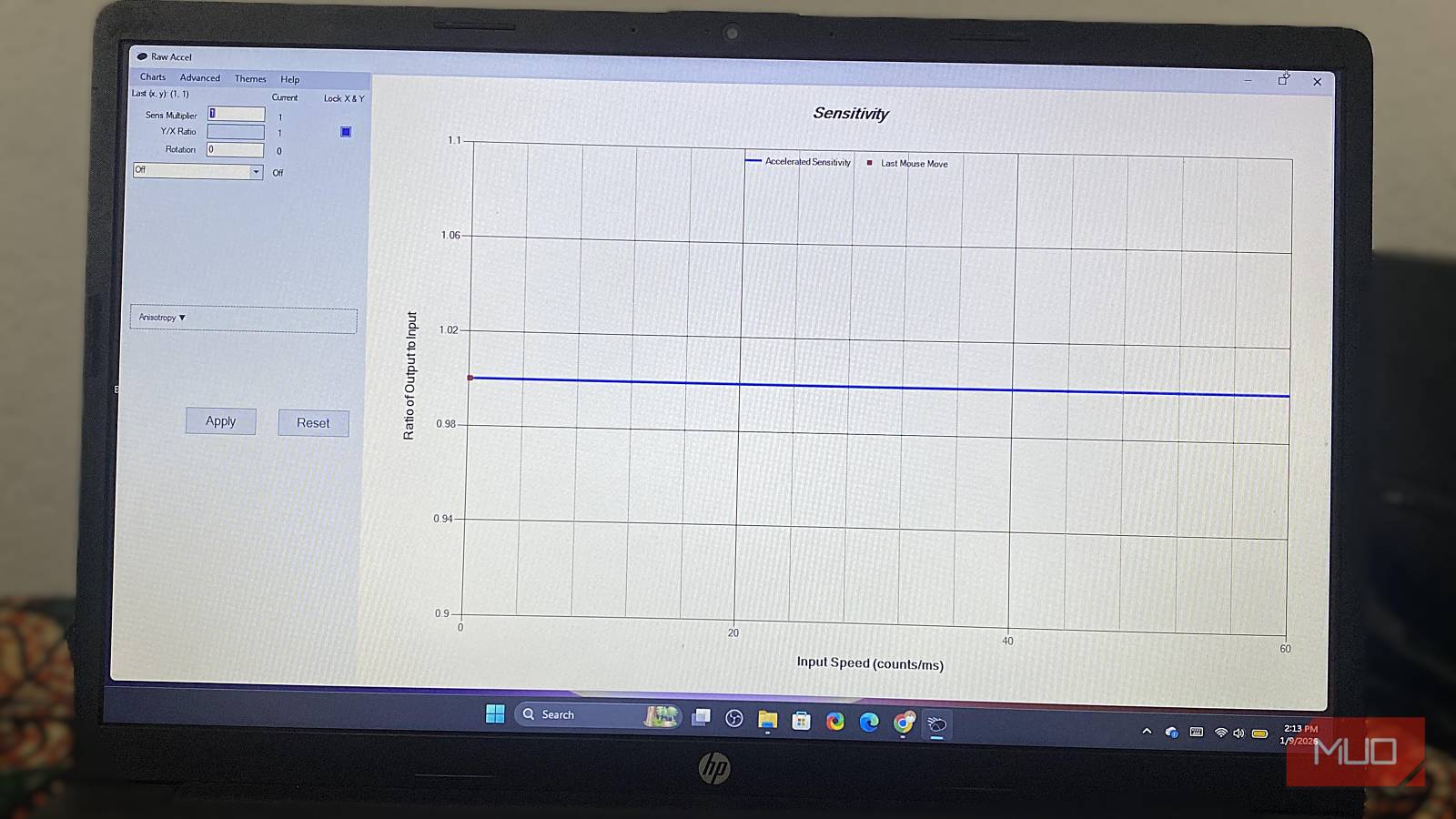

Through the years, I’ve relied on Windows mouse settings. I barely tweaked them, assuming the defaults were good enough. After all, Enhance Pointer Precision was on by default. However, as time passed, the inconsistency with small, precise movements became increasingly apparent.
I decided to try Raw Accel, a free, open-source Windows program for highly customizable mouse acceleration. This driver processes the mouse’s raw input before standard OS acceleration and scaling, making small movements more consistent and predictable when configured properly. It’s an invaluable tool for designers, gamers, or anyone who needs to make precise mouse movements.

- OS
-
Windows
- Price model
-
Free
Raw Accel is a Windows driver that offers advanced, customizable mouse acceleration. It lets you combine the precision of low sensitivity for small movements with the speed of high sensitivity for large flicks.
How Raw Accel works
Why it’s different from Windows’ default

There are several Windows mouse tricks I’ve tried, but generally, the default mouse settings aren’t great. I’ve had the mouse overshoot when I tried to make a 180-degree turn simply because I moved very fast. Raw Accel installs a kernel‑mode driver that intercepts and transforms the raw mouse input before it reaches applications, which helps reduce overshoot when properly tuned.
After installation, I noticed a difference even in subtle tasks. When I used Photoshop, I wasn’t confident I could draw a straight line. Sometimes it worked; other times, mouse movements were erratic. I consistently made straight lines with Raw Accel. Making tiny adjustments for pixel-perfect placement started to feel natural.
One of my fears was that kernel-level tools would cause spikes in system resource usage, but so far, there’s been no perceptible input lag.
Installing Raw Accel safely
Step-by-step preparation and setup

Before installing Raw Accel, there are a few prerequisites. Install the Visual C++ 2019 Redistributable and the required .NET runtime (both may be available through Windows Update). Once you have these, follow the steps below to install Raw Accel:
- Download Raw Accel, extract the files, and run the installer.
- Reboot the computer so that the driver can intercept input properly.
- Reopen the extracted Raw Accel folder and double-click the “rawaccel” application file.
Once installed, you can begin tweaking settings. The Raw Accel driver is digitally signed, and it is currently considered allowed by major anti‑cheat systems in games like Valorant when used in its standard form, so the risk of it being flagged is very low, though no tool can promise a 100% guarantee across all games. I can confidently adjust my settings without risking being banned.
Mastering the settings
Customizing curves for real control
There are several Raw Accel settings, and initially, you may not know the best combinations. However, after figuring it out, it gives so much mouse control. I now rely on the Sens Multiplier for global sensitivity scaling. I use 0.25 with my 1600 DPI sensor to approximate 400 DPI feel. This value gives me optimal control without losing speed during large movements.
I set curve styles to Linear when I want more consistency. Switching to Natural makes the acceleration taper off, preventing my speed from spiraling out of control during fast movements. However, it also has Classic, Jump, Power, and Synchronous curve options that you can try.
I use Raw Accel’s cap settings to limit effective cursor speed so fast swipes don’t send the cursor flying across multiple screens. All these settings may take a while to get used to; muscle memory has to adjust to your hand movements.
Calibrating your perfect curve
Practical methods for real-world precision

You will need to tinker to find the perfect curve, but the benefits are worth the effort. I started with the 180-degree test, where I moved the mouse in a straight line from one end of the mouse pad to the other. I adjusted the movement cap setting until the cursor stopped overshooting.
Then, I set limits with Raw Accel’s sensor rotation to accommodate the natural tilts of my wrists during horizontal movement. Without this, I would have consistently had skewed lines.
After making several changes, my biggest learning was not to obsess over tiny tweaks. I try to stick to a setting for about a week; this gives me enough time to ascertain if it is an efficient option.
Safety, stability, and longevity of kernel drivers
Everything you need to know about running Raw Accel

Raw Accel is a kernel-level driver and operates at the highest level of privilege. If such deeply integrated drivers aren’t properly designed, they can be a security risk. However, Raw Accel has been stable for me. I haven’t experienced any warnings or crashes during intense gaming sessions.
However, you must use Raw Accel properly to avoid stability issues. One problem you can run into is erratic mouse behavior if you don’t uninstall it correctly. It’s safer to stick to the provided uninstaller and make sure you reboot after uninstalling it.
Aside from that concern, Raw Accel is suitable for long-term use. You can back up curve settings, review them periodically, and tweak as needed.

I changed one registry value and my Windows PC feels instantly faster
This registry change fixed the sluggishness I’d learned to tolerate.
Make mouse tweaks that stick long after setup
One of the best things about Raw Accel is that once you get it properly set up, it fades into the background. On my system, it now feels like a native part of Windows. However, ensure you use a mouse with a good sensor and appropriate DPI settings, since software can’t fully compensate for hardware limitations.
In the end, Raw Accel has helped me understand how the mouse works in Windows. If I returned to Windows’ basic mouse settings, I’d lose a lot of control.
