



Internet drops are frustrating, regardless of whether you’re in a work call, online, or simply trying to catch up on that web series you’ve been putting off for so long. Now you shouldn’t blame your ISP before fixing a few router defaults, but if your router and network settings are in place and the ISP is having a bad day, there’s not much you can do about it.
You could, in theory, get a backup internet connection and configure your router to fall back on it if the primary fails. However, such redundancy isn’t really useful unless you’re in a business setting, running a server, or need internet connectivity all the time. For most of you, your router’s USB port and an old smartphone will do just fine.
Did You Know You Can Plug These 6 Devices Into Your Router’s USB Port?
Don’t overlook the USB port on your Wi-Fi router!
Your router’s USB port isn’t just for storage
The overlooked feature that can act as a backup internet link
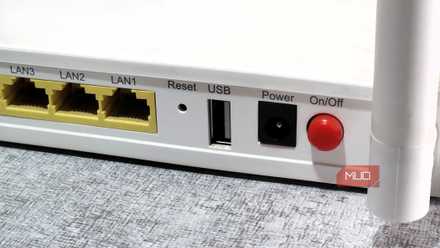
Most mid to high-end routers come with USB ports on the back. These are generally intended to be used for printer sharing or plugging in a USB drive to turn your router into a backup hub. These are fine use cases, but there’s something far more practical that this USB port on your router is capable of: taking in a backup connection.
You see, you can take a USB cable, plug your phone into the router, enable USB tethering, and set up the router to use your phone’s internet connection as a backup WAN. When your ISP goes down, the router automatically switches to your phone’s connection without dropping a single device on your network.
When you enable USB tethering on your Android phone, it doesn’t just share the internet the way a Wi-Fi hotspot does. It actually emulates a USB network adapter, essentially presenting itself to the router as a wired internet modem. Since the router sees it as a legitimate network interface—a second WAN connection—it can use it just like any other internet source.
Setup is simpler than you’d expect
Plug, enable, and let your router handle the rest

Depending on your router’s model and manufacturer, the actual setting you need to configure might be named differently, so it’s difficult to give an exact process. However, you should be able to find the relevant setting in your router’s USB settings page. On my TP-Link Archer C5, the setting is present under USB Sharing as 3G/4G Settings.
As the name suggests, it uses the 3G or 4G connection of your phone as a backup for internet access. There’s not really much of a “setup” to do either. You simply enable the checkbox allowing access to your phone’s connection in your router’s firmware, plug in the phone, enable USB tethering, and you’re good to go.
Yes, it works with iPhones too
Tethering support isn’t limited to Android devices

iPhone users aren’t left out either, and the process is identical to Android in this case. You plug your iPhone into the USB port, make sure Personal Hotspot is turned on, and the router firmware handles the rest. The router will automatically recognize the iPhone as an internet source, the same way it does Android. However, it’s worth keeping your iOS firmware updated as Apple tends to change how tethering behaves over USB from time to time.
However, if your router itself doesn’t support the feature, you’re out of luck. As long as you have a relatively modern router, this shouldn’t be the case. In case your router doesn’t support a backup internet connection, you can either upgrade your router or flash an OpenWRT firmware on your existing router, which should give you access to an equivalent feature. Keep in mind, though, that this approach depends on whether or not your router supports OpenWRT, has a USB port, and requires some technical knowledge to work properly.
There are a few catches to watch for
Your phone is still a phone

Now this isn’t a set it and forget it approach either. There are two major problems you need to deal with, considering your router supports a backup connection, and you’ve got it all up and running.
The first problem is battery degradation. Since your phone will constantly be plugged into the router, it’ll sit at nearly full charge 24/7. This will degrade your battery faster than normal use would. If you’re using a spare or older Android phone that you don’t care much about, this isn’t really a concern. And honestly, on an old phone with a working SIM on even a basic data plan is how you should be using the feature in the first place.
The second issue is the phone’s OS. Some phones will turn off USB tethering if the router briefly loses power or the cable gets loose. It won’t automatically come on either without you having to manually unlock the phone and enable the setting. For the most part, this is an edge case, but it’s worth knowing if you’re planning to rely on this approach as a fully hands-off backup. Apps like MacroDroid can help you automate this behavior, although you would either need to root your device or install Shizuku for this to work.
This is the easiest way to add redundancy
Automatic failover when your main connection drops
The best part about this approach is that you already own everything you need. You probably already have an old Android phone sitting in a drawer, and your router will most likely support the feature too. All it takes is a basic data plan, a USB cable, and five minutes of your time. Before you know it, you’ll have internet redundancy without ever having to deal with complicated networking configurations.

My Wi-Fi Drops Every Hour: Here’s What Finally Fixed It
Random Wi-Fi outages absolutely suck—so take some steps to resolve the problem.
It’s the kind of solution that makes you feel a little smug the first time your internet drops and nothing on your network even notices. This isn’t some fancy enterprise-grade SD-WAN setup, but if my ISP is having a bad day, I usually don’t even notice until I check the router logs out of curiosity.
