

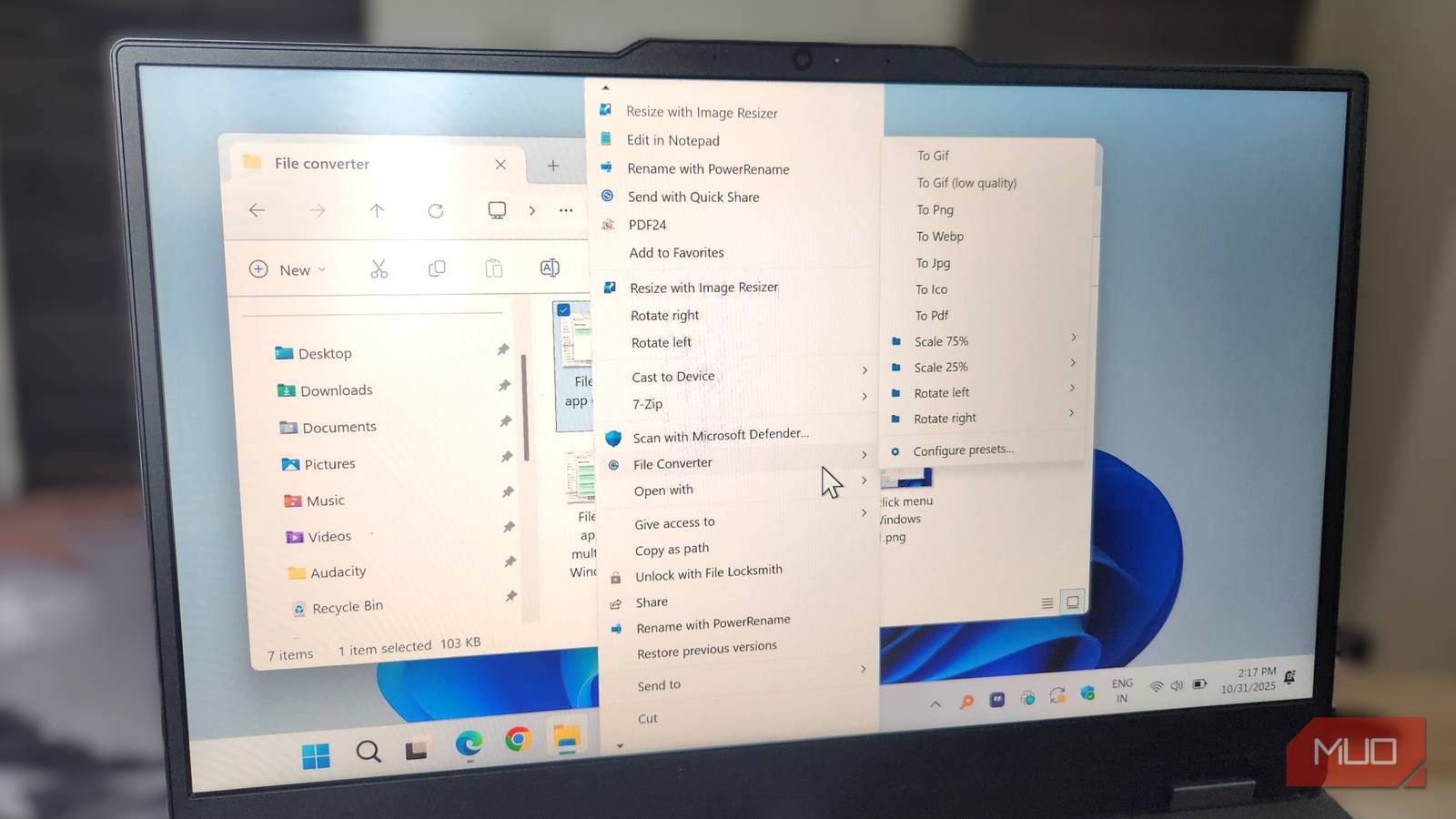

Windows 11 has a funny way of feeling both polished and weirdly hesitant at the same time. I noticed it most when I was moving fast through menus. I would right-click a file or an option, and my brain would already be on the next click, but Windows would pause, as if it were reading my mind and double-checking my intent. The delay is subtle, but it’s constant, and over time it makes File Explorer, the Start Menu, and even older app menus feel heavier than they need to be.
The fix, for me, came down to a single registry value: MenuShowDelay. By adjusting that one setting, I removed the built-in pause and made the desktop feel almost as immediate as a command-line prompt. If you’re tired of waiting for your operating system to keep up with your mouse, this is one of the Windows 11 registry hacks that delivers a noticeable difference.

The MenuShowDelay registry value lives at HKEY_CURRENT_USER\Control Panel\Desktop, and chances are you’ve never heard of it. This setting determines exactly how many milliseconds Windows waits before displaying a cascading submenu when your cursor hovers over an expandable menu item.
By default, Windows sets this value to 400 milliseconds. That’s nearly half a second of intentional delay. Microsoft implemented it to prevent menus from appearing too quickly when users accidentally hover over items while moving the cursor elsewhere. On older hardware with less precise input devices, this made sense.
But on modern systems with precise mice and high-resolution displays, the 400-millisecond delay feels like lag. When you’re navigating through multiple layers of submenus throughout your workday, such as opening the “Send to” menu, accessing “Sort by” options, or expanding the “New” submenu dozens of times, those fractions of a second accumulate into productivity loss.
What makes this particularly frustrating is that MenuShowDelay specifically affects the legacy Win32 menus still permeating Windows 11’s interface. Despite Microsoft’s modernization efforts, Windows 11 remains rooted in older components beneath its polished surface. The extended context menu you see when clicking Show more options (by the way, you can restore the classic context menu in Windows 11), Control Panel menus, file type selection dialogs, and countless other cascading menus all rely on these legacy systems — and they all respect MenuShowDelay.
Meanwhile, the modern Start menu uses Microsoft’s newer WinUI framework and completely ignores this registry setting. The same goes for modern flyouts and UWP applications. This creates an inconsistent experience, with some parts of Windows responding instantly while others feel sluggish. It’s this hybrid nature that makes the MenuShowDelay tweak so impactful. You’re addressing the parts that interact with you most frequently.
Let’s perform that registry surgery
Now that you know what MenuShowDelay actually does, you can adjust it with confidence. Press Windows + R to open the Run dialog, type regedit, and click OK. If you are new to this interface, it helps to understand how to use the Windows Registry Editor before proceeding. After accepting the UAC prompt, navigate to HKEY_CURRENT_USER\Control Panel\Desktop. In the right pane, locate the MenuShowDelay string value and double-click it. The current value reads “400.”
You can enter any number between 0 and 4000 milliseconds. Setting it to 0 technically removes the delay completely, but in my experience, that turns your menus into over-caffeinated squirrels. They pop open and vanish the moment your mouse twitches, which can feel very chaotic.
After a bit of trial and error, I landed in the sweet spot between 20 and 100 milliseconds. I personally stuck with 50, but you might like the razor-sharp feel of 10 or 20, or the calmer, more forgiving pace of 100. The goal is not to chase a magic number, but to find the rhythm that feels natural to how you move through your desktop.
After changing the value and clicking OK, I restarted my computer. When Windows loaded again, the difference was quite obvious—right-clicking on files felt instantaneous. The “New” submenu no longer involves that tiny pause. File Explorer’s cascading options felt like the operating system was finally keeping pace with my thoughts.
If you want to keep going down the rabbit hole, there are a couple of extra tweaks that pair nicely with MenuShowDelay. One easy win is to disable Windows 11 animations to make the Start menu feel significantly more responsive. The downside is that things look a bit more bare-bones, but if speed beats eye candy for you, it is a fair trade.
You can also bring Nilesoft Shell into the mix to clean up your right-click menu. A lot of apps—cloud storage tools, antivirus suites, file compressors — love to wedge their own little extensions into the shell, and each one adds a tiny pause. Trimming those back tackles a different kind of slowdown than MenuShowDelay, but together they make right-clicking feel instant.
One quick safety note before you start poking around in the registry: back up and restore the Windows Registry. If you ever miss the old behavior, just set MenuShowDelay back to 400 and restart. Alternatively, you can create a system restore point specifically before making changes. That is the nice part about this tweak. It is fully reversible and requires no additional installation.
What strikes me is how this old-school setting can have such a big impact on how Windows feels day-to-day. Windows 11 is packed with a slate of contemporary features, yet a single numeric value buried in the Registry dictates how responsive the interface feels.

If your menus feel a step behind your mouse, MenuShowDelay is absolutely worth a look. The whole tweak takes maybe three minutes, and the payoff can be night-and-day. For me, it was the line between just putting up with Windows and actually enjoying using it.
