



Shimul Sood / Android Authority
Samsung’s Good Lock app is essentially a playground for customization, yet most people only skim the surface. I was no different, until I stumbled upon a really clever fingerprint trick.
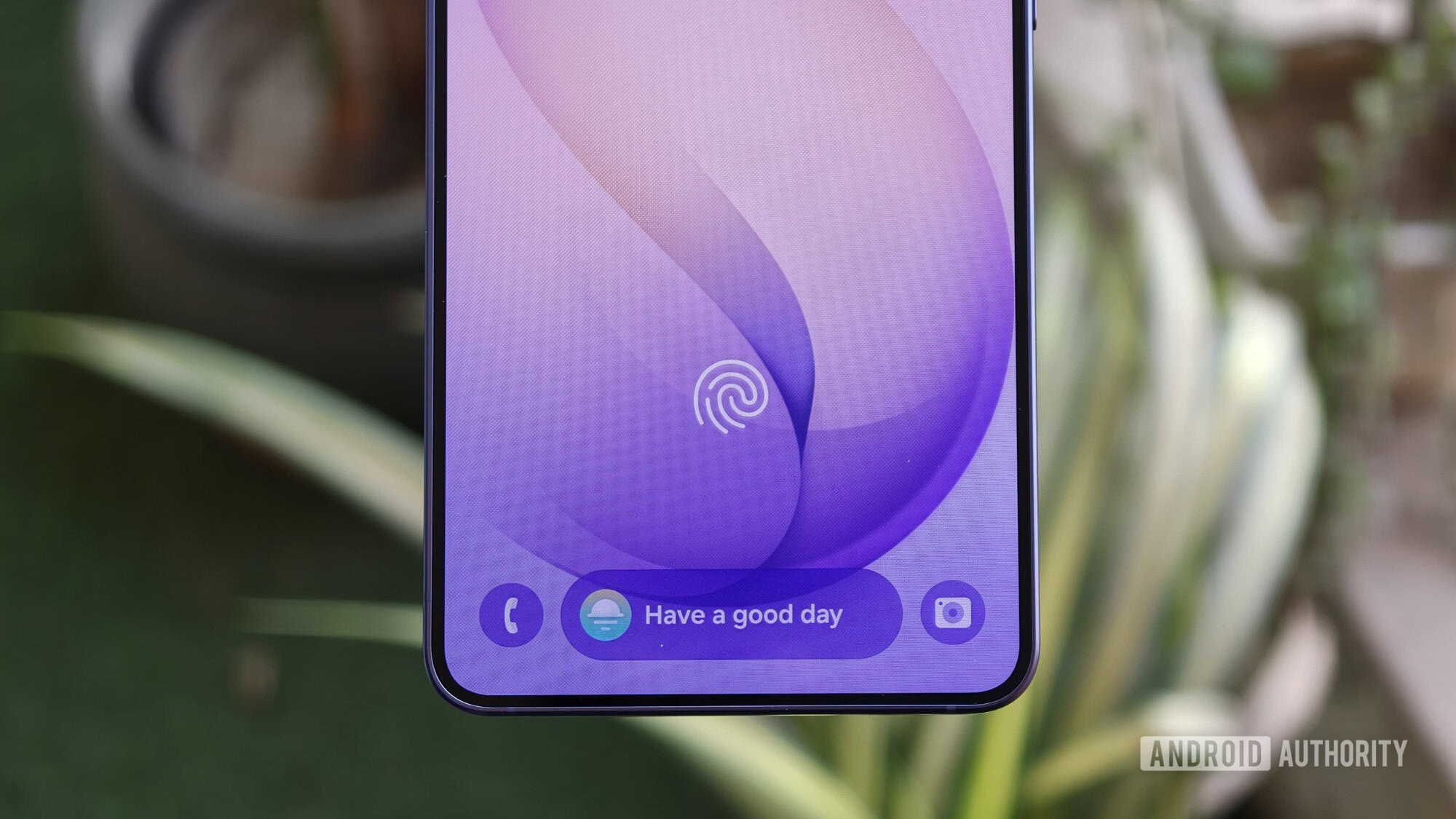
After a bit of tweaking, my Galaxy phone now opens apps with my fingerprint sensor — and can even open different apps depending on which finger I use. My left thumb opens Instagram, while my right index finger jumps straight into the Notes app. It’s seriously cool.
Want to set this up on your Samsung phone? Here’s what you need to do.
Did you know about this Good Lock fingerprint feature?
4 votes
How to set up Good Lock’s fingerprint hack

Shimul Sood / Android Authority
Setting this up on your Samsung phone doesn’t take much time, but it isn’t exactly front and center either. It’s hidden inside the Good Lock app, so a little prep goes a long way before you get started.
First, you’ll want to register the fingerprints you plan to use. Each action you assign needs its own fingerprint, so think of this as setting up shortcuts in advance. For example, I’ve added my left thumb, my right index finger, and my right thumb, giving me three separate actions to play with. To add your fingerprints, head to Settings, go to Security and Privacy, and tap Screen lock and biometrics. Here, register as many fingerprints as you need.
Next, you need to install and set up Good Lock. If you don’t already have it, download Good Lock from the Google Play Store and complete the initial setup.
Once you’ve got your fingerprints ready and Good Lock up and running, follow the steps below to bring it all together:
- Open Good Lock and head to the Plugins tab at the bottom.
- Look for Routines+ and install it.
- Once installed, open it.
- Allow the required permissions and tap Start.
- Head to the Fingerprint to website section.
- Tap the edit icon in the bottom-left.
- Create a routine for your fingerprint.
Now, you’ll need to add a condition. In this case, the unlock with fingerprint is already selected by default.
Next comes the action. In the Then section, you’ll see a default option to open a website, but you can change that. Tap Add action and scroll through the list. Here, you’ll be greeted with all of Samsung’s in-house settings, such as Sounds and Vibration, Notifications, Display, and more. But if you want to create a routine with a third-party app, scroll down to the bottom and select Other apps. Here, you’ll find all the apps installed on your phone.

Shimul Sood / Android Authority
For instance, if you select the Phone app, you can jump directly to missed calls, search a contact, or simply open the app. Selecting an action you want to poke is entirely up to you. As for myself, I set mine to open Instagram. Whenever I unlock my phone with my left thumb, Instagram opens instantly, and I can doomscroll through reels without wasting any time.
You can repeat this with other fingerprints, assigning different actions to each. There’s a plethora of options, which can be overwhelming, so spend a few minutes to see which fits your use case best.
Letting my fingerprints handle the hustle

Shimul Sood / Android Authority
I’m unapologetically lazy, and I’ve made my peace with that. If I’m picking up my phone, I want things to happen instantly, on my terms. Is that a little demanding? Maybe. But this is exactly where my obsession with customization comes in handy. Digging into Good Lock turned out to be surprisingly rewarding.
I’ll admit — there was a bit of a learning curve at first. Remembering which fingerprint triggered what action wasn’t exactly easy. But after a day or two, it started to click.
I’ve mostly used this fingerprint trick for fun, quick access to apps I tend to open a little too often. But it doesn’t have to be that way for you. Samsung’s customization tools are just as good, if not better, for productivity. If you’re someone who likes to stay on top of things, this can really save you time. You could set one fingerprint to open your Reminders app, so the moment you unlock your phone, you’re already looking at your tasks and can get started right away.

Shimul Sood / Android Authority
And that’s the beauty of it. Features like these don’t always get the attention they deserve, but they make usage so much better. This isn’t even the only tweak I rely on. I’ve also set up a routine for Android Auto. The moment my phone connects, it automatically opens YouTube Music on the dashboard, so I can jump straight into my favorite songs without fiddling around.
It’s really little things like this that add up. I keep finding myself going back, exploring more of these hidden features, setting things up bit by bit. And every time I do, my phone feels a little more customized to how I actually use it. Once you get used to that kind of convenience, going back to the usual way of doing things feels unnecessarily slow.
Don’t want to miss the best from Android Authority?


Thank you for being part of our community. Read our Comment Policy before posting.
