



Andy Walker / Android Authority
If you’re struggling with connection issues on Android Auto, you’ll already know how difficult it is to keep one phone connected, let alone two.
I share my car with my fiancée, and we both use Android Auto on our respective devices: her Galaxy S10 Plus and my Galaxy S24 FE. But when it comes time for one of us to drive the car and the other’s phone connects instead of the driver’s, it can be a little annoying.
Do you use wireless Android Auto?
2 votes
But, how does it work, does it work, and if so, is it worth implementing in your car? I discuss in detail below.
The problem: Two phones, one Android Auto dongle

Andy Walker / Android Authority
If you’re the only driver of your car, you’ll likely wonder what I’m on about. So let me give you a brief glimpse into my life.
I use a cheap Android Auto dongle in my car. It’s affordable and reliable, but importantly, it allows me to run the service cable-free. Wireless Android Auto requires connection to a phone on two fronts: Bluetooth and Wi-Fi Direct. This means that whichever phone connects to the dongle’s Bluetooth and Wi-Fi first is the first to connect to the car mirroring service, and this race is usually won by the last device that connected.
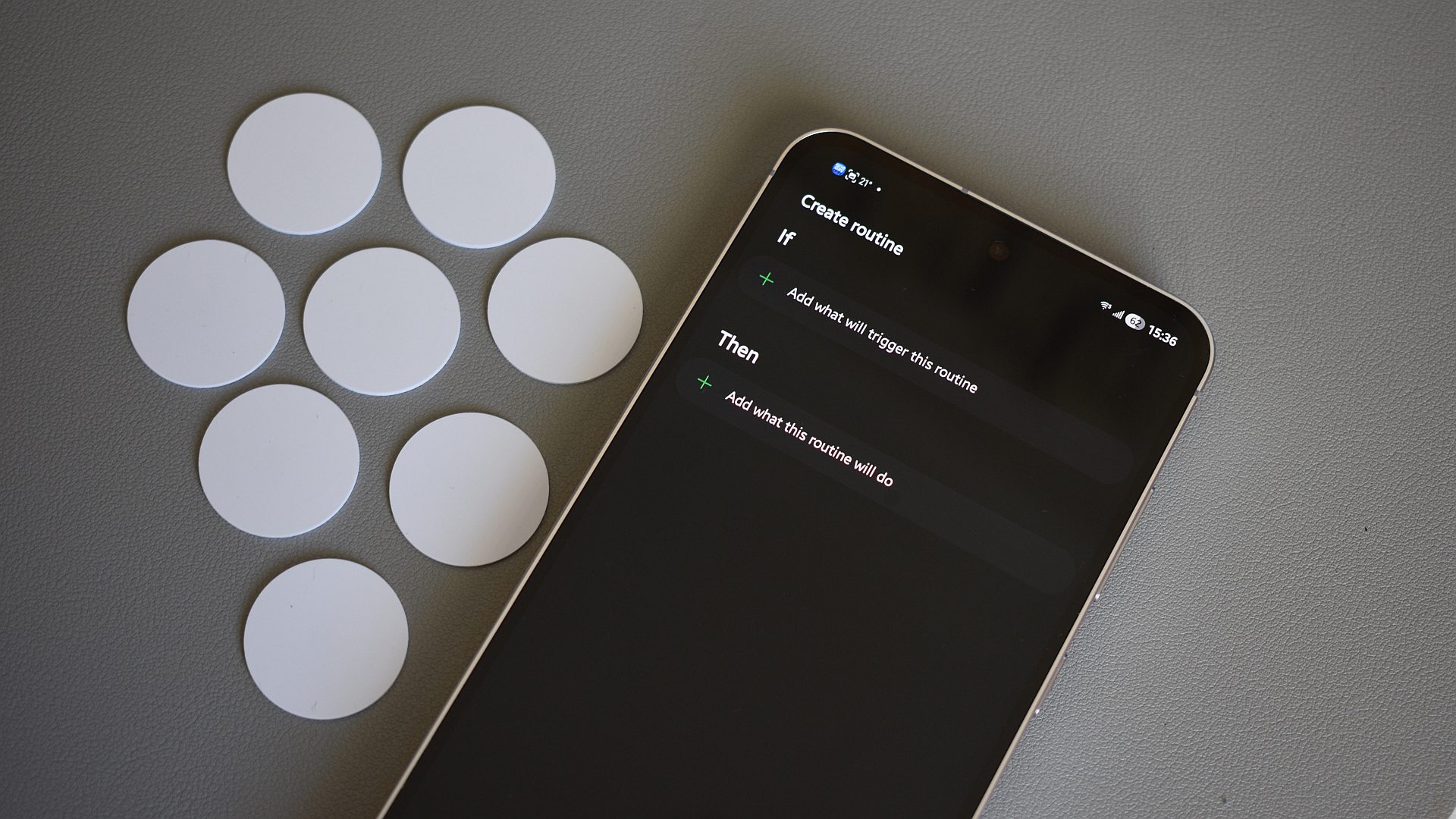
NFC tags are wonderfully underutilized and affordable pieces of tech.
To break this cycle, we have to temporarily disable Bluetooth and Wi-Fi on the phone we don’t want connected to Android Auto, and enable them on the phone we do.
I’ve previously gotten around this problem by manually disabling these radios, but this isn’t the smoothest process, and it requires annoying jumps between settings menu and quick tiles. There’s also no priority feature in my car, which would’ve solved my issue.
That’s where NFC tags come into play.
The solution: NFC tags and automation come to the rescue
NFC tags are wonderfully underutilized and affordable pieces of tech. They utilize near-field communication smarts to broadcast data to a phone that’s held in close proximity to it.
These tags serve various use cases; they can store simple information, such as a website address or an email address. For this purpose, I’m using them as switches to turn settings on or off on our phones.
How often do you use NFC tags in your daily routine?
1 votes
My Android Auto solution requires two tags stuck somewhere on the car’s dashboard, one to enable settings and one to disable them. But how do I trigger these actions? Well, since we both have Samsung phones, I use Modes and Routines on my device, and Bixby Routines on hers.
- To activate and create a new Bixby Routine, open Settings > Advanced features > toggle on Bixby Routines > Bixby Routines.
- To create a new Routine on newer Samsung phones, open Settings > Modes and Routines. Tap the Routines tab at the bottom of the screen, then tap the + button to create a new Routine.
What about the actual routines? Tag 1’s routine action stack, which connects the phone to Android Auto, is as follows:
If:
Then:
- Wi-Fi: On
- Location: On
- Bluetooth: On
- Wait before next action: 2-3 seconds
- Connect to Bluetooth device: My AA dongle
- Mobile data: On
- Get Android Auto status
Tag 2, which disconnects the phone from Android Auto, includes the following setup:
If:
Then:
- Disconnect from a Bluetooth device: My AA dongle
- Wi-Fi: Off
- Location: Off
- Wait before next action: 15-45 seconds
- Location: On
- Mobile data: On
Notably, the dance-and-wait between switching off Location and switching it back on again is important for my phone. Without this, my S24 FE would simply reconnect to Android Auto before the S10. With Location disabled, however, this doesn’t happen, and the solution functions as intended.
So, now that you understand the bones of the solution, how do we initiate the process in the car?
Well, you’ll need to stick these two NFC tags somewhere in the car. I choose to place these just below the display, allowing enough space for each phone to be waved over them.
Next, if I want my phone connected to Android Auto, I wave my device over tag 1, and my fiancée’s over tag 2. If she wants her phone connected, we’d do the opposite. And because NFC is near-instantaneous, the routines are initiated quickly. While it does take a few seconds to activate, it beats manually jumping through settings menus.
Is it worth using NFC tags to connect and disconnect from Android Auto?

Andy Walker / Android Authority
I guess this is the ultimate question. Is this just a waste of time, or does it actually speed up connecting and disconnecting two phones from Android Auto?
The obvious solution to the two-phone, one Android Auto problem is to forego wireless connectivity, use a cable, and switch between the two devices as required. I could’ve done this, but I’ve waxed lyrical about the benefits of wireless Android Auto in the past; I’m not about to give up those wireless advantages.
This project has a few prerequisites, no less two NFC tags and two Samsung phones.
This project will require NFC tags and Samsung phones, but buying some of the former isn’t a bad idea. Even though they’ve faded from the tech zeitgeist, they’re incredibly useful for use cases beyond my needs here. I’m sure one could build something similar with Automate, Tasker, or another automation tool, but I haven’t tried this myself. Samsung’s software just makes this trick that much easier.
But, I haven’t really answered the question, have I? While I’ll likely continue to tinker with it, this solution works in my car, but given how different Android Auto experiences can be across vehicle and phone models, I can’t say for sure it will work for you. The only way to know is to give this a go yourself.
Let me know if you’ve tried this project or considered another solution for switching phones on Android Auto.
Don’t want to miss the best from Android Authority?


Thank you for being part of our community. Read our Comment Policy before posting.
