

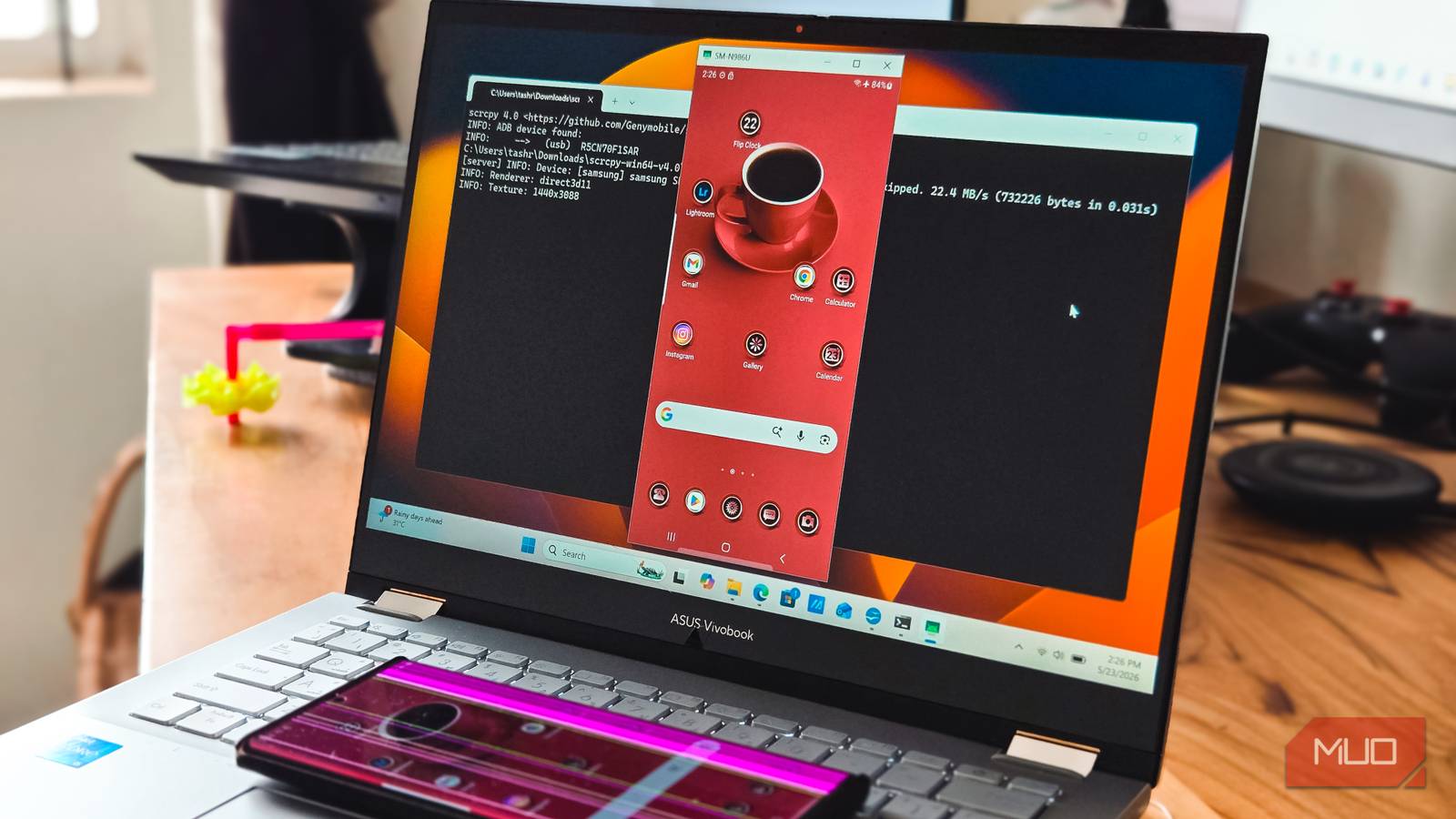

If you are an Android enthusiast who has ever tried to root your phone or flash a ROM, you probably already know about Android Debug Bridge (ADB), which lets you access your phone from a terminal via a USB cable. Android developers are well-versed in ADB’s capabilities in the development environment for testing their apps.
However, ADB has a lot more to offer, even if you are not looking to root your device or flash a ROM. From mirroring your phone on a PC to wiping app data without digging through Settings, there are plenty of things you can do with ADB that aren’t possible from the phone itself. Here are four tricks I rely on regularly, none of which require root access, a custom recovery, or any permanent change to your device.
Connecting your phone to the terminal via USB cable
A quick one-time setup that unlocks everything else

Before any of the tricks below work, you need to set up ADB on your PC and pair it with your phone. You need to enable USB Debugging, install Platform Tools, and then run ADB services to make your phone ready.
On your phone, go to Settings > About phone and tap Build number seven times to unlock Developer options. Head back to Settings > System > Developer options and turn on USB debugging. This is what allows your PC to send commands to the phone shell.
On the PC, download Google’s official Platform Tools from the Android developer website and extract it to a folder you can find easily, like C:\platform-tools on Windows. Connect your phone with a good-quality USB cable, set the USB mode to File transfer (MTP), and open a Command Prompt or PowerShell window inside that folder.
Run adb devices once. Your phone will show an Allow USB debugging? prompt. Tick Always allow from this computer and accept it. Run adb devices again, and your phone’s serial number should appear in the list. From here, every trick in this article is just a different command typed into the same window.
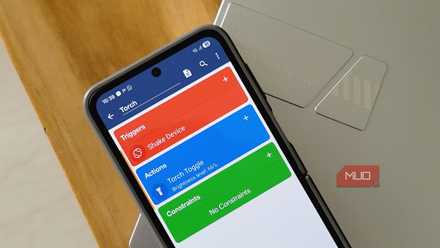
I created my own Android gestures, and it changed how I use my phone
My phone finally does what I want with one swipe
High-quality screen mirroring with scrcpy
A free, lag-free alternative to Phone Link and Smart View
Most Android phones already ship with some form of screen mirroring. Samsung has Smart View, Microsoft’s Phone Link can mirror your screen to a Windows PC, and stock Android can cast to a TV through Google Cast. They work, but each one comes with a catch. Smart View only talks to Samsung TVs and Windows PCs reliably, Phone Link’s full mirroring is limited to Galaxy devices, and Cast over Wi-Fi tends to lag the moment your network gets busy.
This is where scrcpy comes in. It’s a free, open-source tool that mirrors your phone over the USB cable you already have plugged in. Download the latest release from the scrcpy GitHub page, extract the ZIP, and double-click scrcpy.exe. As long as USB debugging is set up, a window pops up showing your phone’s screen in near real time. And it works on any Android 5.0 or newer device.
What you’ll immediately notice about Scrcpy is how responsive it is. Scrolling, typing, and tapping all feel instant because everything runs locally over USB. You can drag and drop a file onto the window to copy it to the phone, sideload APKs the same way, and record the session straight to MP4 by adding –record=demo.mp4 to the command. Clipboard sync works both ways, so I can copy a long URL on my phone and paste it into a browser tab on my PC without switching devices.
Remove bloatware
Strip out OEM and carrier apps without rooting
Almost every Android phone ships with a pile of pre-installed apps you didn’t ask for. Samsung phones come with their own browser, calendar, and notes app that duplicate Google’s versions. Xiaomi loads up MIUI with GetApps and Mi Video. If you bought a carrier-locked phone, you’re probably looking at an extra layer of branded streaming, music, and account-management apps on top. Some can be uninstalled from the app drawer, but many don’t offer that option at all.
ADB lets you remove them without root. Plug in your phone and run adb shell to enter the device shell. Use pm list packages to print every installed package, or pipe it through a filter like pm list packages | grep samsung to narrow things down. Once you’ve found the package ID of the app you want gone, such as com.samsung.android.calendar, run:
pm uninstall -k --user 0 com.samsung.android.calendarThe –user 0 flag uninstalls the app only for the primary user instead of removing it clearrom the system partition, and -k keeps the app data in case you change your mind. The app disappears from your launcher and stops running, but the APK stays on the device, so OTA updates still work.
Stick to obvious bloatware and avoid touching the dialer, messaging, camera, or anything related to core Google services. If you ever remove something by mistake, run adb shell pm install-existing com.package.name to bring it back.
Wipe all app data
Reset a misbehaving app without uninstalling it

Every now and then, an app on my phone starts acting up. WhatsApp refuses to send messages, the Play Store gets stuck on a download, or a banking app keeps crashing on launch. The usual fix is to head into Settings > Apps, find the app, tap Storage, and hit Clear data. That’s fine for one app, but doing it for several in a row gets tedious.
ADB does the same thing in one line. After connecting your phone, find the package name with adb shell pm list packages, then run:
adb shell pm clear com.google.android.youtubeThat command tells Android’s package manager to wipe the app’s databases, shared preferences, cache, and internal files. The next time you launch the app, it behaves like a fresh install, with sign-in screens and permission prompts.
If you want to wipe data for every third-party app in one go, you can chain pm clear to the output of pm list packages -3, which lists only user-installed apps. On Windows PowerShell, that looks like:
Before you run this one. It signs you out of every app you’ve installed, including messaging, banking, and authenticator apps. If you use an authenticator app for two-factor authentication and haven’t backed up the seeds, you’ll lose access to those accounts. I keep this command in my notes for fresh-start scenarios like prepping a phone for resale, not for everyday troubleshooting.
adb shell "pm list packages -3 | cut -d: -f2 | xargs -n1 pm clear" One thing to note about either approach: pm clear only touches the app’s internal storage. Anything the app saved to your shared storage, like downloaded files in /sdcard/Android/data/, stays untouched unless you delete those folders separately.
Install multiple apps at once
Push a folder full of APKs to your phone in one command
In addition to removing apps, you can use the terminal to install apps in batches. Instead of opening the Play Store and tapping Install for each app, I keep a folder of APKs on my PC and push them all in a single batch on my test devices.
After connecting your phone over ADB, copy every APK you want installed into your platform-tools folder. Open a Command Prompt window inside that folder and run:
for %f in (*.apk) do adb install "%f"This loop walks through every .apk file in the directory and installs each one on the phone without showing an install prompt on the phone or next buttons to tap. When the loop finishes, every app is sitting on your home screen, ready to use.
You could do something similar by multi-selecting APKs in an Android file manager, but you’d still have to tap Install on the system installer for each one. The ADB approach is genuinely unattended, which makes it the better choice when you’re setting up a new phone, configuring a test device, or restoring an APK backup after a factory reset.
ADB makes Android more powerful
ADB has a reputation for being a developer-only tool, but most of what I do with it has nothing to do with development. Mirroring my phone on the PC, stripping out preinstalled junk, resetting a stuck app, and bulk-installing APKs are all things the phone’s own UI either can’t do or makes you fight through to get done. The cable and the terminal are just shortcuts.
