


After setting up a new Android phone, the first thing I do is dig into the gesture settings and flip on a bunch of toggles that are off by default.
The problem is, unless you go looking through gesture menus and keyboard settings, you’d never know they’re there. Android doesn’t surface them during setup, and nothing afterward ever points you in their direction. You just get the defaults and move on.
Swipe down for notifications
Stop reaching for the status bar

By default, swiping down on your home screen opens a search page. It’s useful if you often look for apps or settings, but I reach for the notification shade far more frequently. And reaching the status bar with one hand isn’t always comfortable, especially when you’re holding the phone casually.
In your launcher settings under Home screen, there’s an option to reassign that swipe to pull down notifications instead. Once it’s on, a swipe anywhere on your home screen opens the shade directly. And if you still rely on Global Search, the search bar widget already sitting on your home screen does the same thing, so you’re not giving anything up.
I found 3 Android features so useful I’m confused why they ship disabled
Why aren’t these already on?
Gesture-bar swipe to switch apps
Switch apps with one swipe

Swiping up and pausing to open the recent screen works fine when you need to pick from several open apps. But when you’re just bouncing between the two, it’s the long way around. A quick horizontal swipe across the gesture bar at the bottom of your screen takes you straight to your last used app.
This one isn’t always enabled by default, so you might need to turn it on. Check under your system navigation or gesture settings for a horizontal swipe or app-switching option.
One-handed mode swipe
Shrink the screen on demand

Reaching the top of your screen while holding the phone with one hand isn’t easy, especially when your other hand is occupied. Android has a one-handed mode built in for this, but it’s disabled by default, so you’ve likely never seen it.
To enable it, go to your display or accessibility settings and look for One-handed mode. On some phones, it’s listed under advanced gestures instead. Once it’s on, a small downward swipe on the gesture bar shrinks the entire screen to the lower half, so everything becomes reachable with your thumb. To exit, just swipe back up or tap the empty space above.
Gboard’s swipe gestures
Hidden keyboard tricks worth using

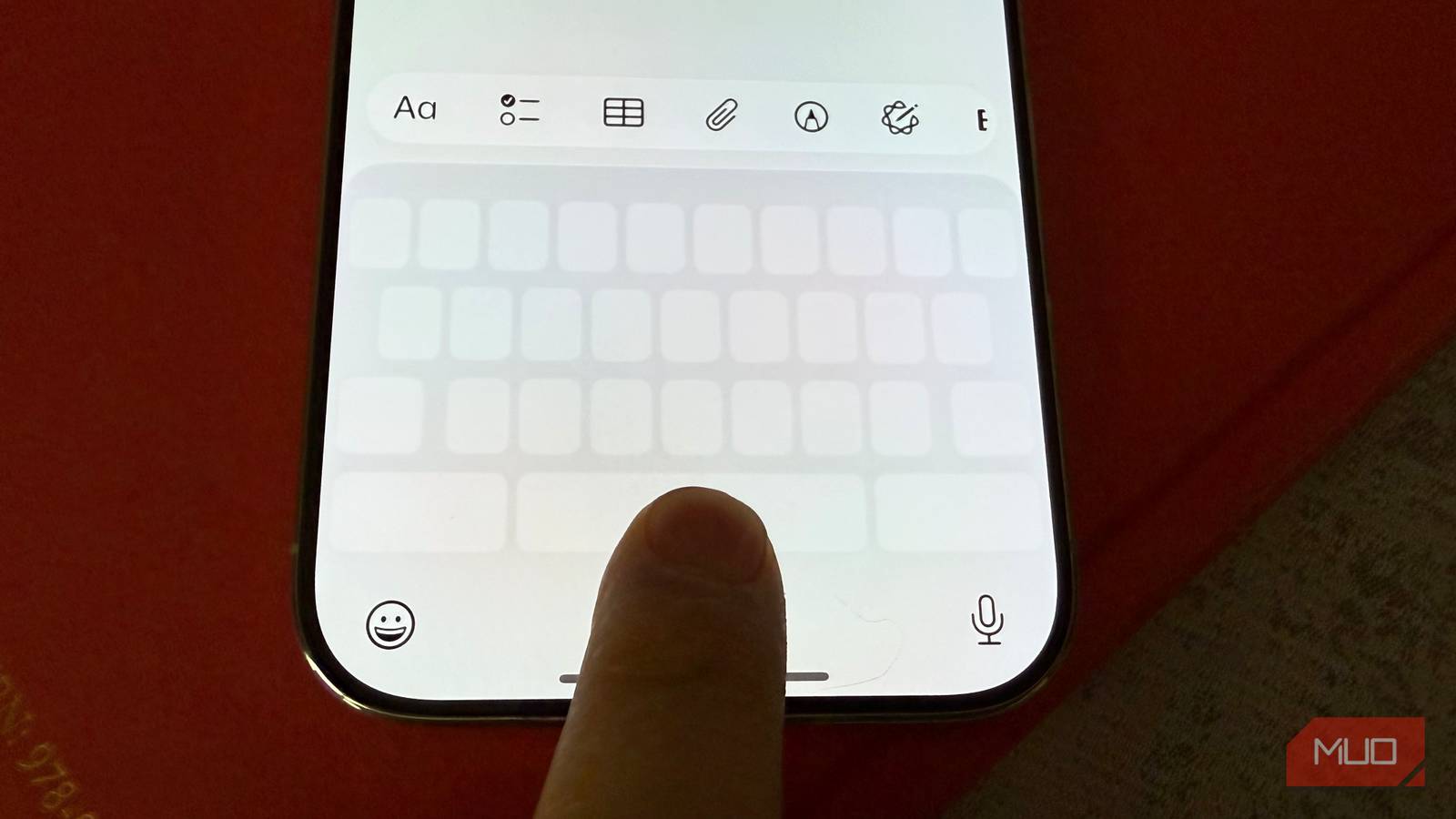
If you use Gboard as your keyboard, two swipe gestures in its settings are worth knowing about. Glide cursor control lets you swipe across the spacebar to move your cursor left or right instead of trying to tap precisely between two letters. Placing your cursor exactly where you want it stops feeling like a guessing game.
Then there’s Glide delete. A swipe from the backspace key toward the left selects and deletes entire words at once. The further you swipe, the more words it selects. This is far quicker than holding down backspace and watching characters disappear one by one, especially when you need to clear out a full sentence.
You’ll find both of these under Gboard’s settings in Glide typing. They might already be on for you, but if not, they’re both under the same menu.
Corner swipe for digital assistant
The quickest way to Gemini

A diagonal swipe inward from one of the bottom corners of your screen can launch your digital assistant. On older versions, this was tied to Google Assistant by default, but on newer builds, it usually opens Gemini or whatever assistant your manufacturer has set up.
This gesture is disabled by default or is sitting behind another shortcut, like the power button long-press. To check, go to your navigation or gesture settings and look for something like corner swipe or digital assistant.
Three-finger split screen
Swipe up to split apps

Split screen on stock Android requires you to open the recent menu, long-press an app icon, and select the option from there. It gets the job done, but it’s not exactly quick. On phones from brands like Oppo, Vivo, and OnePlus, there’s a shortcut built into the software. A three-finger swipe up on any app triggers the split screen directly and lets you pick your second app right away.
This one is usually found under multitasking or gesture settings. It’s labeled differently depending on the brand, but searching for split screen in settings should do the trick.
Check again after every update
Android manufacturers add new gestures with almost every update, and they rarely announce them outside a changelog you probably never read. What’s available on your phone today might not have been there six months ago.
If you’ve recently switched brands or upgraded to a new model, don’t assume your old settings carried over. Some gestures reset to defaults during setup, even if you restored from a backup. It’s worth going through your navigation and keyboard settings after any major switch just to make sure nothing goes wrong.
