

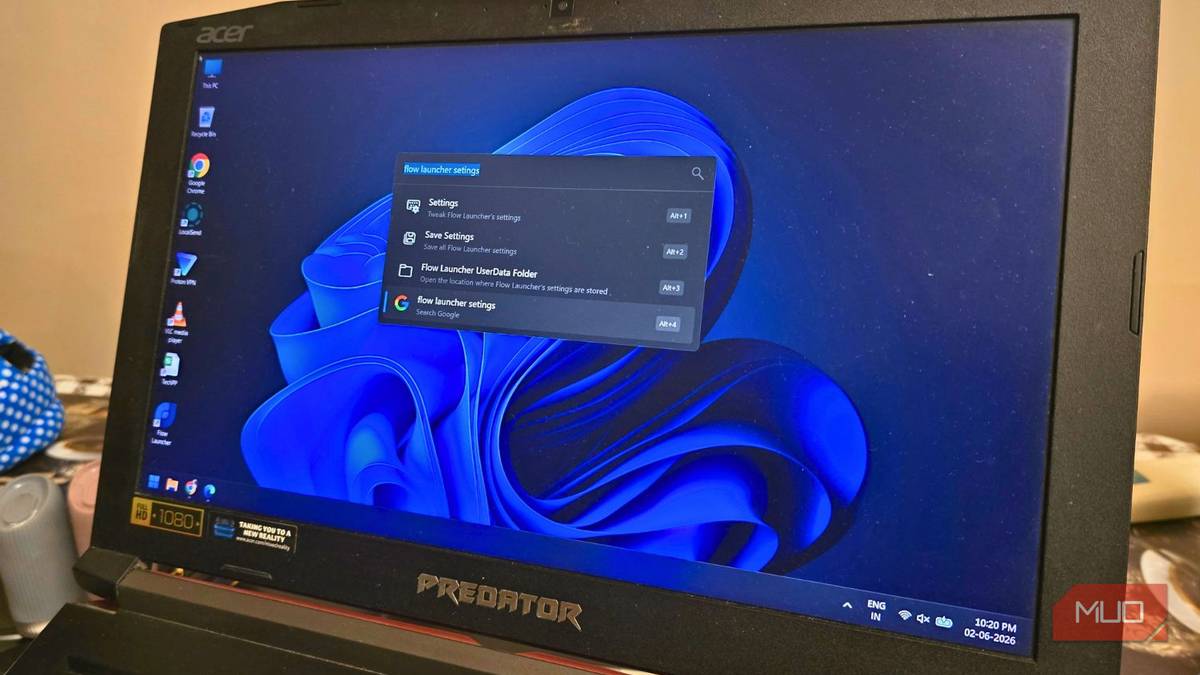

You want to look for files that you have on your PC. You open the Start menu and type the file name, but Windows Search takes a bit of time to show results. Well, along with the program you asked for, it also throws at you Bing web results and sponsored suggestions. Windows users will understand the exact frustration of wrestling with the native search bar. I did try to customize the Start menu to my preferences, but it remained the way it was — slow and limited.
I started looking for alternatives that would eliminate the clicking, waiting, sighing, and opening File Explorer manually just to find files I know are on my drive. It was Flow Launcher that had everything I needed, a free, simple, and fast file explorer that does one thing – find your files from anywhere.
I’ve tried every Windows launcher — and this is the first one that actually changed how I use my PC
I’ve used plenty, but this one rewired my daily workflow.
A Spotlight-style launcher for Windows
You hit a shortcut and find your files

If you have used macOS, you know what Spotlight feels like. You press a combination of keys, a small search shows up, you type what you are looking for, and you get the result. The best part is that there is no lag. Flow Launcher is that, but for Windows.
The Windows Start menu wasn’t always like this. However, over the years, Microsoft has turned it into a web portal rather than a tool to find local files. Your results are buried under irrelevant Bing search suggestions.
On top of this, Windows Start often takes a bit of time to load searches because it has to load a few widgets first. Another major reason many people stop using the Start menu is its inconsistent indexing. Deeply nested files or folders/folders or external drive files are often overlooked and not included in search results.
With Flow Launcher, everything is included. It is a quick file search tool that also supports extensions, enabling it to do much more than just find files and open apps. Flow Launcher sits quietly in the background and pops up instantly when you need it.
All you need to do is press Alt + Space to open a search bar. Everything loads in an instant, and there is no bloatware. Flow Launcher is completely ad-free and open source, which means there are no subscriptions, no bloat, no paywall to unlock Pro features, or anything pushing you towards any hidden agendas.
Flow launcher actually finds your files
It is your keyboard’s best friend

Flow Launcher’s whole experience revolves around a single keyboard shortcut. You press it, and you get a search bar. The best part is that you can trigger Flow Launcher from anywhere on your desktop; it doesn’t matter if you have a dozen web pages or multiple apps open.
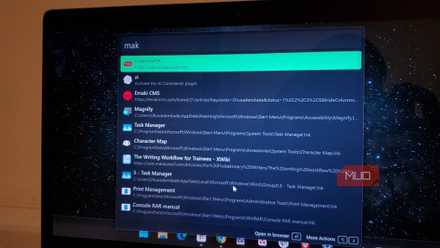
Once you open it, you can start typing. Flow Launcher uses fuzzy search. Thanks to that, you can type “share” for ShareX application or “obsi” for Obsidian, and Flow Launcher will figure out exactly what you are looking for. Most of the time, I butcher the file/app name, and Flow Launcher still finds the correct file.
When you are looking for a specific program, Flow Launcher doesn’t just show you the app; it also shows you other files associated with the program, such as the installer, the uninstaller, the repair option, and links to search for more information.
Search results appear instantly, saving a lot of time when you are in a hurry. On top of this, it’s not just a search tool; it supports a wide range of plugins that let you bypass opening other apps entirely. This is also one of the reasons why Flow Launcher is better than the default Windows Search.
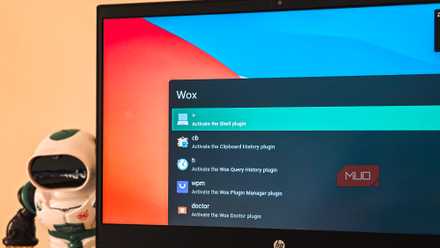
You can install ChatGPT, Claude, and Gemini plugins to instantly ask questions and get answers right inside the search bar. Download videos from YouTube, Facebook, X (Twitter), Instagram, etc., right from the search bar. Then you can also install a plugin that lets you control the volume of individual apps from the Flow Launcher. There are so many more plugins that you can install to amplify the Flow Launcher’s features.
I brought Mac’s best feature to Windows with this free open-source app
Windows never gave me Spotlight-level search, so I found a keyboard-first workaround that actually stuck.
Setting up is easy
It takes less than five minutes
Getting started and making Flow Launcher a part of your Windows setup is quite easy. Here’s what you need to do:
- Head over to the official website, download, and install Flow Launcher.
- To set up a hotkey, you need to right-click on the Flow Launcher icon inside the taskbar menu and open Settings.
- Tap on Hotkeys in the sidebar.
- By default, the shortcut key would be Alt + Space. You can change it as per your convenience. I have set it to Alt + G.
- Clicking the Appearance tab on the left pane lets you customize the Flow Launcher interface. You can change the theme, change the backdrop style, shadow effect, enable/disable animation, and much more.
To install plugins, tap the Plugins Store tab in the left pane. Then there will be a search box. You can type what you want, and you will probably get a plugin for that action.

- OS
-
Windows
- Price model
-
Free
Flow Launcher is a free, open-source launcher for Windows that replaces the Start menu with a fast, keyboard-driven search bar to launch apps, find files, run commands, and extend functionality with plugins.
There’s no catch…but
With Flow Launcher, you don’t get anything hidden or features that are behind paywalls. It is great, free, and open-source. However, you should understand that it won’t magically index files that aren’t already indexed. So, for the best file search experience, we would recommend pairing it up with Everything Search, which is also available for free. This will make a huge difference. There is a mild learning curve with Flow Launcher, but once you get the hang of it, there is no turning back to Windows Search.
