


If you cannot convert your MBR disk into GPT due to the “Unrecognized partition found, index 1 disk layout validation failed” error, this article will help. This error usually occurs when the disk contains a corrupted or improperly configured partition that prevents the MBR2GPT tool from validating the disk. As a result, the conversion process fails.
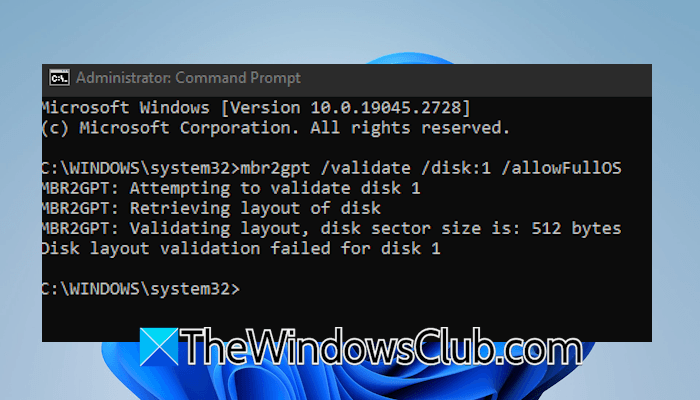
Unrecognized partition found, index 1 disk layout validation failed
MBR, or Master Boot Record, is a legacy partitioning scheme in Windows that has been replaced by GPT due to several limitations. That’s why modern computers have a GPT partitioning scheme by default. Additionally, Secure Boot cannot be enabled on disks with an MBR partition style. That’s why many users are switching from MBR to GPT. However, some of them are getting the “Unrecognized partition found, index 1 disk layout validation failed” error while running the required command in the MBR2GPT command-line tool. If you get this error, this article will help you resolve it.
Microsoft is replacing the old Secure Boot Certificates with the new ones through Windows Update. To get the latest Secure Boot Certificates through Windows Update, Secure Boot should be turned ON on your device. Secure Boot is a security standard developed by members of the PC industry to help ensure that a device boots only with software trusted by the Original Equipment Manufacturer (OEM).
Secure Boot requires a GPT partitioning scheme. Therefore, if your device has an MBR partitioning scheme, you need to convert it to GPT first. However, if this error prevents you from doing so, you cannot get the latest Secure Boot Certificates and your device may become vulnerable to rootkits. To fix this error, you need to delete the hard drive partitions.
Use the following solutions:
- Delete the required partitions
- Use a third-party tool
Let’s start.
1] Delete the required partitions
While using the MBR2GPT command line tool, you cannot use the conversion command first. Before starting the conversion, you need to run a command to validate the disk. According to the reports, the tool shows the following error message while running the validate command in the MBR2GPT tool:
Disk layout validation failed for disk 0
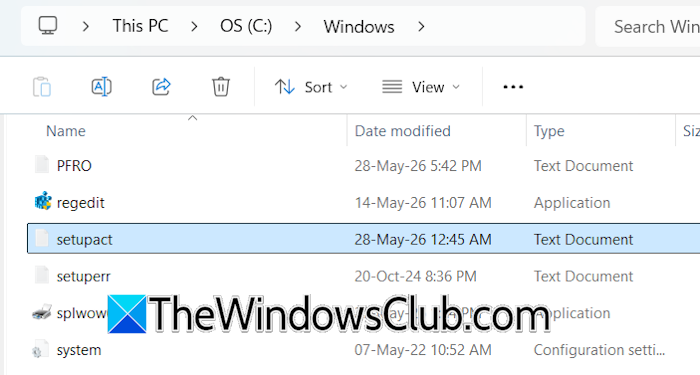
To see the exact error message, open the setupact file. This file is generated by Windows and keeps records of actions performed by Windows setup, success or failure messages, partition validation details, driver loading information, etc. To know the exact error message, you need to open this file, located at the following location:
C:\Windows
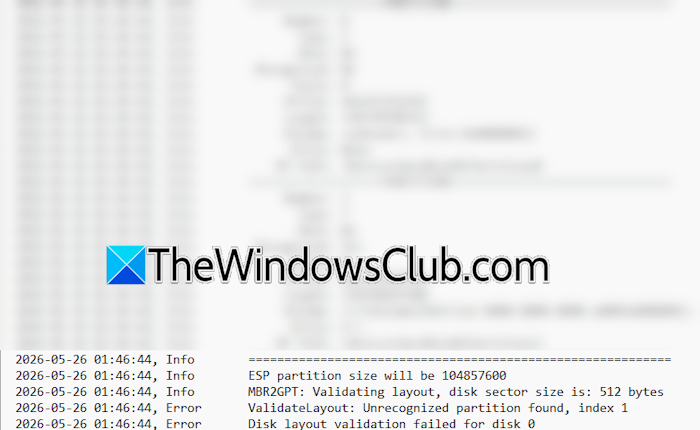
Go to the above-mentioned path and search for the setupact file. Once you find it, right-click on it and select Open with > Notepad. You will see the exact error message at the bottom of the file.
The error “Unrecognized partition found, index 1 disk layout validation failed” means that your hard disk has an MBR partition table with more than 3 primary partitions or multiple logical partitions. In MBR partition style, once you reach the maximum number of partitions, any additional partitions will be created within the Extended partition. You can see the Extended partition in dark green and logical partitions in blue in Disk Management.
To fix this error, delete all the logical partitions. Do not delete the C partition because it contains your Windows OS. Before deleting the Logical partitions, back up all your data to an external hard disk or USB flash drive.
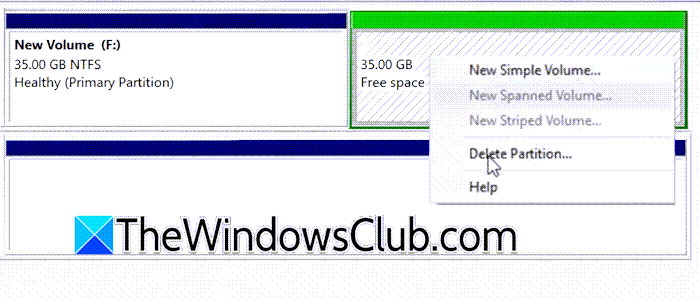
Follow these steps:
- Open Disk Management.
- Right-click on any of the logical partitions and select Delete Volume. Click Yes in the confirmation box.
- Repeat the above steps for all logical partitions. After that, a green Free space will be created.
- Now, right-click on the Free space and select Delete Partition. Click Yes in the confirmation box.
After performing the above steps, a single Unallocated space will be created in place of all Logical partitions. Now, you can proceed with the MBR2GPT conversion using the command-line tool. The conversion process should be completed this time without any errors.
However, if the error persists, delete the other partitions after backing up the data on them. Do not delete the C partition. If your disk has only three Primary partitions and no Logical partitions, and you are still getting the error when converting MBR to GPT using the command-line utility, delete all partitions except the C partition.
2] Use a third-party tool
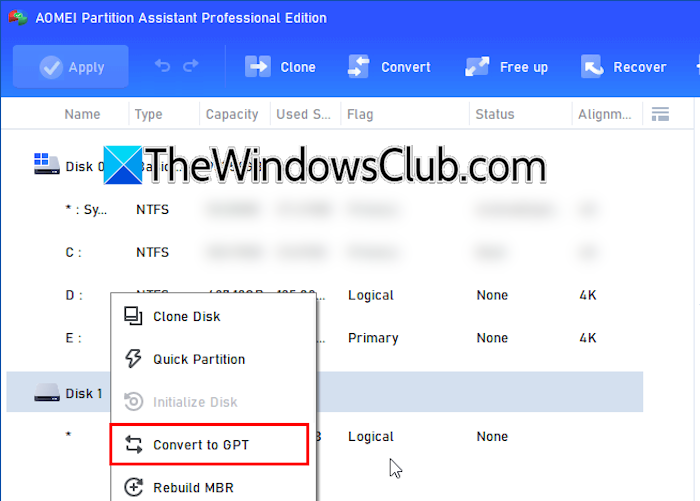
If you find the above method difficult, you can use this easy method to fix the error. Some third-party tools allow you to convert MBR to GPT even if the MBR disk has more than 3 partitions. One such tool is AOMEI Partition Assistant. This tool allows you to convert MBR to GPT without deleting any partitions or data. Download and install this software on your system. Now, launch it and let it scan your system for hard disk and partitions. Right-click on the disk you want to convert into GPT and select Convert to GPT. On the next screen, verify the disk you are going to convert and click OK. Click Apply to start the conversion. The tool will convert your disk into GPT. Do not interrupt the process. When the process is completed, restart your system.
After converting your disk, you can turn ON the Secure Boot and switch from CSM to UEFI. Now, you can recreate the partitions on the unallocated space.
That’s it. I hope this helps.
Is it risky to convert MBR to GPT?
The MBR-to-GPT conversion is usually not risky. Many tools are available to help you perform this conversion without deleting your data. The MBR2GPT is a built-in Windows tool that converts an MBR disk to GPT without deleting data. However, you should always back up your data before proceeding. If your MBR disk has more than three primary partitions, you have to delete all the Logical partitions; otherwise, you will get an error.
Why is my MBR2GPT not working?
There can be multiple reasons why the MBR2GPT command-line tool is not working for you. To troubleshoot the issue, you need to find the exact error message. You will find the error message in the setupact text file.
Read next: The selected disk has an MBR partition table.
