


Storage on the device is most important for a PC to work properly. We need to have a minimum of 64GB free space to install and run Windows 11. To install and run programs and create files, we need free space. At times, we see some files occupying abnormally large amounts of storage space. They seem to serve no purpose other than taking up the storage space and making it hard for other programs to run properly. In this guide, we show you what to do when Capability Access Manager takes up more storage than it requires.
What is Capability Access Manager CapabilityAccessManager.db-wal?
Capability Access Manager on Windows 11 is a core component of the Windows operating system that makes sure users’ privacy and security are not compromised. Whatever the user chooses to safeguard privacy and security, Capability Access Manager on Windows implements it without any failure.
For example, when a program asks for location or camera access, Capability Access Manager checks your choices or settings in it database, and allows or denies the access as per your choice.
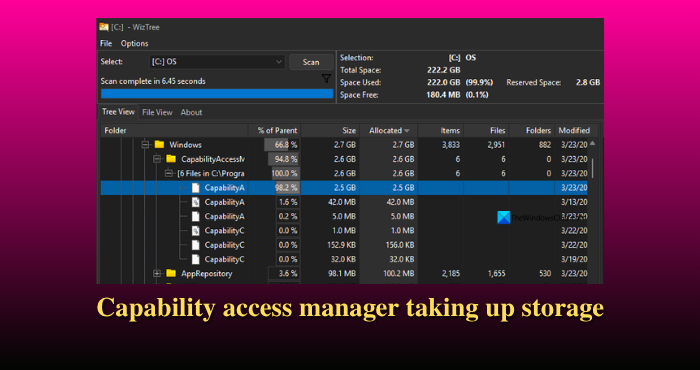
The database that stores user choices is named CapabilityAccessManager.db. Every time a user makes a choice, it is not stored directly in the CapabilityAccessManager.db. It is temporarily stored in a Write-Ahead Log file to not stress system resources. The temporary Write-Ahead log is known as CapabilityAccessManager.db-wal. If you choose to not provide camera access to a program on Windows forever, the choice is stored in CapabilityAccessmanager.bd-wal. Under normal circumstances, its size ranges from 1 MB to 4 MB on a Windows PC. If it is consuming abnormally large amounts of storage in gigabytes, there is surely a problem that must be fixed immediately.
Capability Access Manager taking up storage in Windows 11
If you see Capability Access Manager or CapabilityAccessManager.db-wal take up more storage on your PC, follow this method to fix the issue. You do not need to delete the entire Capability Access Manager. Reinstalling Windows or using System Restore will not do anything to the Capability Access Manager. The best way to fix the issue is:
- Boot into Safe Mode
- Take ownership of Capability Access Manager folder
- End Capability Access Manager service
- Grant administrator privileges
- Delete CapabilityAccessManager.db-wal
- Restart your PC and boot normally
Let’s get into the details of the process.
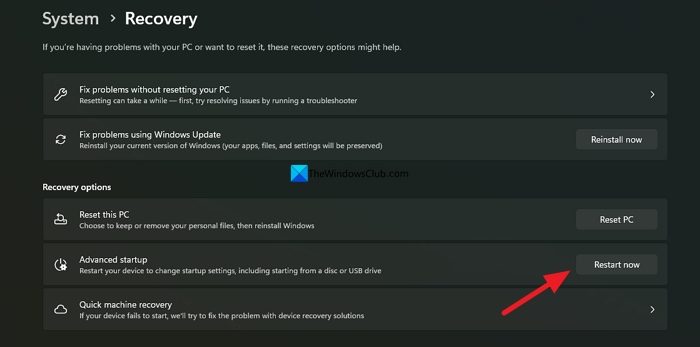
To get started, open the Settings app on your PC, and click System. Go to Recovery. Click Restart now beside Advanced startup.
It will open the Windows Recovery Environment. Select Troubleshoot > Advanced Options > Startup Settings. Then, restart your PC. It will show Startup Settings. Press 4 or F4 on your keyboard to Enable Safe Mode.
Once you boot into the Safe Mode, open Command Prompt as an administrator, and use the following command to take ownership of Capability Access Manager.
takeown /f "C:\ProgramData\Microsoft\Windows\CapabilityAccessManager" /r /d y
Then, stop Capability Access Manager service from running in the background using the following command.
net stop camsvc
After stopping Capability Access Manager service, you need to enable administrator privileges to Capability Access Manager.
icacls "C:\ProgramData\Microsoft\Windows\CapabilityAccessManager" /grant administrators:F /t
Now is the main part. We need to delete the CapabilityAccessManager.db-wal file to force Windows to create another file after a restart.
del "C:\ProgramData\Microsoft\Windows\CapabilityAccessManager*.db-wal"
After successful deletion, restart your PC and boot into normal mode. Windows would now automatically create another CapabilityAccessManager.db-wal file at a normal size of 1 MB – 4 MB. You will now get back all the storage space it has earlier taken up.
Read: Windows Defender bug that ate up GBs of storage space fixed
Can I delete the CapabilityAccessManager folder?
No. You cannot delete CapabilityAccessManager folder normally. If you manage to delete it in Safe Mode, the privacy and security choices you made will be broken, and make your Windows PC vulnerable. It can also create new issues and leave your PC open to new threats by breaking system permissions.
Related read: There is not enough space available on the disk to complete this operation.
