

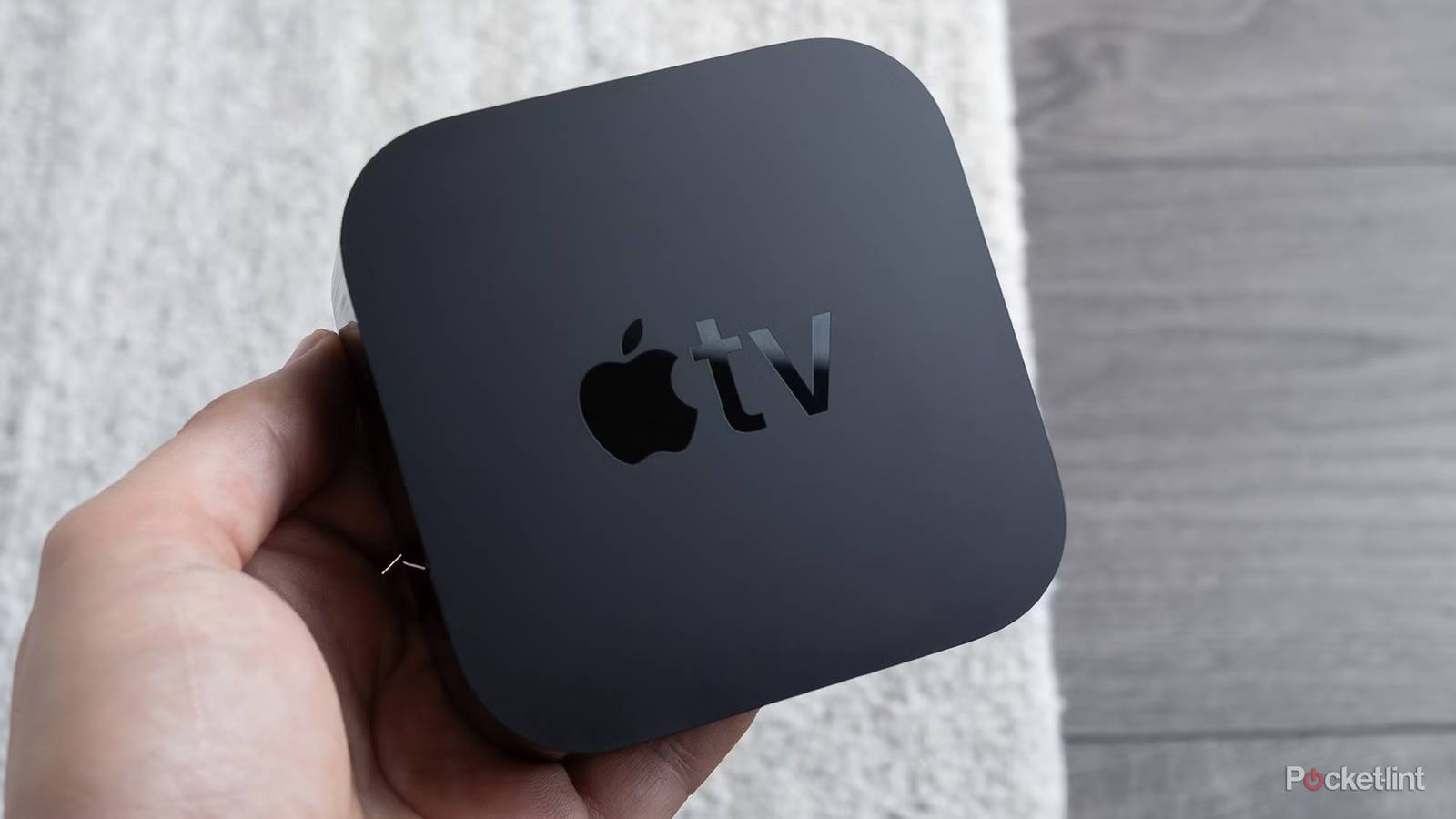

One of the smaller reasons to choose an Apple TV 4K, arguably, is that you’re unlikely to run into many issues. Media streamers in general are simple devices, and Apple has stripped away a lot of the ads and recommendations you’d see on devices from Amazon, Google, or Roku. Moreover, the box is ridiculously overpowered next to its competition — it’s not going to hitch for a lack of memory or processor power.
Things can and do go wrong, though, whether because of odd design decisions, or the complexity of home theater technology. I’m going to try to tackle three of the most frequent issues here. This list is by no means comprehensive in that sense, but it should help enough people, and I’ll go into related problems as they make sense.

Quiz
Apple TV
Trivia Challenge
Think you know your Apple TV history inside out — put your knowledge to the ultimate test!
HistoryHardwareSoftwareFeaturesStreaming
In what year did Apple first introduce the original Apple TV?
Correct! The original Apple TV was unveiled by Steve Jobs in January 2007 and began shipping in March of that year. It was initially codenamed ‘iTV’ before Apple settled on its final name.
Not quite. The first Apple TV was announced in January 2007 and started shipping in March 2007. Steve Jobs introduced it at Macworld, describing it as a way to bring your iTunes library to your television.
What was the storage capacity of the original first-generation Apple TV at launch?
Correct! The original Apple TV launched with either a 40GB or 160GB hard drive, as it was designed to store synced media locally from your iTunes library. This was before streaming became the dominant model.
Not quite. The first Apple TV came with either a 40GB or 160GB internal hard drive. Because it was designed to sync content from iTunes rather than purely stream it, local storage was a key part of the original design.
What major redesign did Apple TV receive in 2010 that dramatically changed its form factor?
Correct! The second-generation Apple TV launched in 2010 was a dramatic departure — it shrunk to a tiny black puck and completely removed the internal hard drive, shifting fully to streaming. It also dropped the price to just $99.
Not quite. The 2010 Apple TV (2nd generation) was reimagined as a tiny black puck-shaped device that removed local storage entirely, relying on streaming instead. Steve Jobs famously called the original a ‘hobby’ before this pivotal redesign.
What is the name of the operating system that runs on Apple TV HD and Apple TV 4K?
Correct! tvOS is Apple’s dedicated operating system for the Apple TV platform, first introduced alongside the fourth-generation Apple TV in 2015. It’s based on iOS but optimised for the living room experience.
Not quite. Apple TV runs tvOS, a purpose-built operating system Apple introduced with the fourth-generation Apple TV in 2015. While it shares a foundation with iOS, tvOS is specifically tailored for big-screen, remote-controlled navigation.
Which fourth-generation Apple TV feature allowed users to install third-party apps for the first time?
Correct! The fourth-generation Apple TV in 2015 introduced the App Store to the platform, finally allowing developers to build and distribute apps directly to the TV. This was a landmark moment that transformed Apple TV from a streaming box into a proper platform.
Not quite. The App Store was the defining new feature of the fourth-generation Apple TV launched in 2015. For the first time, users could download games, streaming apps, and utilities directly onto their Apple TV, opening it up as a true app platform.
Which chip powers the Apple TV 4K (3rd generation) released in 2022?
Correct! The third-generation Apple TV 4K, released in November 2022, is powered by the A15 Bionic chip, the same processor found in the iPhone 13 series. This gave it a significant performance boost and enabled smooth 4K HDR playback.
Not quite. The 2022 Apple TV 4K (3rd generation) uses the A15 Bionic chip. Apple often reuses chips from its iPhone lineup in Apple TV, and the A15 offered a meaningful performance improvement over the A12 found in the previous model.
Apple TV+ launched as a streaming service in November 2019. What was notable about its launch pricing in many markets?
Correct! Apple TV+ launched on 1 November 2019 at just $4.99 per month, making it one of the most affordable streaming services at launch. Crucially, Apple also offered a free one-year subscription to anyone who purchased a new Apple device.
Not quite. Apple TV+ launched at $4.99 per month and sweetened the deal by offering a free year of the service to anyone buying a new Apple device. The aggressive pricing was seen as Apple’s strategy to rapidly build a subscriber base for its fledgling original content library.
What is the name of Apple’s feature that allows iPhone users to use their phone as a camera source through Apple TV?
Correct! Continuity Camera, introduced with tvOS 17, allows users to use their iPhone as a webcam for FaceTime calls on their Apple TV. It takes advantage of the iPhone’s superior camera hardware for a much better video calling experience on the big screen.
Not quite. The feature is called Continuity Camera, and it was introduced with tvOS 17. By wirelessly connecting an iPhone to Apple TV, users can enjoy high-quality FaceTime video calls on their television using their iPhone’s powerful camera system.
Your Score
/ 8
Thanks for playing!
The screen keeps going black when switching content
A feature, not a bug

Digital video formats are kind of nightmarish, when you break them down. While there are usually only two resolutions these days — 1080p and 4K — there are three major HDR formats, and two more around the corner, namely Dolby Vision 2 and HDR10+ Advanced. When you combine this with the multitude of framerates possible, there’s a lot for an Apple TV to sort out.
With the Match Dynamic Range and Match Frame Rate options on under Settings -> Video and Audio -> Match Content, your Apple TV will automatically switch over to the appropriate HDR/SDR mode and refresh rate for a given video (or app interface). As a rule, this is a good thing. If a movie is only in Dolby Vision, say, but your Apple TV is currently in SDR or HDR10+, switching will be essential to getting HDR at all. Similarly, if you don’t match framerates, you may run into motion-related visual glitches.
The flaw, though, is that your screen will often go black for a moment when one of these switches occurs. This isn’t Apple’s fault — it’s something known as the “HDMI bonk.” Simply put, your TV is suddenly being forced to change settings, and it doesn’t have anything to show while that reconfiguration happens. If you’re connected via HDMI 2.1a, Quick Media Switching will prevent this delay when matching frame rates, but matching dynamic range will always trigger a blackout.
If blackouts are happening too frequently, you can try disabling one or both matching options — just be sure you know what you’re sacrificing. This isn’t necessarily a big deal. If all you’re doing is watching YouTube videos, for example, it’s probably not a sin if your Apple TV stays locked at 1080p SDR and 60Hz, even though some channels might use different specs.
Stereo isn’t being upmixed by my receiver
Dolby’s at fault for this one

While receivers are increasingly irrelevant given just how good soundbars have become, they do have advantages beyond just enabling crazy 7.1.4-channel audio systems. One of these is Dolby Surround upmixing. Essentially, a receiver can take a Dolby Stereo mix and map it to a multi-channel speaker system, even one built for Atmos. This won’t be as good as true Atmos or Dolby 5.1, naturally, but you’ll be able to enjoy your speaker system even when you’re not paying for “premium” streaming plans.
Some people have discovered that they’re getting very boring stereo out of an Apple TV, despite high-quality receivers. The culprit is a relatively recent software feature called Continuous Audio. What this actually does is enable Dolby MAT, a container technology that mixes raw PCM audio with Atmos metadata. Apple’s usage is meant to provide “seamless transitions across audio formats without glitches or dropped signals,” but some receivers may take this Atmos metadata as a sign that no upmixing is required.
If this is happening, the best solution is probably to disable Continuous Audio by going to Settings -> Video and Audio -> Audio Format -> Change Format. You might also try forcing stereo, but of course that will block Atmos or any true multi-channel surround sound when it’s available.
It keeps forgetting my HomePods (or other AirPlay speakers)
The vagaries of Wi-Fi audio

HomePods are one of the most popular accessories for people wanting to go all-in on the Apple ecosystem, particularly in a home theater context. To get them to work consistently and automatically with an Apple TV, however, you can’t just set them up in Apple Home. You need to assign everything to the same Home room, at which point you should be prompted to set the HomePod(s) as default audio output the next time you power on your Apple TV. If that doesn’t happen, you can always return to the Home app on your iPhone or iPad, then tap on the Apple TV’s tile. Next, tap the gear icon, then Default Audio Output. You can do the same thing in tvOS by going to Settings -> Video and Audio -> Audio Output.
Incidentally, remember that for stereo or Dolby Atmos output, you need two HomePods of the same type. You can’t match a full-size HomePod with a HomePod mini, or even a first-gen HomePod with a second-gen. Only full-size HomePods support Atmos.
Remember that general Wi-Fi issues may be at play, such as range, interference, or band congestion. Be sure your router is out in the open, and that all the devices you’re worried about don’t have anything hampering transmission.
If you’re using tvOS 26 or later, you can set any AirPlay 2-compatible speaker as a Default Audio Output, but this does come with limitations. You’ll still hear system alerts or game sounds through your TV, not your external hardware, for example. There’s also a chance that third-party speakers won’t sync with video as well as HomePods. If that’s bugging you, you might try heading over to Settings -> Video and Audio -> Calibration -> Wireless Audio Sync, but you’ll need an iPhone to run the calibration process.
Remember also that general Wi-Fi issues may be at play, such as range, interference, or band congestion. Be sure your router is out in the open, and that all the devices you’re worried about don’t have anything hampering transmission, such as a bookshelf or cabinet. You can also help by connecting as many devices to Ethernet as possible, which will free up wireless bandwidth, and increase the stability of that wired hardware as a bonus. AirPlay is exclusively Wi-Fi-based, unfortunately.
One problem I’ve dealt with repeatedly is my HomePods becoming severed from my Apple TV after updating my Eero Pro 6E routers. Sometimes this solves itself, presumably because Apple’s hardware is just lethargic detecting and re-establishing connections. If the problem persists after updating your own router(s), you may have some luck triggering a restart (not a reset) on your Apple TV by going to Settings -> System -> Restart. Consider the same if you experience trouble after a tvOS update. Make sure your HomePods are up-to-date using the Apple Home app, first.

- Brand
-
Apple
- Bluetooth codecs
-
5.0
- Wi-Fi
-
6
- Ethernet
-
Gigabit (128GB model only)
