

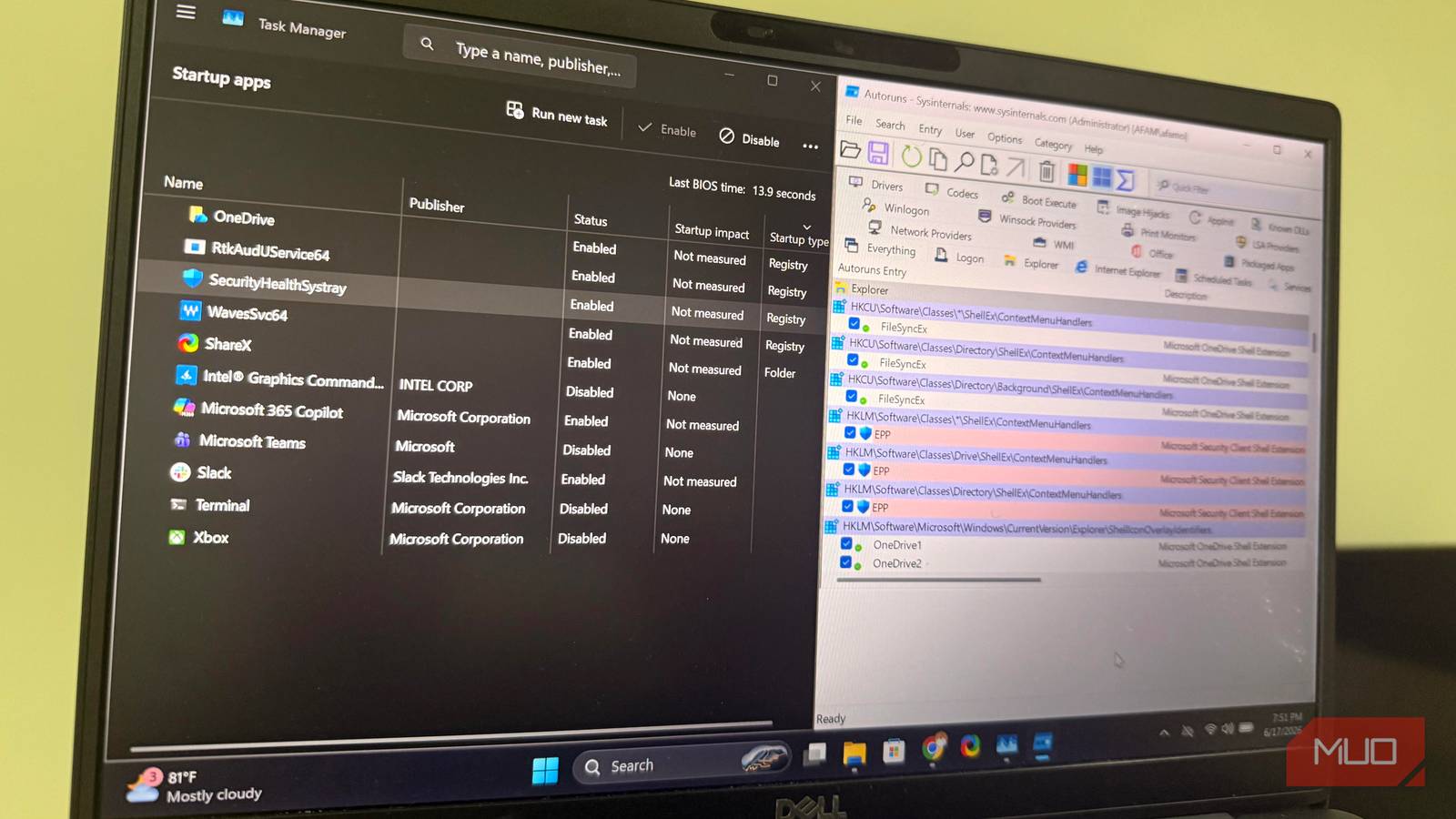

Many modern Windows applications add background triggers and package scripts that become part of the Windows startup path. You may be expecting Task Manager to manage these additions, but it only shows you a fraction of them, making it difficult to accomplish any real Windows cleanup.
When I need real visibility, I turn to Autoruns because it uncovers hidden scheduled tasks and deep-seated bloatware in a way the Task Manager doesn’t. After running it on one of my old laptops, I was shocked to see 161 startup entries that the Task Manager did not catch. You need it to thoroughly clean your PC.
I stopped Windows from keeping old drivers and my PC boot time dropped by half
I also reclaimed some storage space in the process.
Task Manager made my startup look clean
Autoruns told a very different story
Looking at the startup apps in Task Manager doesn’t initially reveal anything out of the ordinary. I had 11 entries, including Teams, OneDrive, Slack, Steam, Spotify, and Wallpaper Engine. These were familiar names, and I concluded it was a reasonable list.
This is typically where you stop. It’s a clean startup page, with apps well listed. You recognize everything you see, and the interface includes an impact rating for the apps; there is no need to poke further because it feels complete. It isn’t.
On the same laptop, I ran Autoruns from Sysinternals, and in place of the 11 entries Task Manager showed, Autoruns reported 172 autostart entries. This was an additional 161 entries silently loading. These entries were loading through scheduled tasks, background services, kernel drivers, and shell extensions, mechanisms that the Task Manager wasn’t built to show. This was a huge gap that I chose to explore.

- OS
-
Windows
- Developer
-
Microsoft (Sysinternals)
- Price model
-
Free
Autoruns is a powerful Sysinternals tool that reveals every program, service, and hidden entry that runs automatically when Windows starts.
The biggest surprises weren’t apps
They were running behind the scenes
The number of startup software apps was alarming, but what felt even more surprising was the number of browser-related tasks.
I was observing automatic update tasks for Microsoft Edge, Google Chrome, and Brave. These tasks were configured to trigger when I signed in, and none of them showed up in the Task Manager. You probably have a similar configuration if you use several browsers.
There was also a hardware layer that included Intel Graphics Command Center, Realtek Audio Universal Service, and Dolby audio components. These are not traditional applications, but they still get loaded as part of the startup process. They are vital components that stay in the background while managing hardware behavior. They perform their function but do not register it in the place you’d typically look.
There was yet another layer I was observing: background services. These include Google Update Service, Mozilla Maintenance Service, Brave Update Service, Steam Client Service, and more. Some are triggered even before you enter your password, and others stay active throughout the use of the computer.
Drivers added to the list, with Intel graphics drivers, Wi-Fi drivers, Bluetooth drivers, and NVMe storage controllers loading as part of the boot sequence. I never got visibility into any of this from the Task Manager.
At this point, it started to be clear to me that Windows startup performance is shaped by several separate mechanisms that turn on before the lock screen and not just a handful of post-login apps.
The entries that shouldn’t have been there

It’s one thing to have legitimate services and drivers as part of the startup process. It’s another thing to have entries tied to apps you’ve uninstalled or no longer use.
The more I dug through Autoruns’ results, the more I encountered scheduled tasks, shell extensions, and startup hooks from uninstalled programs. Some of these pointed to executables that did not exist on my drive. So even though the software was gone, its startup machinery wasn’t. A lot of these missing-file entries were highlighted in yellow on Autoruns. These stay behind because Windows’ default uninstaller leaves scheduled tasks, services, and registry pointers. When you start the computer, Windows keeps trying to process them.
Here is how both tools stack against each other:
|
Entry Type |
Visible in Task Manager |
Found in Autoruns |
|---|---|---|
|
Browser update tasks |
No |
Yes |
|
Third-party services |
No |
Yes |
|
Driver entries |
No |
Yes |
|
Explorer extensions |
No |
Yes |
|
Orphaned startup items |
No |
Yes |
|
Standard startup apps |
Yes |
Yes |
Although these entries were not throwing errors or crashing my computer, they make startup slower, and can also make troubleshooting harder. Since they did not show up in Task Manager, you may get the false impression of a clean system. These are common on systems that have been used for a long time.
Autoruns showed me more than I needed
That’s both its strength and its risk

Autoruns is free and doesn’t require installation. You run the executable file after downloading and unzipping it. Even on a well-maintained computer, seeing 172 entries was alarming. However, once you understand that most of them are legitimate Windows infrastructure, it becomes less alarming. You can get into trouble if you blindly remove anything you don’t know.
To stay safe, I first enabled Hide Microsoft Entries and Hide Windows Entries from the Options menu to exempt core OS-related components from the list. Then I went through all entries highlighted in yellow that had a “File not found” Image Path entry. These are safe to remove. Tools like BCU Uninstaller help me remove what the default uninstaller left behind.
Don’t discard Task Manager
None of this is a nudge to forget about the Task Manager. I still use it. In fact, it’s the better tool for some everyday startup tweaks. If I don’t want Spotify launching at startup, I can fix this from the Task Manager.
However, for visibility into what Windows actually loads, I now stick to Sysinternals Autoruns.
