


Since the late 2000s, HDMI has been the go-to cable and port for connecting devices to your TV. I still remember the first time I used one and how amazing it was that a single cable could replace all the RCA cords I had used for years with my PS2, Wii, and DVD player. I’ll never forget plugging my Xbox 360 into my TV with HDMI for the first time and being amazed by the picture and sound quality.
Fast-forward about 20 years, and HDMI is still the dominant port on most TVs. Its popularity stems from its versatility, as it carries both high-quality video and audio over a single cable, unlike older standards like VGA or component. That’s made it universal across consoles, Blu-ray players, laptops, monitors, projectors, and pretty much everything else that connects to a TV, like Fire TV Sticks. And HDMI keeps evolving: the latest version, HDMI 2.2, was introduced earlier this year and supports twice the bandwidth of HDMI 2.1.
With that in mind, since you’re likely using HDMI on your TV, here are some tips to ensure you get the best possible video and audio quality. While all HDMI ports appear the same, they aren’t all identical. Using the wrong HDMI cable or port can limit your experience — especially with a gaming console like the PS5.
Choose the correct HDMI port on your TV
Switching the HDMI port your device is plugged into can make a huge difference

Not all HDMI ports on a TV have the same capabilities, as some are more advanced than others. This is because TVs use different HDMI standards. HDMI 2.2 is the newest, but HDMI 2.1 is still the most common on recent models, and some modern TVs still feature HDMI 2.0. The main differences between these versions relate to bandwidth, resolution support, and refresh rates.
For example, HDMI 2.1 supports 4K at up to 120Hz and features like VRR (variable refresh rate), while HDMI 2.0 tops out at 4K at 60Hz and doesn’t support VRR at all. So, if you’re using a PC, PS5, or Switch 2, you’ll want it plugged into an HDMI 2.1 port — otherwise, you won’t get the device’s full performance. Some HDMI 2.1 ports also support eARC, which allows higher-bandwidth audio for devices like soundbars and receivers.
So how do you know which port on your TV supports what? The simplest way is to check your TV’s manual or look up its specs, since manufacturers often don’t label ports as HDMI 2.1 or 2.0 on the TV itself. Most brands do clearly label the eARC port, though. For instance, on my LG C5, all four ports are HDMI 2.1, and HDMI port #2 is the one that supports eARC, and it’s labeled so on the TV.
Make sure you’re using the right cable
Not every HDMI cable is the same either

It’s not just important to plug your device into the correct HDMI port on your TV — you also need to use the appropriate HDMI cable. Just like the ports themselves, not all HDMI cables are created equal. To get the best performance, your cable should match the HDMI specification of the port you’re using.
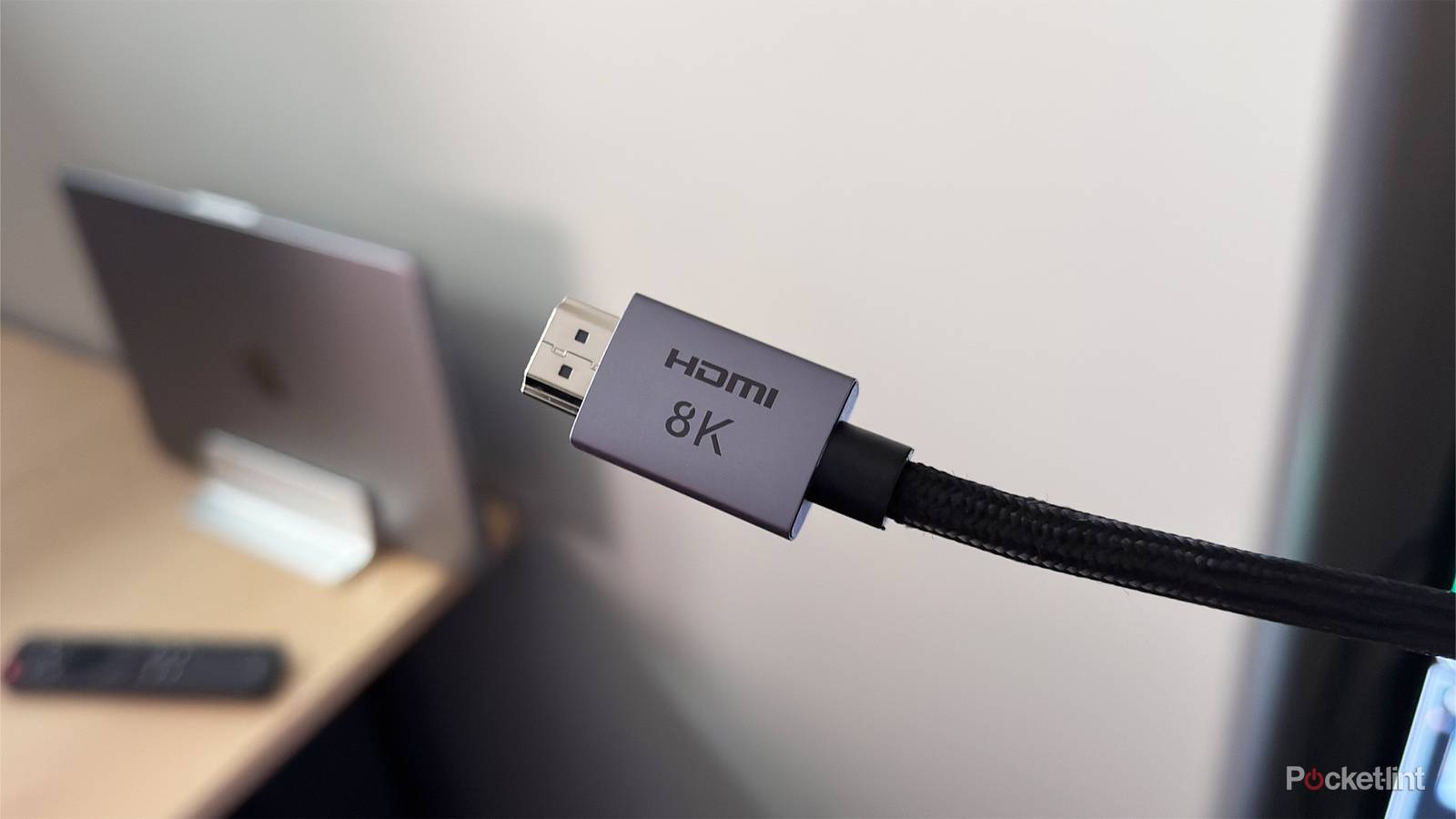
For example, if you’re connecting a PC to a TV with an HDMI 2.1 port, you’ll need an HDMI cable rated for HDMI 2.1. I experienced this myself recently when I couldn’t get 4K at 120Hz from my PC on my TV because I was accidentally using an older HDMI 2.0 cable. Once I switched to a 2.1-rated cable, everything worked perfectly. Some cables show their capabilities with markings. For instance, my HDMI cable says 8K on it, which means it supports HDMI 2.1, since 2.0 doesn’t support 8K. But again, not all HDMI cables have markings; a good example is the black cables that come with the PS5 and Switch 2.
When shopping for an HDMI cable, the product page or packaging usually states the HDMI version, such as HDMI 2.0 or 2.1. If it’s not listed, check the bandwidth: 48Gbps indicates HDMI 2.1, while 18Gbps points to HDMI 2.0. It’s worth noting that consoles typically include the right cable. For example, the Switch 2, PS5, and Xbox Series X all come with an HDMI 2.1 cable, so you can just use the one that comes with the console instead of buying a separate cable, saving yourself some money.
Adjust your TV’s picture settings
Get the highest picture quality from your HDMI device

Once you’ve confirmed you’re using the correct cable and HDMI port, the next step is to adjust your TV’s picture settings. The first thing I always disable is Motion Smoothing. This feature attempts to make motion appear smoother by inserting extra “fake” frames between the real ones, but it often causes movies to look strange. When I watched a movie on my new TV for the first time, I noticed this immediately. Raiders of the Lost Ark, which is shot at 24FPS, suddenly appeared unnaturally fast. Turning off Motion Smoothing restores the natural look intended by the filmmaker and, in my opinion, is much easier on the eyes.
If you’re connecting a gaming PC or console, it’s also helpful to try your TV’s dedicated gaming picture modes. Many TVs include a Game Mode that reduces input lag, making gameplay feel more responsive. For movies, most TVs offer Cinema or Movie modes, which adjust brightness, contrast, and color for a more theater-like experience. Some TVs even feature a Filmmaker Mode, which aims to display movies exactly as the director intended — using the proper colors, aspect ratio, and frame rate — while automatically disabling unnecessary post-processing effects like Motion Smoothing.
Clean your device’s HDMI port
Dust can cause issues like flickering

Finally, one last thing I regularly do with my HDMI ports is clean them. If you’re not using them, dust can collect inside, and when you connect a device, dust might cause issues like no signal or flickering. When I clean the HDMI ports on my PC, TV, and consoles, I usually use a can of compressed air to blow out the dust. I make sure not to aim the can directly into the port, as that could cause damage; instead, I keep it a few inches away.
I also typically use a microfiber cloth to wipe away dust around the HDMI port, and, if needed, a brush to remove any remaining debris. If you use a brush, ensure it has very soft bristles to avoid damaging the pins inside the port by accident.
