

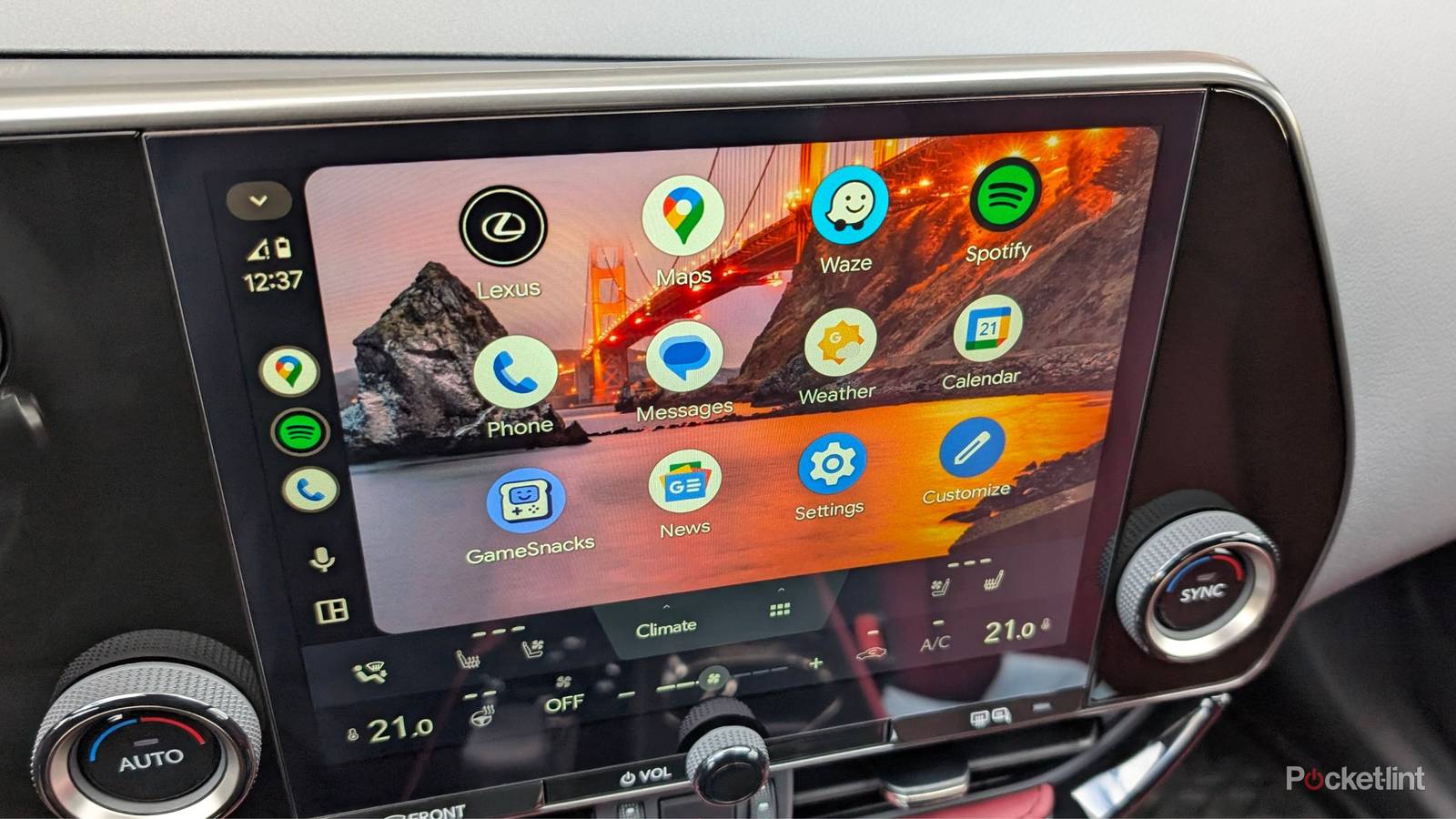

The year is 2025 — an entire decade since the launch of the first iteration of Android Auto — but I’ve only now taken possession of a motor vehicle with the infotainment utility built into it for the very first time.
Over the years, I’ve had on-again, off-again experience with Apple’s equivalent on-the-road feature, CarPlay; to say I’ve been eager to check out Google’s competing vision for an in-car software suite is an understatement.
Here are five of the very first Android Auto settings I configured the moment I finished connecting my Google Pixel 10 to my car via Bluetooth.
To configure each of these Android Auto settings, you’ll first need to head over to Settings > Connected devices > Connection preferences > Android Auto on your Android smartphone. Note that some changes require a restart of Android Auto to kick into effect.

Adjust startup behaviors
Make Android Auto an auto-connecting process

In my brief experience with Android Auto, the system has been reliably connecting my phone to my vehicle’s built-in display without skipping a beat. That being said, to ensure the smoothest-possible connectivity, I dove into settings and switched the startup behavior from Default (set by the vehicle) to Always.
I also made sure that Start Android Auto while locked and Start music automatically were both switched on — I primarily listen to playlists and podcasts while out-and-about, and I prefer having my audio start playing as soon as possible.
To adjust the startup behavior of various aspects of the Android Auto experience, follow these steps:
- Launch Settings.
- Navigate to Connected devices > Connection preferences > Android Auto.
- Scroll down to the Startup subsection.
- Toggle on Start Android Auto while locked.
- Toggle on Start music automatically.
- Tap on Start Android Auto automatically and then select Always from the pop-up menu that appears on-screen.
Hide message notifications
Text messages are private — car cabins often aren’t

There’s an undeniable satisfaction to having your text messages displayed on-screen or read aloud while in the middle of a drive, but I personally value privacy over convenience. I often drive with passengers (or find myself as the passenger with AUX privilege), and so I opted to switch off the Show first line of messages setting to obfuscate the contents of my chat threads while driving.
To ensure that your private text messages aren’t read aloud in the presence of passengers, follow these steps:
- Launch Settings.
- Navigate to Connected devices > Connection preferences > Android Auto.
- Scroll down to the Messaging subsection.
- Toggle off Show first line of messages.
Improve multitasking with the help of an automotive taskbar

By default, Android Auto’s taskbar is disabled. While this provides a cleaner UI experience out of the box, I prefer switching on the taskbar as it allows for a smoother multitasking experience. When the taskbar widgets feature is enabled, it adds a strip to the bottom of the in-car infotainment screen with quick controls for active apps, media controls, and more.
To enable the taskbar widgets experience on Android Auto, follow these steps:
- Launch Settings.
- Navigate to Connected devices > Connection preferences > Android Auto.
- Scroll down to the Display subsection.
- Toggle on Taskbar widgets.
Customize the launcher
Rearrange your Android Auto home screen icons

When I set up Android Auto for the first time, my in-car launcher screen was populated with several application icons that I had no use for, and everything was organized in alphabetical order. For some users, alphabetic ordering might be ideal, but I personally opted to switch to a manually adjustable (and thus, more flexible) home screen configuration. Once I swapped the Launcher sorting setting from A-Z to Custom order, I was able to populate the top of my Android Auto interface with the apps I use the most on a day-to-day basis.
To customize your Android Auto’s launcher interface, follow these steps:
- Launch Settings.
- Navigate to Connected devices > Connection preferences > Android Auto.
- Scroll down to the Display subsection.
- From here, tap on Customize launcher > Launcher sorting.
- Select between A-Z (alphabetical) and Custom order (manual) to organize your applications accordingly.
- Optionally, use the gripper handles on the left-hand side of the screen, as well as the tick boxes on the right-hand side of the screen to enable, disable, and rearrange the order in which apps appear in.
Enable developer settings
Unlock additional power-user options for Android Auto

Much like how the Android operating system itself has a hidden developer options submenu, Android Auto too has a secret menu filled with various tweakable settings. Within this section are options to force specific display resolutions, save screenshots and videos of the in-car display, adjust audio codecs, and a grab bag of other utilities.
To enable developer settings on Android Auto, follow these steps:
- Launch Settings.
- Navigate to Connected devices > Connection preferences > Android Auto.
- Scroll down to the About subsection.
- Tap on Version ten times in a row (in rapid succession).
- Tap the back button to return to the main settings page for Android Auto.
- Tap on the ellipsis (three-dot) menu in the top-right-hand corner of the screen, and then tap on Developer settings.
- From here, you can freely configure additional settings from the list of available options.
At any time, you can disable Android Auto’s developer settings by tapping on the ellipsis menu and then hitting Quit developer mode.
Developer mode features advanced configuration options that are primarily intended for power-users. Some settings within this menu might cause device instability or introduce software bugs into the Android Auto experience, so proceed with caution.
