


AI-driven memory shortages have made SSDs expensive, so managing your storage matters more than ever. For years, partitioning drives was the way to organize, allocating space for specific purposes. However, partitioning drives is counterproductive in modern storage, adds complexity, and still doesn’t address the main issue: storage shortages.
While partitioning makes organization easier, it took some other tricks to help me claw back 36GB of storage space on my main drive.
Partitioning your C: drive won’t make your SSD faster
Partitions only split space on paper, while the same NAND sits underneath

The idea of partitioning drives has become somewhat outdated on modern PCs for several reasons. First, it won’t improve performance because SSDs have no moving parts, and your OS won’t magically get a faster portion of the NAND.
Compared to HDDs, SSDs need extra free blocks for wear leveling and garbage collection, and partitioning won’t create a separate physical area of free storage.
Secondly, storage management becomes another issue because your partition where you’re keeping Windows 11 might fill up quickly while the other partition remains empty.
My 256GB C: drive kept filling up despite just Windows 11 and some apps on the drive
Windows.old, a hibernation file, and downloads left 13.4GB free out of 237GB

Windows 11 requirements state a minimum of 64GB of storage, but that’s hardly true because bloatware, drivers, cache, leftover updates, and other factors can inflate the OS size far beyond that.
I only have Windows 11 and a few apps on my C: drive, which is my only partition on my 256GB SSD, yet it still fills up even though I keep my main content, like media and video games, on my secondary drives.
The reason is that junk keeps accumulating on Windows 11 despite regular maintenance tasks by Storage Sense and update cleanup. Windows 11 has a tendency to dump everything onto the main drive, whether it’s downloads, updates, documents, and more.
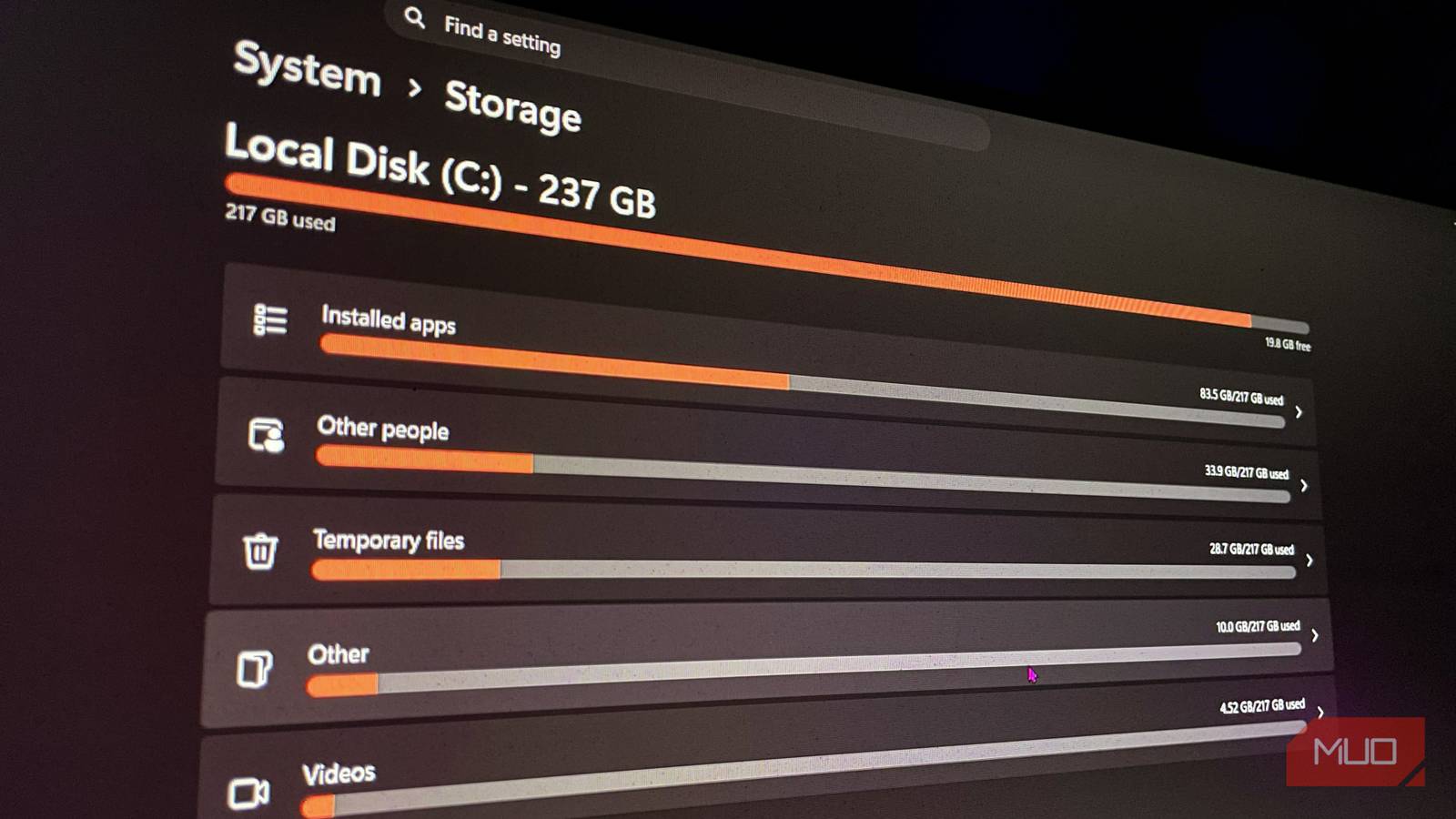
Currently, my C: drive only has 13.4GB free out of 237GB total usable space, which is alarming.
Upon inspection, I found that the main culprits were installed software, Windows.old from the last update, the hibernation file, leftover update data, and the Downloads folder. To be fair, there’s no reason downloaded content should be dumped on the C: drive when I have plenty of free storage on my other drives.
Clearing the junk Windows left behind
Turning off hibernation and deleting the old Windows installation recovered the rest
Beyond reorganizing your drive, you may also have a lot of accumulated junk hogging storage. By going to Settings > Storage, I found the exact space hogs.
After that, my cleaning process began by disabling hibernation and Fast Startup, which resulted in me freeing nearly 4GB of data. You can do so by opening PowerShell as an Administrator and typing in this command: powercfg /h off.
Then I found another Windows installation on my C: drive. Now I have no use for the old Windows installation, and it’s just taking up unnecessary space. To remove it, go to Settings → System → Storage → Temporary Files → Cleanup system files.
While this only cleaned up junk files that were useless and hogging storage, the real step was moving content from C: to other drives.
How I reorganized where Windows keeps its data
Moving downloads and new content off C:

My advice to every Windows user is to understand where each type of data should be kept, and I don’t recommend keeping anything but the OS and software on the drive where the OS is installed.
I must also acknowledge that I am in a different position to some folks, as I have a PC with several other storage drives installed. That means I have the option of shifting storage around. It’s not far off to have an external storage drive, mind you; having extra storage isn’t exclusive, even if it’s more expensive these days.
I started by moving the entire Downloads folder to my secondary SSD and changed the location in my browser too. Then, I changed all the settings within Windows 11 to “Choose where new content is saved” for my D: drive under Storage in Settings. Now, every new screenshot, media, and document saves to D:.
Aside from these changes, I also reinstalled Steam and other game launchers to another drive, which exists exclusively to store games.
With these changes and fixes, I freed up nearly 36GB of space, and the drive is no longer in a cautious state where SSD performance drops and the system might become unstable.
How much free space your SSD actually needs
For an SSD to work most efficiently, keep at least 30% of the drive free, so it has enough space for wear leveling and garbage collection; this is the threshold for maximum performance. Below that, the SSD may start to throttle performance because it has no blocks available, reducing write performance.
In addition to reorganizing the content and cleaning your C: drive, you can also uninstall apps you don’t need, including both third-party and Microsoft-included Windows 11 apps.
