


Dual booting Windows with Linux is not an impossible task. But it’s still a task nonetheless. You have to deal with the distros and their ISOs, create a bootable drive, and then go through the process of partitioning and installation. While it works, it’s not the most ideal way to quickly test Linux on a Windows PC.
Hop is a free and open-source app that lets you install Linux directly within Windows without needing to create a bootable USB drive first. It’s as easy as upgrading an app. I think this will help the fence sitters who want to test Linux, but don’t want to mess with the partitioning and bootable drive work, to finally give it a go.
Hop makes distro hopping easy
A GUI-based installer that skips the USB drive entirely
Hop makes distro hopping easy by offering a GUI-based app that lets you install different Linux distros directly within Windows without ever creating a bootable USB flash drive. The whole thing is a single .exe file of about 751KB. You download it from Hop’s GitHub page, run it from Windows, and stay in Windows until the Linux installer is ready to boot.
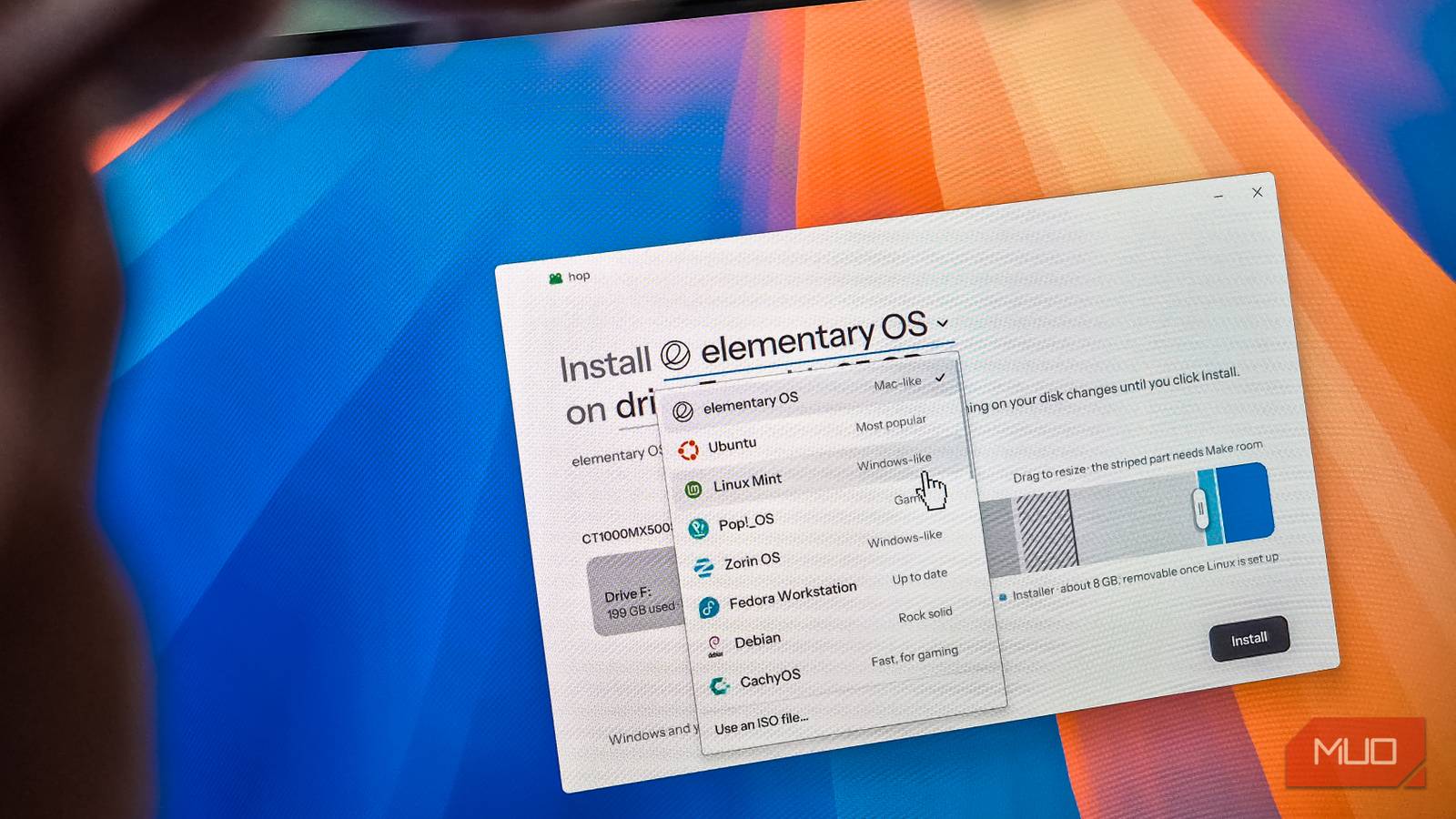
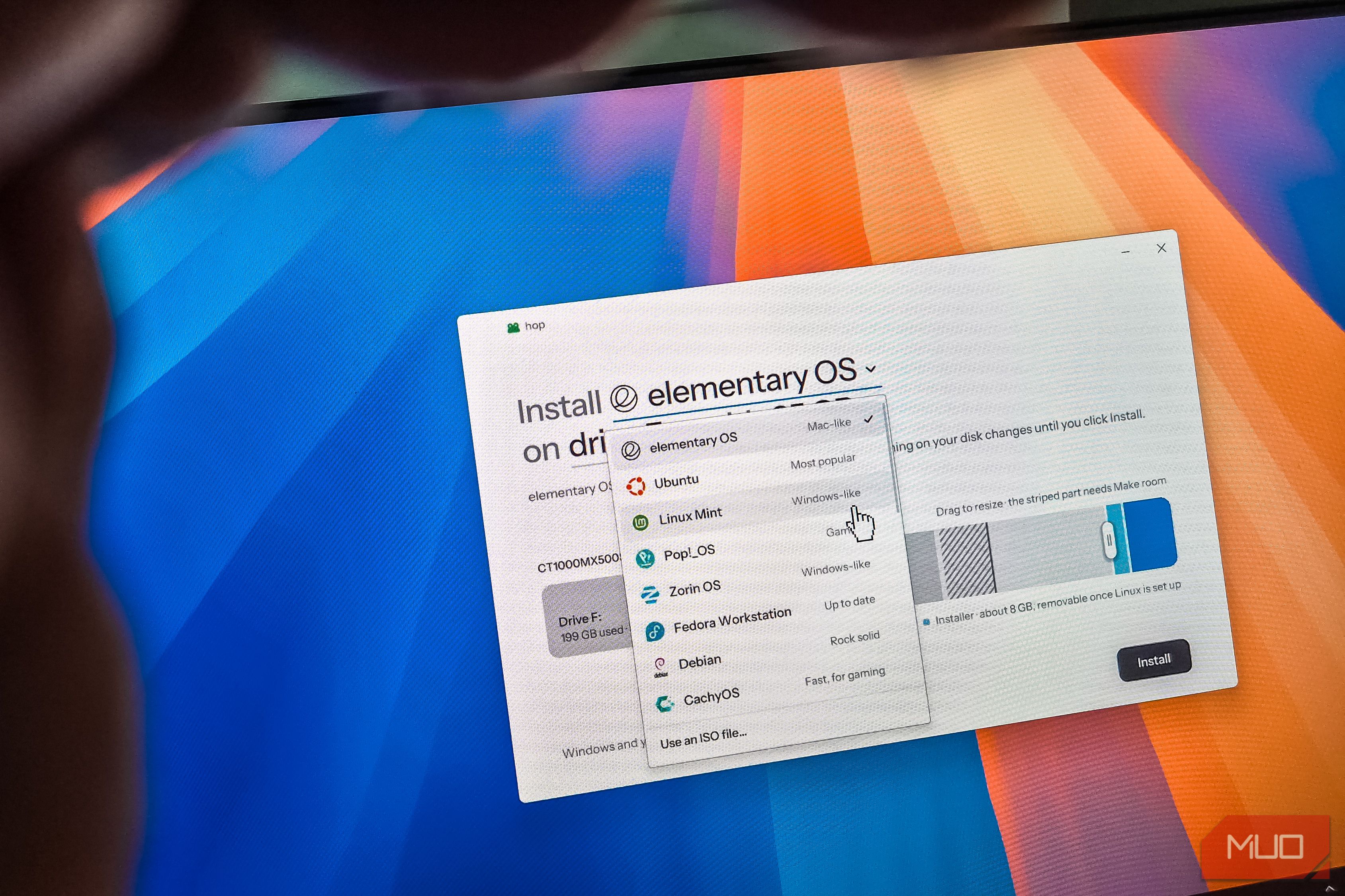
What makes it useful for distro hopping is the distro menu. Instead of researching which ISO to grab, you get a list of popular distros, each with a short label telling you who it’s for. elementary OS is labeled as Mac-like, Linux Mint and Zorin OS as Windows-like, Pop!_OS and CachyOS are tagged for gaming, and Ubuntu is marked as the most popular. Debian, Fedora Workstation, Ultramarine, Arch Linux, and Ubuntu Budgie are there too. If your pick isn’t listed, you can load your own ISO as well.
The other half of distro hopping is leaving a distro you don’t like. Hop keeps track of what it installed, so you can undo changes, remove a distro, or add another one alongside it. Trying a new distro stops feeling like a weekend project and becomes something you can do on a whim.
Installing Linux with Hop
Setting up a dual boot in a few clicks
The install happens in two parts. Hop does the prep work inside Windows, then you restart and finish in the distro’s own installer. I went with Ubuntu, and from start to finish it was much faster than the traditional USB route.
Before you begin, your PC needs to meet a few requirements. You need Windows 10 (version 1803 or newer) or Windows 11 on a UEFI PC with a GPT disk. Linux has to go on a disk inside the PC, not an external drive. You also need admin rights to run hop.exe. Most modern PCs meet all of these, but it’s worth checking. Open System Information and look at BIOS Mode to confirm you’re on UEFI, then open Disk Management and check your disk’s partition style for GPT.
One more thing: Hop isn’t code-signed yet, so Windows SmartScreen may warn you when you run it. Click More info, then Run anyway. Some antivirus tools may also flag it since it’s an unsigned app that modifies partitions, so download it only from the official GitHub releases page.
Here’s how the install works:
- Go to Hop’s GitHub page, open Releases, and download hop.exe.
- Run the file. Hop checks your PC, including the drive and startup menu.
- Pick a distro from the list. I chose Ubuntu.
- Drag the slider to split your drive between Windows and Linux. I gave Linux about 150GB.
- Click Install. Hop shows how much it will shrink your C: drive. Click Start to confirm.
- Wait while Hop downloads the ISO, shrinks your C: drive, and creates the partitions. It also creates a small installer partition of about 8GB, which shows up as a new drive in File Explorer. The whole process took about two to three minutes on my PC.
- When it’s done, Hop lists the choices you’ll need to make in the Linux installer, like which partition to use as root (/) and which as boot. Take a screenshot of this screen, because you won’t see it after you restart.
- Click Restart. Your PC boots straight into the Linux installer.
From there, choose your language, select Install Ubuntu alongside Windows Boot Manager, set up your user account, and click Install. Ubuntu finds the empty space Hop created and uses it, so you don’t need to partition anything by hand. Once the installation finishes, restart and select Ubuntu from the boot menu. Windows stays the default entry, so you’ll need to pick Ubuntu yourself each time.
No USB stick, no Rufus, and no Disk Management. That’s it.
A couple of things worth knowing: some distros like CachyOS, Arch, Omarchy, and Pop!_OS need Secure Boot turned off. If you play Windows games whose anti-cheat requires Secure Boot, pick a distro that works with it on, such as Ubuntu or Linux Mint. Also, if your drive shows free space but won’t shrink, Hop has a Make room button that clears the files Windows can’t move, in one click.
Hop can remove Linux as cleanly as it installs it
No leftover partitions or broken boot entries
Installing Linux is the easy part. Removing it is where dual-boot setups usually get messy. If you delete the Linux partitions from Disk Management, you’re still left with an EFI partition entry and a GRUB boot entry, and cleaning those up means opening the terminal. Hop handles all of it for you.
My first try was elementary OS, and it didn’t work out. The installer couldn’t see the partitions Hop had made, so I went back to Windows. When I opened Hop again, it showed that elementary OS wasn’t installed yet and offered to undo everything. I clicked Remove, and in a few moments my drive was back to normal with no leftover partitions.
After a successful install, the 8GB installer partition stays on your drive. You don’t need it once Linux is set up. Open Hop and click Remove installer to get rid of it and free up that space.
If you decide you’re done with a distro entirely, Hop removes the Linux partition along with the EFI and boot entries. Click Remove Ubuntu (or whichever distro you installed), and Hop deletes everything. It then asks what to do with the free space: Give it to Windows to extend your C: drive back to its full size, or Use it for Linux to install a different distro in that same space. That second option is what makes Hop great for distro hopping. You can remove one distro and install the next without ever opening Disk Management.
Hop makes trying Linux a lot less intimidating
Hop is a brilliant idea that’s looking promising so far. It reduces the technical barrier for Windows users who want to try Linux and offers an easy way out when something goes wrong or when Linux just isn’t for you. The fact that it also cleans up boot entries and UEFI partition leftovers, things that would otherwise need terminal commands to fix properly, makes the whole experience feel polished. It’s still a young app and has its quirks, like limited second-drive support for some distros and no support for Kubuntu yet. But the core experience of install, try, remove, and try again is already solid. I hope the developer continues to expand distro compatibility and secondary drive support, because this is exactly the kind of tool that could convince more people to give Linux a real shot.
