

Close Menu

    Subscribe to Updates

    Get the latest Tech news from SynapseFlow

    What's Hot

    Elon Musk Orders Sweeping Layoffs as xAI Fails to Catch Up

    March 14, 2026

    Your ROG Xbox Ally X is about to get a free performance upgrade soon

    March 14, 2026

    Laptop performance and FPS drop after BIOS update

    March 14, 2026
    Facebook X (Twitter) Instagram
    • Homepage
    • About Us
    • Contact Us
    • Privacy Policy
    Facebook X (Twitter) Instagram YouTube
    synapseflow.co.uksynapseflow.co.uk
    • AI News & Updates
    • Cybersecurity
    • Future Tech
    • Reviews
    • Software & Apps
    • Tech Gadgets
    synapseflow.co.uksynapseflow.co.uk
    Home»Tech Gadgets»3 Task Manager tricks I wish I knew when I bought my first Windows 11 PC
    3 Task Manager tricks I wish I knew when I bought my first Windows 11 PC
    Tech Gadgets

    3 Task Manager tricks I wish I knew when I bought my first Windows 11 PC

    The Tech GuyBy The Tech GuyNovember 18, 2025No Comments3 Mins Read0 Views
    Share
    Facebook Twitter LinkedIn Pinterest Email
    Advertisement


    Task Manager is one of the oldest and most important parts of Microsoft’s Windows operating system. First debuting in 1995’s release of Windows NT 4.0, Task Manager has, over the years, evolved into a powerful tool for monitoring PC stats in real time.

    Advertisement

    With Windows 8 in 2012, the feature was massively improved upon with new additions and better data organization, and, as of Windows 11 version 22H2, it has been beautified with a modern design language, dark mode and accent color theming, and other enhancements.

    For the average Windows PC user, Task Manager might appear daunting on the surface, and, to be fair, much of its capabilities are designed with power users in mind. That being said, the utility offers a bit of something for everyone, ranging from keeping tabs on memory (RAM) usage to restarting broken processes.

    Here are three Task Manager tips and tricks that can make using the tool a far more pleasant experience, and that can come in handy in the off chance that Windows 11 decides to go haywire.

    Expand and contract columns

    Don’t leave Task Manager in its default state

    Task Manager expand and contract columns screenshot

    On fresh copies of Windows 11, Task Manager’s main Processes section displays the following columns by default: Name, Status, CPU, Memory, Disk, and Network. These default entries are certainly useful, but they don’t paint the full picture of any given process’ details.

    By right-clicking on any of the columns near the top of the window, you can check mark visibility of a number of additional columns, including Process name, Power usage, GPU engine, and more. Additionally, you can expand and collapse the size of each column by dragging the vertical separator lines, and you can rearrange the order of columns by simply dragging and dropping them as you see fit.

    Make use of Graph Summary View

    Task Manager Graph Summary View screenshot

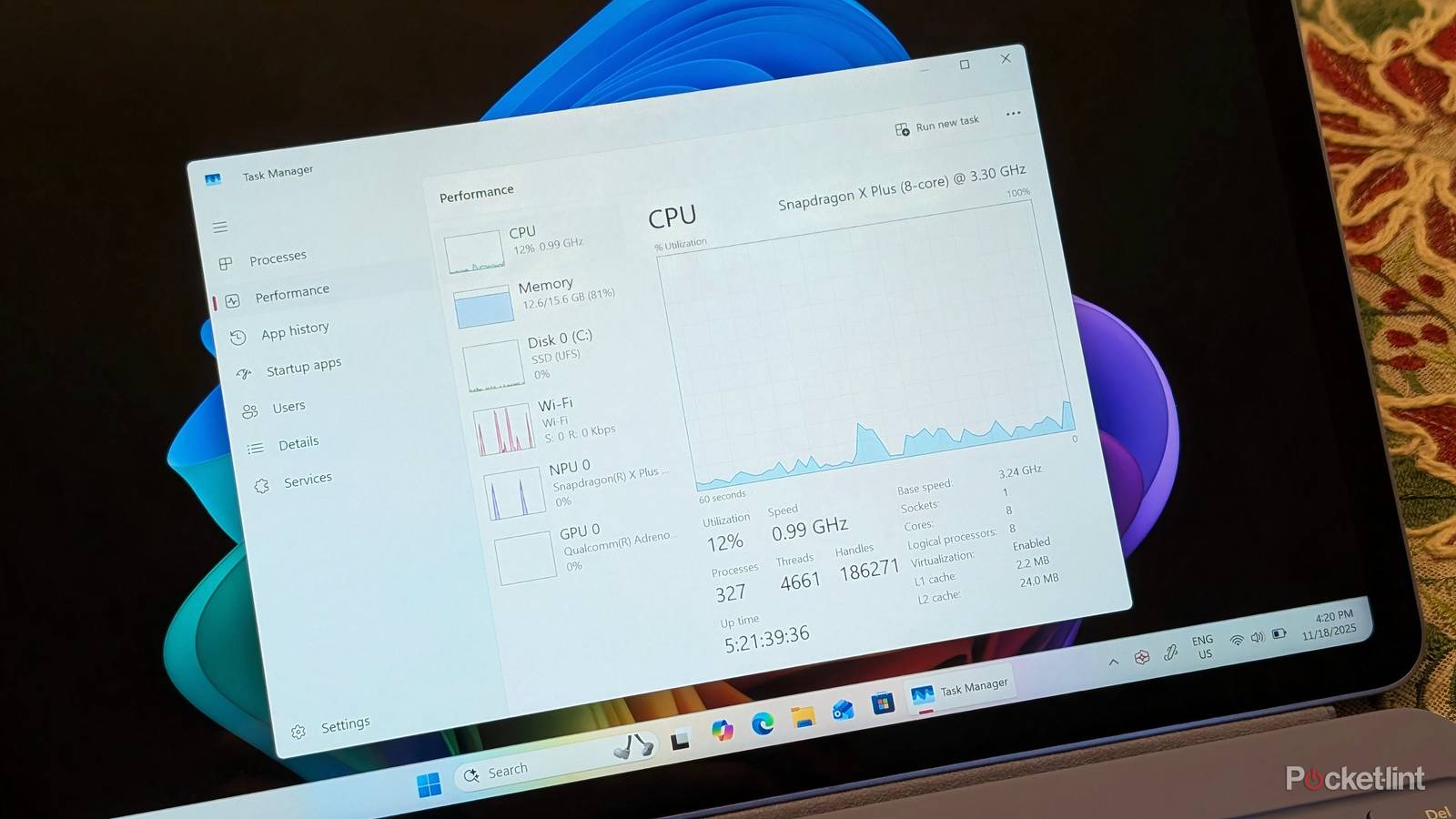
    Hidden within the Performance section of Task Manager is the ability to enter into a smaller Graph Summary View window at any time. Accessible by double-clicking on any of the available entries on screen (CPU, Memory, Disk, Wi-Fi, NPU, GPU), the full Task Manager interface gives way to a compact variant that floats above the other open windows and files on your PC.

    As a way to monitor key PC stats in real time without all the extra visual noise of the full Task Manager app interface, Graph Summary View is among the most useful features the utility provides out of the box. And, since it stays pinned to the top of your screen, it’ll never be obfuscated until you exit the miniaturized view by double-clicking the window again.

    Restart Explorer with ease

    A quick and easy way to get Windows 11 back on its feet

    Task Manager restart Windows Explorer process screenshot

    Despite Windows 11 being a relatively stable operating system on the whole, most of us come across the dreaded behavior of a ‘frozen screen’ or an unresponsive interface shell at least on occasion. Thankfully, most of the time, this issue can be resolved by simply restarting the Windows Explorer process (the main process responsible for the desktop, the taskbar, and the Start Menu) from directly within Task Manager.

    To restart Windows Explorer, simply locate the entry within Task Manager’s Processes page, and then right click and hit Restart within the context menu that appears on-screen. Alternatively, you can hit the End task button located near the top right-hand corner of the Task Manager window to achieve this same result. Restarting Windows Explorer tends to stop most system hiccups in their tracks, and it doesn’t result in any data loss, either.

    Advertisement
    Share. Facebook Twitter Pinterest LinkedIn Tumblr Email
    The Tech Guy
    • Website

    Related Posts

    How to upgrade your car’s old audio system to work with Android Auto and Apple CarPlay

    March 14, 2026

    How to Make a Killing review: a serial killer story should not be this boring

    March 14, 2026

    iQOO Z11’s design revealed, pre-orders go live

    March 13, 2026

    Google Messages is rolling out a fix for its most annoying oversight

    March 13, 2026

    This receiver setting solved my all audio sync problems

    March 13, 2026

    A Lego PlayStation might be coming this Christmas, and with 9 months to go, I’m already asking Santa for it

    March 13, 2026
    Leave A Reply Cancel Reply

    Advertisement
    Top Posts

    The iPad Air brand makes no sense – it needs a rethink

    October 12, 202516 Views

    ChatGPT Group Chats are here … but not for everyone (yet)

    November 14, 20258 Views

    Facebook updates its algorithm to give users more control over which videos they see

    October 8, 20258 Views
    Stay In Touch
    • Facebook
    • YouTube
    • TikTok
    • WhatsApp
    • Twitter
    • Instagram
    Advertisement
    About Us
    About Us

    SynapseFlow brings you the latest updates in Technology, AI, and Gadgets from innovations and reviews to future trends. Stay smart, stay updated with the tech world every day!

    Our Picks

    Elon Musk Orders Sweeping Layoffs as xAI Fails to Catch Up

    March 14, 2026

    Your ROG Xbox Ally X is about to get a free performance upgrade soon

    March 14, 2026

    Laptop performance and FPS drop after BIOS update

    March 14, 2026
    categories
    • AI News & Updates
    • Cybersecurity
    • Future Tech
    • Reviews
    • Software & Apps
    • Tech Gadgets
    Facebook X (Twitter) Instagram Pinterest YouTube Dribbble
    • Homepage
    • About Us
    • Contact Us
    • Privacy Policy
    © 2026 SynapseFlow All Rights Reserved.

    Type above and press Enter to search. Press Esc to cancel.

    Ad Blocker Enabled!
    Ad Blocker Enabled!
    Our website is made possible by displaying online advertisements to our visitors. Please support us by disabling your Ad Blocker.