


Out of the box, Windows Search is comically bad. It’s slow and rarely finds the files I need. Yes, a few File Explorer search hacks can help, but let’s be honest, nobody should have to tweak a dozen settings just to make search work properly.
Listary is a fast and free search tool that also doubles as a quick launcher. I won’t pretend Everything by VoidTools doesn’t exist—it’s still an excellent file search app for Windows—but Listary integrates so well with File Explorer that you’ll never need to open a standalone search app to find your files again.
File Explorer integration and quick search
Two reasons why I think Listary is the best file search app for Windows
I’ve used Search Everything for the longest time as my go-to file search app on Windows. It’s lightning fast and comes with advanced search filters. However, it lacks the tight File Explorer integration that Listary offers, which means you don’t have to juggle two apps (File Explorer and Everything) to get things done.
Listary’s two most important features are Type-to-Search and Quick Switch, at least for my workflow.
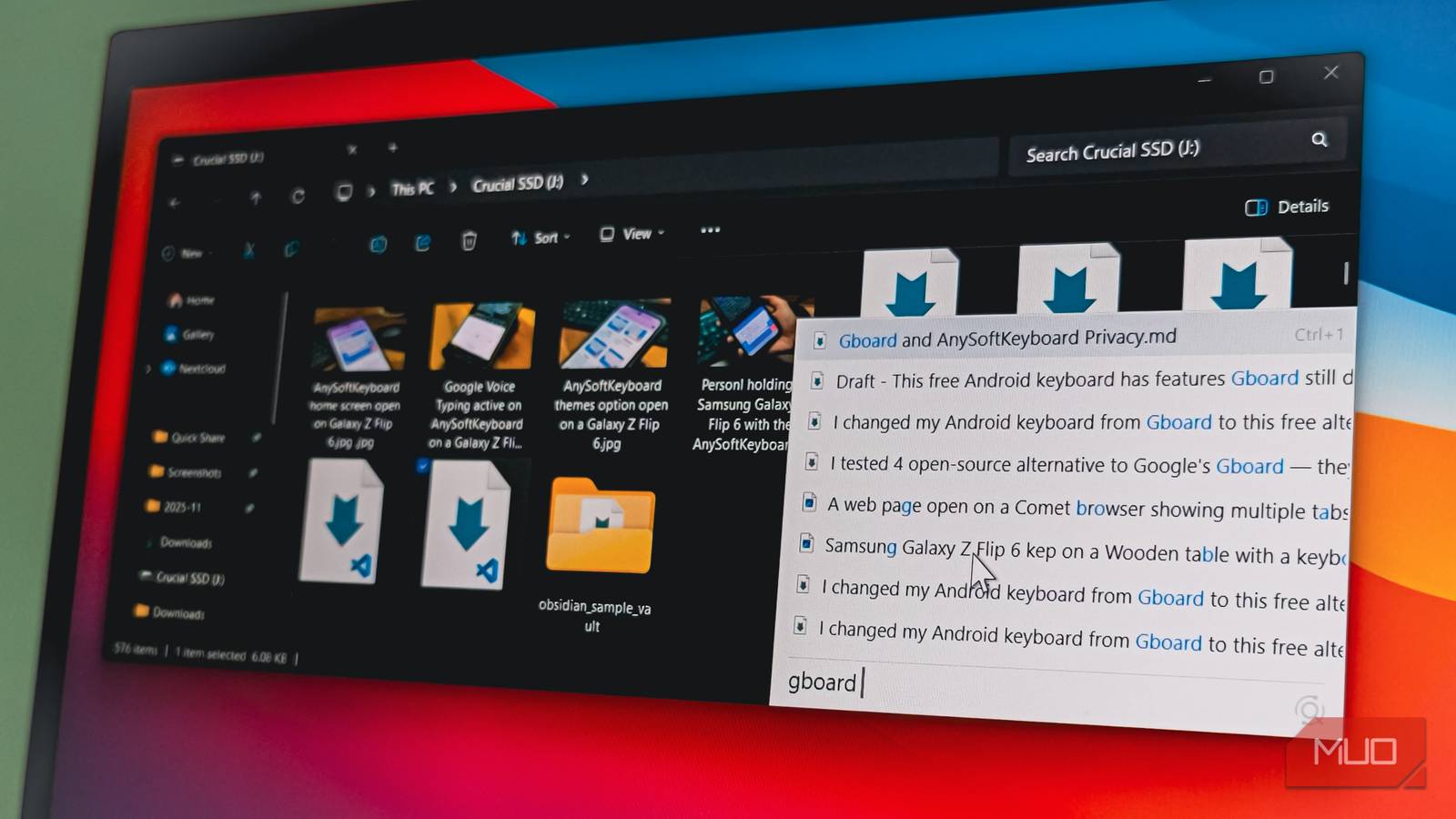
Type-to-Search lets you find a file in File Explorer by simply starting to type. For instance, to find my article about open-source Gboard alternatives, I only had to open File Explorer and start typing “open-source Gboard alternative“, and Listary instantly found the file. You don’t need to click anything or anywhere to activate the search; it works as if it’s a built-in File Explorer feature.
The second quality-of-life feature is Quick Switch, which adds Listary search to the open and save dialog of any app. So when I’m uploading something to cloud storage, I don’t have to navigate through folders or drag and drop from File Explorer. I just start typing the file name in the dialog box, and Listary finds it for me.
Quick app and file launcher
A fast launcher with keyboard-friendly shortcuts

I use Raycast as my go-to quick launcher on Windows, but Listary also doubles up as a quick app launcher. Press the Ctrl key twice to open the quick launcher, type the app name, and press Enter to launch the app. If there are multiple results, you can use Ctrl + a number key to select an item based on its position. For more options, right-click to open the context menu, access the containing folder, or perform basic file operations like copy and move.
Listary uses intelligent ranking to push frequently used items and exact matches to the top while hiding irrelevant system files. If I type “vs”, Visual Studio Code appears first because that’s what I launch most often. Type “Obs”, and my frequently accessed Obsidian vault shows up.
For more detailed searches, click the maximize icon in the quick launcher or access the Search Window from the system tray. It includes type-based filters, sorting by modified date, a “Recently modified” section, and a preview pane showing file details. The launcher closes as soon as you pick something, but the Search Window stays open and preserves your query—useful when you need to compare multiple similar files.
System commands, web search, and customization
Power features for advanced users

Much like any quick launcher, Listary lets you quickly run system commands, perform web searches, and access other advanced features. To perform a web search using Google, type g (space), followed by the search query, and it’ll open a new tab in your default browser or type “shutdown” to power off the PC directly from Listary.
If you’re handy with the keyboard, Listary also supports system commands. Type “cmd” to open Command Prompt in the current folder, or “mkdir foldername” to create a new folder or “touch newtext.txt” to create a new text file, all without touching your mouse.
All of these features are configurable in Listary’s Options dialog, which lets you define or edit commands and actions, assign hotkeys, and tune search priorities. You can also pin favorite folders, commands, and submenus for quick access.
The free version includes all the core features without nagging you to upgrade. It only offers a light theme, though. The Pro version ($19.95 one-time) adds dark mode, network drive indexing, and advanced filters if you need those extras or want to support the developers.

- OS
-
Windows
- Price model
-
Free, Premium
Listary is a Windows utility that instantly finds files, folders, and apps with smart, fuzzy search while boosting productivity across File Explorer and dialogs. It’s fast, intuitive, and deeply integrated.
Listary is a brilliantly simple search app
Listary has replaced both Everything and PowerToys Run in my workflow. The File Explorer integration alone makes it worth the switch. I haven’t found another search app that does this as well. Add the dialog box integration, and you’ll never go back to anything else.
If Windows Search has been frustrating you for years, give Listary a try. All it does is find and open files, but it does that exceptionally well. And unlike Windows Search, it works all the time without fail.
