

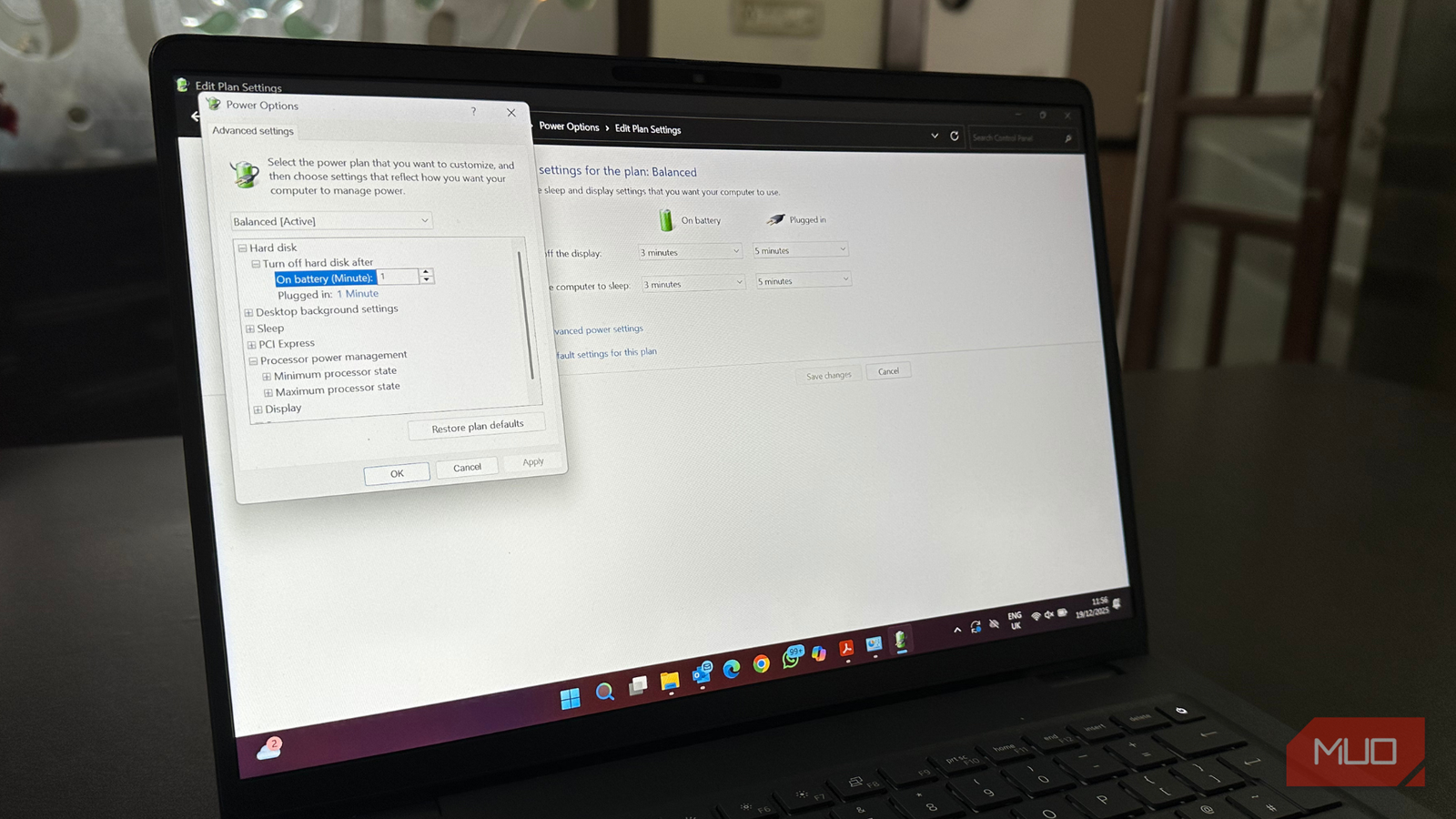

For several weeks, my laptop used to sound like it was getting ready for a takeoff. The fans would make noise even when I was doing simple tasks like drafting an article or browsing the internet. Even worse, my laptop would get uncomfortably warm, so that I didn’t want to hold it or even use it. I tried all the basics, like updating drivers, checking for dust buildup, limiting background processes, and improving physical airflow. Some of them helped a little, but I was still stuck with a noisy, overheating laptop.
After checking the usual, a simple Windows power setting fixed my problem. Yes, I finally fixed my overheating laptop without any expensive software, hardware upgrades, or risky tweaks.
A simple change that fixed my overheating laptop
Limiting the maximum processor state

While browsing through and trying different settings on my Windows laptop, limiting the maximum processor state made a big difference. It’s a power management setting in Windows that controls the highest performance level your CPU can achieve. By default, it’s usually set to 100%. This sounds great, on paper. In real-world use, it means the processor will reach its peak speed, using more energy even for basic tasks. As a result, it generates more heat, triggering the fans. If you’re a light or casual user, most of your everyday tasks don’t even require your CPU to run at its full speed.
Lowering the maximum processor state to around 99% can dramatically reduce the heat output without any noticeable lag in everyday performance. Also, it disables Intel’s aggressive Turbo Boost feature, resulting in lower temperatures, lower power consumption, and less fan noise. On battery power, I’ve limited the maximum processor state to 95%. Yes, it’s said to reduce performance, but I’ve noticed almost no or very slight difference in my everyday tasks.
Once I made this change, the fans stopped spinning up loudly, the annoying noise disappeared, and my laptop got cooler.
A supporting tweak that made it even better
Switching to Balanced power mode

The processor limit alone made a lot of difference, but I also decided to make one more simple adjustment: switching Windows Power Mode to Balanced. Like most users, I also wanted to get the best possible performance from my powerful Windows machine. So, I had set the power mode to “Best Performance” because it sounded like the correct option. However, this mode also locks the CPU at its higher clock speeds. This delivers the maximum performance for intensive tasks like video editing, gaming, and 3D rendering.
That said, the Best Performance mode also uses more power, generates more heat, triggers fan noise, and shortens the battery life. It makes sense to make a compromise if you’re into competitive gaming, professional video editing, or other tasks where you need responsiveness every second.
If you use your laptop for web browsing, office work, or light gaming, the Balanced mode is a smarter choice. It allows the CPU to scale up for heavy tasks, while slowing down when it’s sitting idle. This will generate less heat and noisewhile also maximizing your laptop’s battery life.
My experience: before vs. after
I finally fixed the issue

After making these two simple changes, the difference was night and day. Previously, my laptop got unusually warm even during basic tasks, and fans would spin loudly, making that annoying noise. Most of the time, the system sounded stressed and under a lot of performance load, even when I was barely doing anything. I was so frustrated with all of this that I wouldn’t want to use my laptop at all.
When I made the change, I immediately noticed that fans were quiet during my daily tasks, such as browsing the web, drafting articles in Docs, submitting them to the CMS, and using essential artificial intelligence tools. I didn’t notice any slowdowns or performance lag. Now, my laptop runs cooler and calmer, and there’s a slight improvement in battery life as well.
I was also surprised at how little performance I lost. For basic tasks, I couldn’t tell any difference at all. Yes, when I was hooked onto heavier workloads like running multiple resource-intensive apps at once, I felt the difference and wanted to unlock the full potential of my processor. And that’s also super easy to do.
Overall, my laptop felt a lot better for my everyday usage.
How can you do it in under 5 minutes
It’s simple and super-quick
The best thing about making these changes is that you don’t require any third-party tools or technical expertise. All you have to do is make some simple changes in Windows built-in settings.
Here’s how to limit the maximum processor state on Windows laptops:
- Open the Control Panel on your machine.
- Visit the Power Options section.
- Just next to your active power plan, click on Change Plan Settings.
- Click on Change advanced power settings.
- Now, expand the Processor power management option.
- Expand the Maximum Processor State option.
- For Plugged in, you can choose the maximum processor state to 100%. However, when on Battery power, you can stick between 90% to 95% for cooler performance.
- Click Apply and hit the OK button to save the changes.
Once you’ve done this, the next step is to switch to the Balanced power mode. Here’s how to do it:
- Open Settings and navigate to the System section.
- Click Power & Battery.
- Select the Power menu and choose Balanced.
And that’s it! You can always revert to your older settings if needed.
A quieter, cooler laptop with a simple fix
Sometimes the simplest changes reveal the biggest differences. For a long time, I blamed my laptop for annoying me with noise and high temperatures, despite its powerful innards. But it turned out that Windows was, by default, being too aggressive with my CPU’s performance. When I changed the maximum processor state and switched to Balanced power mode, I finally got a quieter, cooler laptop without compromising performance.
If your laptop also sounds like a jet engine or feels too warm to use, this is one of the simplest and safest fixes you can try. In a few minutes, you can completely transform your laptop experience.
