

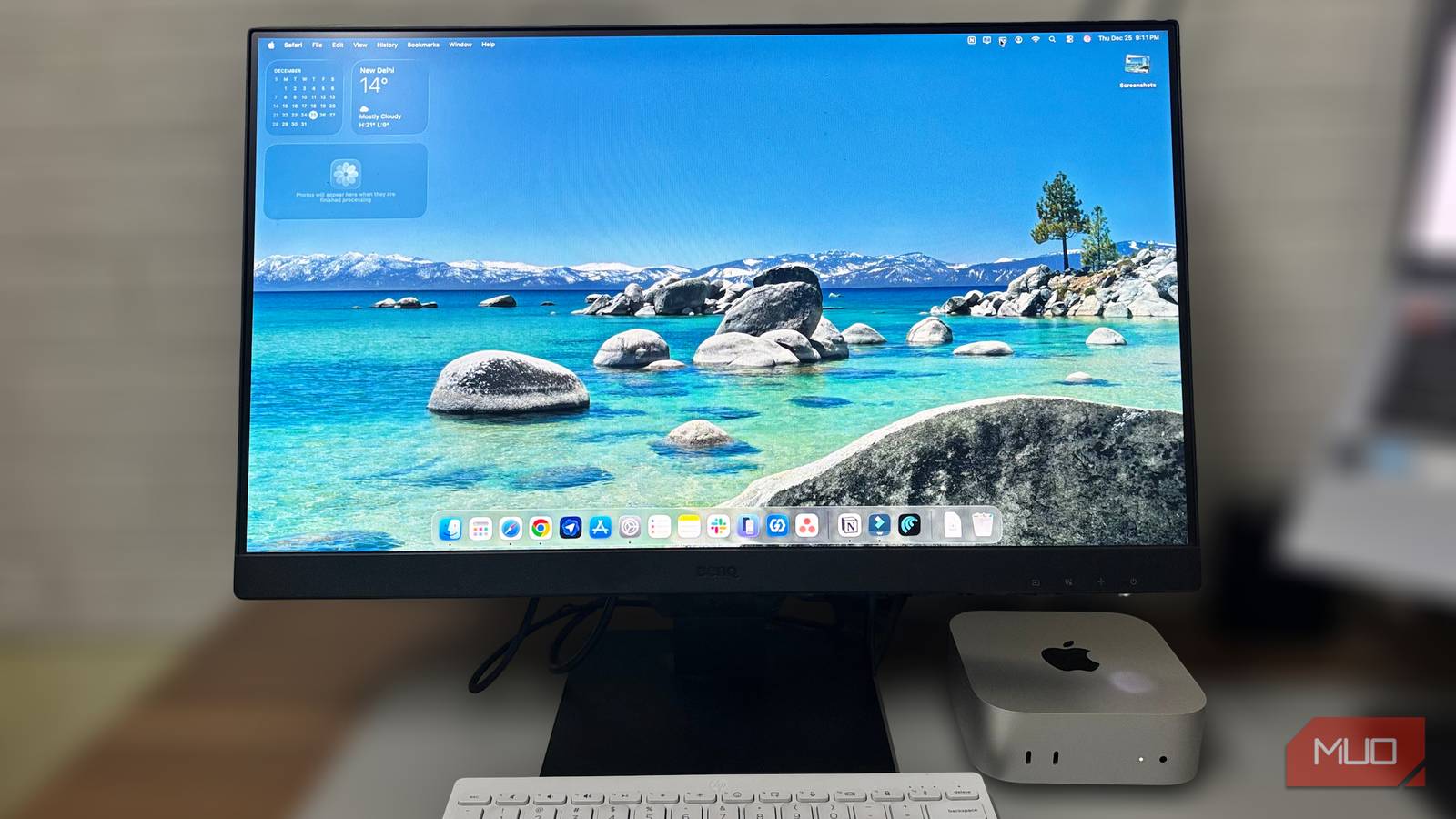

When I bought a Mac mini, I wasn’t planning to change my desk setup. I wanted a small, quiet machine that could handle writing and a stack of browser tabs without getting in the way. A 24-inch 1080p monitor had worked reliably for years on Windows, so it felt like a safe choice to keep using it on macOS.
At first, everything seemed fine, but the screen didn’t look quite right. The text was readable, but it lacked the clean edges I was used to. Menu labels, browser tabs, and long paragraphs all looked slightly soft. I kept working, assuming I’d stop noticing it, but it didn’t fade into the background. My first instinct was that I’d missed a setting, not that the monitor itself was the problem.
Why 1080p often struggles on macOS
macOS expects more pixels

A 24-inch, 1080p monitor sits at about 92 pixels per inch. That density is common, and on Windows, it usually looks fine. At its native 1920 by 1080 resolution, text and interface elements tend to stay visually stable, even if they are not especially sharp. For long writing and reading sessions, that stability is often enough.
MacOS is tuned for a different kind of display. Apple’s own screens, along with many monitors marketed for Macs, use much higher pixel density. On those displays, the system can draw the interface with more physical pixels, keeping text edges cleaner and reducing the need for heavy smoothing.
On a 24-inch 1080p panel, macOS doesn’t get much room to work with. The system keeps text readable, but it relies more on smoothing than on other techniques. Thin strokes and small details end up looking softer, especially in menus, browser tabs, and long blocks of text. If you spend most of the day reading and writing, that softness becomes hard to ignore.
This is also why moving to 1440p at the same screen size tends to feel like a clear upgrade. You aren’t changing how you work or how close you sit to the screen. You are simply giving macOS more pixels to work with. Increasing screen size without increasing resolution usually has the opposite effect, because the same pixels get spread thinner and the softness stands out even more.

The blur that ruined the setup
Clarity that kept slipping

When the text didn’t improve, I opened System Settings and went straight to Displays. The monitor showed up as a BenQ GW2490, with 1920 by 1080 already selected. That part was correct. It was the panel’s native resolution, and nothing looked misconfigured. Still, the text looked slightly out of focus, especially in smaller UI elements like menu labels and browser tabs.
I turned on Show all resolutions and started testing options. Near the bottom, I spotted a few entries marked HiDPI. Those were the only ones that hinted at sharper text, so I tried them. The letters tightened up, but the desktop also looked zoomed in, like I had traded clarity for workspace. Icons, menus, and windows became noticeably larger, and I lost the room I needed for writing with multiple windows open.

So, I stopped chasing macOS’s built-in scaling and tried a workaround that didn’t change the layout. I installed BetterDisplay and enabled its High Resolution option from the menu bar.

BetterDisplay helped in a way macOS’s built-in scaling didn’t. Text edges looked more controlled, but the interface stayed close to the size I wanted. The resolution remained at 1920×1080, and my desktop layout didn’t get rearranged. It didn’t turn the monitor into a Retina panel, but it reduced the softness enough that I could work without staring at every line twice.
The cable change that finally mattered
Not a fix, but better

After BetterDisplay, the screen became usable, but not settled. Long paragraphs were easier to read, yet smaller text like browser tabs and menu labels still looked a bit soft. By that point, I had already tried everything I could change in the software, so I stopped tweaking settings and looked at the setup itself.
I was using HDMI because it came with the monitor, and it worked fine with my Windows setup for years. On the Mac, the display already felt borderline, so I tested the one remaining variable I could change without replacing the hardware. I switched to a USB-C to DisplayPort cable and left the rest of the setup alone.
The point wasn’t that HDMI was wrong. I just wanted to understand the differences between HDMI and DisplayPort and see whether a different connection could make text look a little cleaner on the same monitor. DisplayPort is built more around monitor-style output, and it is often a cleaner match for desktop setups. In my case, the change was not dramatic, but it was clear enough to notice.
Thin text strokes looked steadier, and the faint blur around small fonts eased up. It still wasn’t a sharp display, but reading no longer felt tiring. The cable didn’t fix the limits of the panel, but it made the screen easier to live with.
What I’d change next
In the end, the problem wasn’t the Mac mini. It was my assumption that a 1080p monitor would look the same on macOS as it did on Windows. Software tweaks and a better cable helped, but they only worked around the limits of the panel. If I were buying a monitor for a Mac today, I wouldn’t choose 1080p again. At this size, a 1440p display gives macOS more room to draw clean text without extra tools or compromises.
