


I’m usually writing articles on my laptop the whole day and I get bored with the standard Windows 11 white arrow cursor moving across my screen. Not only is it uninspiring, but it easily gets lost in the white backgrounds in apps like Microsoft Word and Google Docs.
That’s why I prefer switching things up with customized cursors with characters from my favorite movies or video games. I also enjoy having holiday-themed cursors to get me in the mood for certain events and creating my own cursors in vibrant colors. Here’s why I use the Custom Cursor app to get personalized pointers for my Windows PC and so should you.
Free
No subscriptions or hidden costs

You can’t go wrong trying the Custom Cursor app because it’s 100% free with no once-off costs or subscriptions required. There’s also no registration, so you won’t have to share any of your personal information just to get some new cursors.
You can’t go wrong trying the Custom Cursor app is that it’s 100% free with no once-off costs or subscriptions required.
For a free app, it doesn’t have any unwanted adverts or pop-ups appearing every few seconds and I can just enjoy using it with interruptions. Custom Cursor is available as a standalone Windows app or a browser extension with both offering similar features. The difference is that the app will change the system cursor while the extension will create one that only works within web pages.
Huge cursor collection
There’s one for everyone
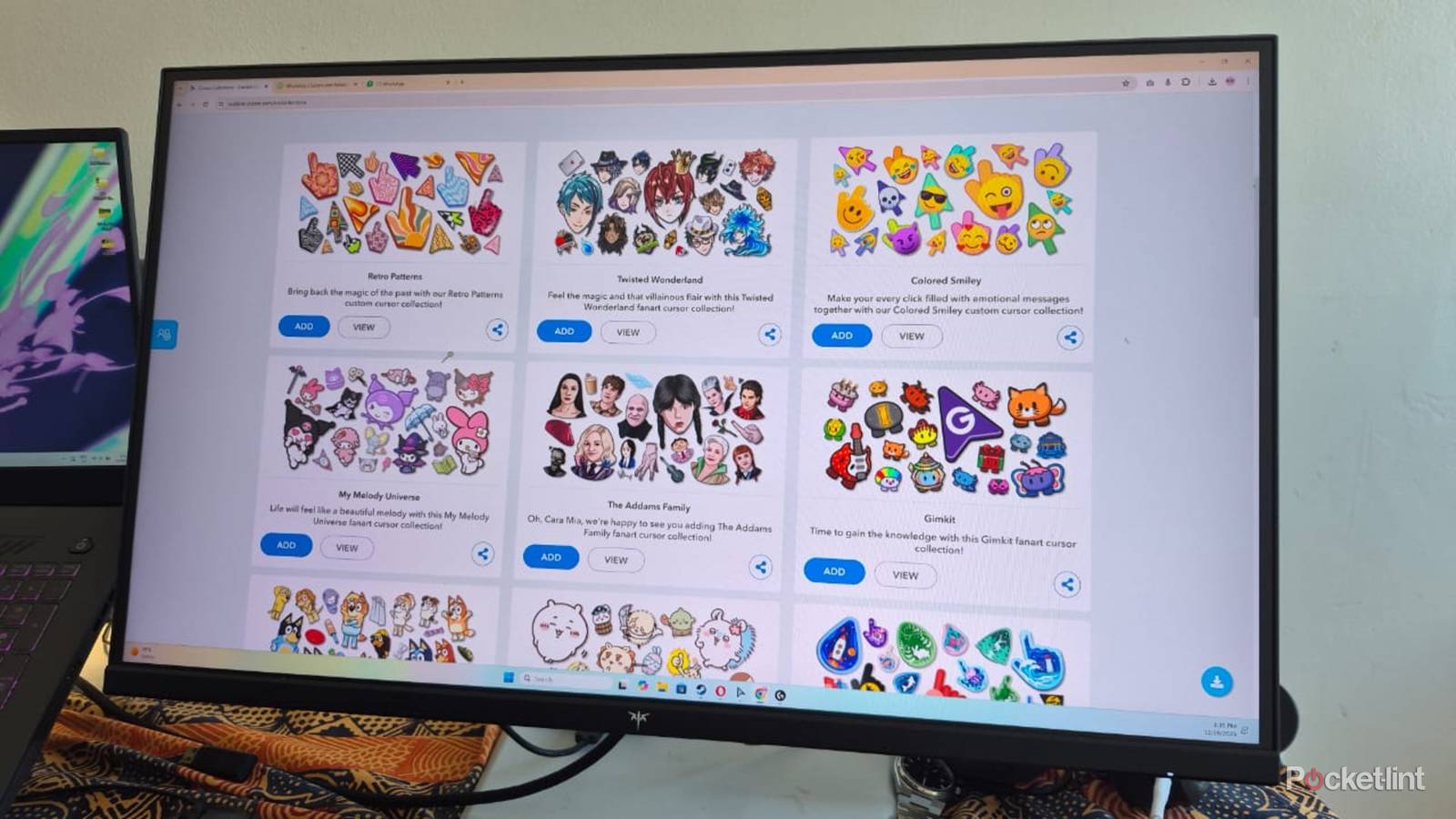
I never get tired of using Custom Cursor because of its massive range of options, split into categories, so they’re easy to find. I can browse through categories to find what I’m looking for or use the search function if I’m looking for something specific.
As a movie lover and die-hard gamer, I’m always looking for cursors to match my favorite characters and titles.
As a movie lover and die-hard gamer, I’m always looking for cursors to match my favorite characters and titles. There’s no shortage of options and the Star Wars category alone lets me choose custom blaster or lightsaber cursors from characters like Darth Maul or Yoda. If I feel like something different, I can pick cute animals or smiley faces to brighten up my day. The list is endless and there’s something for everyone.
User-friendly
Apply in seconds

I appreciate being able to apply the custom cursors with a single click or swap them for alternatives in seconds if I feel like it. This is because browsing through so many cursors can be a hit-or-miss experience, with some not translating well to real-world use because of their shape or size.
I appreciate being able to apply the custom cursors with a single click or swap them for alternatives in seconds if I feel like it.
Applying a new cursor is as easy as browsing to the one I like on the Custom Cursor website and clicking on the Add button to add it to the browser extension or desktop app. I then click on the cursor within the extension or app and click on the Apply button. Then I usually click on the Settings button to adjust the cursor to my preferred size.
Construct custom cursors
Make your own cursors

The app includes two tools to make my own custom cursors. I use the Cursor Creator to create custom options from images saved on my PC. I add the pictures I want to the Custom Cursor Creator tool, then use the built-in Remove background tool to highlight the object’s shape. After removing the background, I click on the Save button and click on Set to apply the cursor.
Custom Cursor’s Cursor Constructor feature is more user-friendly and lets me make my own from an extensive icon list.
Custom Cursor’s Cursor Constructor feature is more user-friendly and lets me make my own from an extensive icon list. I can choose between hand and arrow pointers and sort them based on collections, like Animals, Sport, or Colors, depending on my preference. After making my selection, I can click on Set to apply them or click on the Add button to install them into my Custom Cursor app library.
Create Random cursors
Have fun with surprising combinations

Sometimes I’m too lazy to search or be creative and want an exciting cursor that surprises me. The Magic 8 Ball Randomizer does the job by searching through all the options and choosing one for me to use. I click on the image of the 8-ball and the app will pick a cursor for me at random. If I don’t like the one it’s selected, I click on the refresh icon to load another one.
I click on the image of the 8-ball and the app will pick a cursor for me at random.
When I find a cursor I like, I then add it to the desktop app or extension, so I can easily find it later. I can also click on the Collection button if I want to see alternative cursors from the same collection which might be more attractive.
